Achieve ultimate concentration during your creative work with the Best Noise Cancelling Headphone for Focused Design Session. This essential tool helps graphic designers block out distractions and immerse themselves in their projects, ensuring every detail is perfect.
Looking for the best Noise Canceling Headphone for long creative sessions? Discover why the Bose QuietComfort 35 II is still one of the best choices for designers, illustrators, video editors, and remote professionals who need comfort, premium sound, and industry-leading active noise cancellation.
Best Noise Canceling Headphone for Focused Design Session
Whether you’re designing a product label, editing photos, creating logos, or working on a detailed illustration, distractions can reduce productivity. Background conversations, office noise, traffic, and household sounds make it difficult to stay focused.
A high-quality Noise Canceling Headphone can create a quieter workspace and help you concentrate for longer periods. While many newer models are available, the Bose QuietComfort 35 II continues to be a trusted option because of its comfort, reliable Active Noise Cancellation (ANC), balanced sound quality, and lightweight design.
This guide explains why the Bose QuietComfort 35 II remains an excellent choice for designers, freelancers, remote workers, students, and creative professionals in the United States.
20% OFF
Hostinger Business Hosting
Get high-speed, secure hosting for your website. Limited-time 20% discount available.
Why Every Designer Needs a Noise Canceling Headphone
Transitioning from a noisy environment to a quiet workspace can dramatically improve concentration.
Better Focus
Noise cancellation reduces surrounding sounds, making it easier to stay immersed in creative work.
Less Mental Fatigue
Constant background noise forces your brain to process unnecessary sounds. ANC minimizes these distractions, helping you stay comfortable throughout the day.
Improved Creative Flow
When interruptions disappear, you can maintain momentum while designing, editing, or brainstorming.
Better Online Meetings
The built-in microphone provides clear voice communication during client calls and team meetings.
Comfortable for Long Sessions
Soft ear cushions and a lightweight frame make extended work sessions much more enjoyable.
Transitioning to the right headphones is one of the simplest ways to create a more productive workspace.
Bose QuietComfort 35 Noise Canceling Headphone II Overview
The Bose QuietComfort 35 II has earned an outstanding reputation among professionals for delivering excellent comfort and dependable performance.
Unlike many modern headphones that focus heavily on bass, this model offers a balanced sound signature that works well for music, podcasts, videos, and conference calls.
Its lightweight construction makes it comfortable enough for all-day wear, while the premium Active Noise Cancellation technology effectively blocks distractions.
The integrated Alexa Voice Control also adds convenience by allowing hands-free commands.
The defining feature of this Noise Canceling Headphone is its exceptional ANC technology.
Office Noise Reduction
Conversations and keyboard sounds become much less distracting.
Home Environment
Television noise, kitchen activity, and family conversations are significantly reduced.
Coffee Shops
Ambient chatter fades into the background.
Airplane Travel
Engine noise becomes much quieter, making travel more relaxing.
Better Concentration
Reduced distractions allow you to focus on creative work more effectively.
Transitioning from silence to sound quality reveals another strength of these headphones.
Audio Quality
Balanced Sound
The sound profile is clear and natural without exaggerated bass.
Crisp Vocals
Voice clarity is excellent for podcasts and meetings.
Clear High Frequencies
Treble remains detailed without becoming harsh.
Controlled Bass
Bass is present but does not overpower the overall mix.
Great for Multiple Uses
These headphones perform well for music, movies, online meetings, and casual gaming.
Bluetooth Connectivity
Wireless performance remains reliable for everyday use.
Stable Connection
Bluetooth 4.1 provides dependable connectivity.
Easy Pairing
Pairing with smartphones, tablets, and computers takes only a few seconds.
Wireless Freedom
No cables clutter your workspace.
Detachable Backup Cable
A wired connection is available whenever needed.
Wide Compatibility
Works with iPhone, iPad, Android devices, and most Bluetooth-enabled computers.
Transitioning into battery performance, long-lasting power means fewer interruptions.
Battery Life
Up to 20 Hours
The battery easily supports a full workday.
Reliable Daily Performance
Most users only need to recharge every few days.
USB Charging
Charging is simple using the included USB cable.
Wired Backup
If the battery runs low, the included audio cable keeps you working.
Travel Friendly
Excellent battery life makes these headphones ideal for flights and business trips.
Alexa Voice Control
Voice control adds another layer of convenience.
Hands-Free Commands
Control music without touching your device.
Quick Information
Ask for weather updates, reminders, or timers.
Smart Home Integration
Control compatible smart devices.
Easy Navigation
Launch playlists or podcasts using voice commands.
Productivity Benefits
Small time savings throughout the day add up during busy work schedules.
Transitioning into practical use cases shows why creative professionals appreciate these headphones.
Who Should Buy the Bose QuietComfort 35 II?
Graphic Designers
Enjoy distraction-free environments while working on detailed artwork.
Video Editors
Focus on editing timelines with less background noise.
Freelancers
Improve concentration during client projects.
Students
Study more effectively in libraries or shared spaces.
Remote Workers
Stay comfortable during long video conferences.
Travelers
Reduce airplane and airport noise during business trips.
Pros
Pros
Excellent Active Noise Cancellation
Lightweight and comfortable
Up to 20-hour battery life
Balanced sound quality
Reliable Bluetooth connection
Built-in microphone
Alexa Voice Control
Foldable design
Premium carrying case included
Transitioning into value, these minor drawbacks do not significantly affect daily productivity.
Final Verdict
Choosing the right Noise Canceling Headphone can significantly improve your productivity, especially if you spend hours designing, editing, or working remotely.
The Bose QuietComfort 35 II remains one of the most comfortable and dependable wireless headphones available. It combines industry-leading Active Noise Cancellation, balanced audio, dependable Bluetooth connectivity, a comfortable over-ear design, Alexa Voice Control, and impressive battery life in a lightweight package.
Although newer headphones include additional features, the QuietComfort 35 II continues to deliver exceptional everyday performance for designers, freelancers, students, and professionals who value comfort and focus above everything else.
Also, check the recent article about the best laptop for graphic design here.

Is the Bose QuietComfort 35 II good for graphic designers?
Yes. Its excellent noise cancellation and lightweight design make it ideal for long creative sessions.
Can I use it for Zoom or Microsoft Teams meetings?
Yes. The built-in microphone provides clear voice communication.
Does it support both wireless and wired listening?
Yes. Bluetooth is available, and an audio cable is included for wired use.
How long does the battery last?
The average battery life is up to 20 hours per charge.
Is it comfortable for all-day use?
Yes. Its lightweight design and soft ear cushions are among its biggest advantages.
Does Alexa work without touching the headphones?
Yes. Alexa Voice Control allows convenient hands-free commands.
Secure your valuable creative work with the Best Portable External Hard Drive for Graphic Designers. This device offers reliable, high-capacity storage for large files, ensuring your projects are always backed up and accessible on the go. A must-have for every graphic designer’s toolkit.
Graphic design involves working with massive file types—PSD, AI, RAW, 4K video, and layered assets—which quickly consume internal drive space. Without proper storage, your workstation slows down, performance drops, and deadlines become stressful.
Why Portable Storage Beats the Cloud for Designers
Cloud storage is useful, but it depends on internet connectivity, subscription costs, and upload speeds. A portable external hard drive gives you instant, offline access to all your projects with zero delays or limitations.
Types of Portable External Hard Drives
HDD vs. SSD: Which One Should You Choose?
Hard Disk Drives (HDDs) offer higher capacities at lower prices but are bulkier and slower. Solid State Drives (SSDs) are lighter, more durable, and offer lightning-fast speeds—ideal for designers with performance demands.
When SSDs Make Sense for Designers
If you’re constantly editing large files, working off external storage, or traveling frequently, SSDs provide durability, speed, and compact size. SSDs with USB 3.1, USB-C, or Thunderbolt are highly recommended.
Key Features to Consider
Storage Capacity
Choose a drive with a minimum of 1TB if you’re working with standard design assets. Go for 2TB, 4TB, or more if your workflow includes video, 3D renders, or motion graphics. More capacity means fewer compromises.
Data Transfer Speed
Look for drives offering 500MB/s or more. SSDs like the Samsung T7 or SanDisk Extreme reach over 1000MB/s. Faster read/write speeds reduce lag when opening, saving, or transferring large files.
Durability and Ruggedness
Designers on the move need drives that can handle bumps, drops, and environmental conditions. Features like shockproof casings, rubber bumpers, and water resistance can protect your data.
Portability
A slim, pocket-sized design is ideal for mobile designers. Look for compact drives that fit easily in a laptop bag or tech case. Lighter drives reduce travel strain and fit into minimalist work setups.
Compatibility Across Devices
Choose drives that work with macOS, Windows, and possibly mobile devices. exFAT formatting or cross-platform tools allow seamless transitions. USB-C ports ensure future-proof compatibility.
Security and Encryption
Some drives come with built-in password protection or hardware encryption. If you handle sensitive client work, this layer of security ensures your files remain safe in case of theft or loss.
Top Recommendations for Graphic Designers
Lexar 2TB Armor 700 Portable SSD – Rugged Speed for Creators, Gamers, and Professionals
Experience lightning-fast data transfer with the Lexar Portable External Hard Drive, featuring impressive read and write speeds of up to 2000 MB/s. This high-performance device is perfect for professionals and enthusiasts who need to quickly access and store large files on the go.
The Lexar Armor 700 sets a new standard in portable storage with blazing read/write speeds of up to 2000MB/s. Perfect for moving large files—like 4K videos, RAW images, or game libraries—this SSD dramatically reduces wait times and increases productivity. It’s built for those who can’t afford a delay, whether you’re editing media or managing creative projects.
Massive Capacity Up to 4TB
Go beyond limits with up to 4TB of ultra-fast NVMe storage, giving you the flexibility to store your entire creative or gaming universe on one portable drive. Ideal for photographers, designers, streamers, and mobile professionals who need ample storage and high-speed access anywhere, anytime.
Rugged Protection for Real-World Use
IP66 Water and Dust Resistance
Don’t let the elements hold you back. The Lexar Armor 700 is IP66-rated, meaning it resists powerful jets of water and prevents dust ingress. It’s the ideal companion for outdoor shooting, travel, and demanding environments where data protection matters most.
Shock-Resistant and Durable Design
The shock-resistant outer shell adds another layer of protection for your data, keeping it safe even if dropped. With a rugged construction and compact profile, it’s ready for action—from your studio desk to your fieldwork backpack.
Universal Compatibility with Your Devices
Works Seamlessly with iPhone 15/16 and USB-C Devices
Thanks to its USB-C interface and USB 3.2 Gen 2×2 compatibility, the Lexar Armor 700 works effortlessly with the latest devices, including iPhone 15/16 models, iPads, and USB-C Android phones. Plug it into your mobile device to offload videos, backup photos, or edit on the go using compatible apps.
Compatible with Cameras, Laptops, Gaming Consoles & More
Whether you’re transferring from your DSLR, running PS5 games, or working on your MacBook, this external SSD is universally flexible. It supports Windows, macOS, Android, iOS, Linux, and major camera file formats. Creative professionals and gamers alike can depend on smooth, consistent performance across devices.
Designed for Mobility and Simplicity
Lightweight and Pocket-Sized for Portability
Don’t let high performance weigh you down. The Armor 700 is ultra-slim, compact, and lightweight, easily fitting in your pocket, backpack, or camera bag. It’s engineered for professionals who need to travel light but still carry serious power.
Plug-and-Play Simplicity
No software installation required. Just connect and go. Whether you’re transferring files between devices or backing up data during a shoot, the Armor 700 is ready to perform right out of the box. USB-C to USB-C and USB-C to USB-A cables are included for maximum flexibility.
Built to Empower Every Workflow
Ideal for Graphic Designers and Content Creators
Working with large design files, video assets, or layered PSDs? The Lexar Armor 700 SSD keeps up with intensive creative workflows. Launch apps faster, access files instantly, and transfer media to and from Adobe Premiere Pro, Photoshop, Illustrator, or DaVinci Resolve without bottlenecks.
Game-Changer for Console and PC Gamers
Expand your gaming library with high-speed external storage. Compatible with PlayStation 5, Xbox Series X/S, and gaming PCs, it lets you store and launch your games quickly—minimizing load times and maximizing fun.
Durability: IP66 water & dust resistant, shockproof
Dimensions: Approx. 95mm x 55mm x 15mm
Weight: Approx. 110g
Color: Dark Blue
Included Cables: USB-C to USB-C and USB-C to USB-A
What’s in the Box?
Package Contents
Lexar Armor 700 Portable SSD
USB-C to USB-C Cable
USB-C to USB-A Cable
Quick Start Guide
3-Year Limited Warranty
Why Customers Love the Lexar Armor 700 SSD
Reliable, High-Speed Performance
Thousands of professionals trust Lexar for secure, fast data handling. Whether you’re backing up shoots or transferring high-res graphics, this SSD delivers uncompromising speed and reliability.
Durable Build for On-the-Go Use
Professionals love the rugged construction that keeps data protected, even in unpredictable conditions. The waterproof, dustproof, and shock-resistant shell offers peace of mind wherever you go.
Versatility and Simplicity
From phones to gaming consoles, the Armor 700 is ready to plug in and perform. It’s the perfect blend of speed, durability, and capacity in one sleek package.
This Lexar Portable External Hard Drive stays cool even at blazing-fast speeds of up to 2000 MB/s, making it a reliable choice for professionals who require high performance and durability.
Final Verdict
If you’re a creative professional, gamer, or anyone who demands fast, reliable storage on the go, the Lexar Armor 700 Portable SSD is a must-have. With capacities up to 4TB, ultra-fast 2000MB/s transfer speeds, and a rugged IP66-rated exterior, it’s built to thrive in fast-paced, high-stakes environments. Whether you’re editing 4K footage, running large design files, or expanding your console storage, the Armor 700 delivers performance and protection in one beautiful, compact device.
How to Use Your Portable Drive Effectively
Working Directly from the Drive
Many designers run Adobe software directly from the external drive. With fast SSDs, editing from external storage is seamless. This also prevents cluttering your internal SSD.
Archiving Projects and Versions
Use your portable drive to archive completed projects, backup versions, and unused assets. This declutters your system while ensuring you retain older work for future reference.
Setting Up Automated Backups
Tools like Time Machine (Mac) or File History (Windows) allow you to automate backups. Syncing files regularly helps protect against sudden system crashes or data loss.
Maintenance Tips and Best Practices
Safely Eject and Store Properly
Always eject the drive safely to prevent file corruption. Store it in a padded case or anti-static pouch to protect it from dust and damage.
Monitor Drive Health Regularly
Use built-in utilities or third-party software to check drive health. If performance declines or errors increase, replace it before it fails completely.
Organize File Structure for Speed
Keep your folders clean and clearly named. Avoid excessive nesting, which slows down indexing and searching. Use a consistent naming system to find files quickly.
When to Upgrade or Replace
Signs Your Drive is Slowing Down
If you’re noticing lag when opening files or frequent disconnection messages, it’s time to consider an upgrade. SSDs degrade over time and may slow without warning.
Scaling Storage with Your Workflow
As your client base and file library grow, consider multiple drives: one for active projects, one for backups, and one for archives. This segmentation boosts organization and security.
The Role of External Drives in Modern Creative Workflows
Freedom to Create Anywhere
A portable external hard drive lets you work in coffee shops, studios, or even while traveling. With your entire design library in your bag, you’re free from the constraints of cloud speed or internet access.
Peace of Mind and Professionalism
Clients expect reliability. A robust backup and storage system shows you take your work seriously. It also protects your reputation from lost files or delayed deliverables.
Final Verdict
Choosing the Right Drive
Graphic designers need more than just storage—they need speed, security, portability, and durability. The best portable external hard drive should match your workflow, file size needs, and travel habits. SSDs like the Lexar Armor 700 SSD is the top picks for performance and reliability, while HDDs like WD My Passport Ultra can be a good backup solution for less critical data.
Investing in Your Workflow
Don’t treat your external drive as an afterthought. It’s one of the most vital parts of your toolkit—just like your laptop, tablet, or stylus. By investing in the right one, you boost productivity, protect your work, and prepare yourself for long-term creative success.
Also, check the recent article about the best laptop for graphic design here.

Enhance your late-night work with the best Desk Lamps for Graphic Designers.
Why Late-Night Designers Need Specialized Desk Lamps
Working late hours in a dim or poorly lit environment can lead to eye strain, color misjudgment, and fatigue—issues that directly affect a graphic designer’s output. The right desk lamp is essential for maintaining visual comfort, color accuracy, and productivity when natural light isn’t available.
For designers burning the midnight oil, lighting should mimic daylight, offer high color fidelity, and be gentle on the eyes—without sacrificing style or desk space.
What to Look for in a Late-Night Desk Lamp
Adjustable Color Temperature for Nighttime Comfort
A lamp with a range between 2700K (warm) to 6500K (daylight) lets you shift between soft evening lighting and color-accurate brightness depending on your task and time of night.
High CRI for Accurate Color Perception
A CRI (Color Rendering Index) of 90 or above ensures you see colors as they truly are—critical when reviewing branding, packaging, or print work in artificial light.
Flicker-Free, Low-Glare Illumination
Continuous lighting technology helps prevent eye fatigue and headaches from prolonged exposure, especially important when working on high-detail projects.
Touch Controls and Presets
Convenient touch panels with memory functions allow you to quickly switch between warm night light and bright color-correct light without disrupting your workflow.
Sleek, Flexible Design
A slim profile with adjustable arms, rotating heads, or clamp mounts is ideal for compact workstations, offering targeted lighting exactly where you need it.
Top Desk Lamps for Late-Night Graphic Designers:
1. EYOCEAN 31.5″ Wide 24W Desk Lamp: A Game-Changer for Graphic Designers
Designed for Complete Desk Coverage
This lamp features a 31.5-inch ultra-wide LED light bar, engineered to cast uniform, glare-free illumination across your entire workstation. From your tablet and sketch pad to dual monitors and color swatches, nothing gets left in the dark.
The wide reach eliminates the need for additional lighting, reducing clutter and helping you stay immersed in your design environment.
Bright, Customizable Light for Every Task
With 24 watts of power output, the EYOCEAN lamp is one of the brightest in its category—perfect for high-precision tasks like retouching images or reviewing printed proofs.
Thanks to dimmable brightness settings and adjustable color temperature (ranging from 3000K to 6500K), you can create the exact lighting conditions your work demands—whether it’s warm and cozy for sketching or cool and crisp for color editing.
At 3000K, the light is soft and soothing, ideal for relaxing your eyes during late-night brainstorming. At 6500K, you get sharp, daylight-equivalent illumination for detailed design review and accuracy.
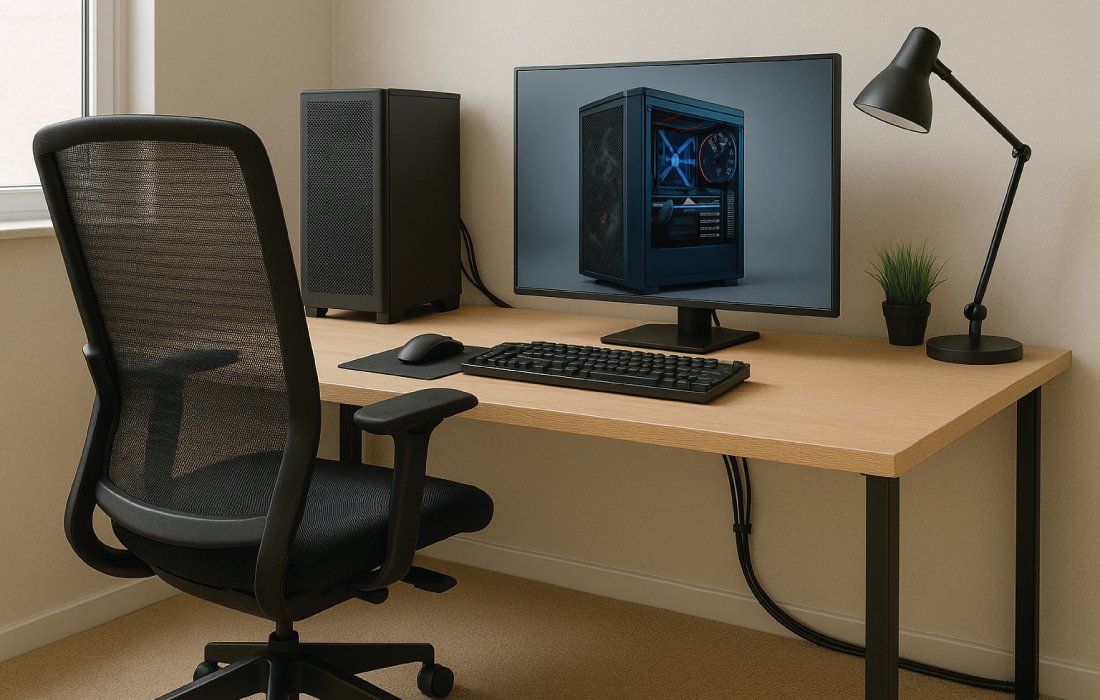
Optimize your workspace with the latest “Desk Lamps for Graphic Designers.” This image showcases a sleek, modern desk lamp providing optimal lighting for a multi-monitor setup, which is essential for detailed design work. The lamp’s design minimizes glare and eye strain, making it an ideal choice for graphic designers and digital artists.
Gesture Sensing Technology: Designed for Creative Flow
Interrupting your design flow just to adjust a lamp can be annoying—especially when your hands are busy sketching or editing. That’s why the EYOCEAN lamp integrates smart gesture-sensing controls.
With just a wave of your hand, you can:
Turn the lamp on or off
Adjust the brightness
Avoid fingerprints on the control panel
This feature is especially helpful during nighttime work when you want to make quick adjustments without fumbling for buttons or disrupting your creative rhythm.
Eye-Caring and Flicker-Free for Extended Work Sessions
Late-night work often means staring at screens for hours. The EYOCEAN lamp uses advanced LED technology combined with an optical light guide panel, providing:
Flicker-free, uniform illumination
Reduced glare and shadow
Natural lighting that minimizes eye fatigue
The lamp also helps balance the light between your screen and surrounding environment—reducing the contrast strain that’s common during long hours of computer work.
Clamp-Mount Design: Maximize Your Workspace
Unlike bulky desk lamps that eat up valuable desk real estate, the EYOCEAN light features a sturdy clamp mount. You can attach it securely to the back or side of your desk, freeing up space for sketchbooks, tools, and gear.
This feature is a huge bonus for minimalist workstations or smaller studio setups where every inch matters.
CRI Above 90: Color Accuracy You Can Trust
As a graphic designer, color is your language. The EYOCEAN lamp delivers a Color Rendering Index (CRI) above 90, ensuring the colors you see on paper or screen are as true-to-life as possible.
Whether you’re prepping files for print or working on branding palettes, this level of color fidelity ensures your late-night work holds up under daylight review.
Built to Last: Durability Meets Design
Crafted from high-quality aluminum alloy and ABS plastic, the EYOCEAN desk lamp is both sleek and durable. It complements modern office aesthetics while being tough enough for daily, long-hour use.
The LED panel is rated for 50,000+ hours, giving you years of reliable performance—without ever needing to change a bulb.
This lamp features a glare-free, contactless switch and adjustable height, perfect for graphic designers.
20% OFF
Hostinger Business Hosting
Get high-speed, secure hosting for your website. Limited-time 20% discount available.
Designed for modern creatives and late-night professionals, the EYOCEAN ultra-wide LED desk lamp combines high-end functionality with advanced eye protection features. Below are the key technical details of this designer-friendly light.
Lamp Dimensions and Build
Lamp Width: 31.5 inches (80 cm)
Material: Crafted from durable aluminum alloy and high-quality ABS plastic for strength and heat dissipation
Mount Type: Space-saving clamp base that attaches to desks up to 2.1 inches thick
Weight: Approx. 3.1 lbs (1.4 kg)
Arm Design: Adjustable swing arm for height and angle flexibility
Power and Light Output
Power Consumption: 24 watts
Light Output: Approx. 1100 lumens (bright enough for large workspaces or dual monitors)
Energy Efficiency: Low power usage with high brightness, perfect for all-day use without racking up your electricity bill
Color and Brightness Control
Brightness Settings: Stepless dimming plus 5 preset levels for quick selection
Color Temperature Range: 3000K to 6500K, offering warm to daylight-white lighting
Lighting Modes: Cool light for clarity, warm light for comfort, and multiple mixed settings to reduce eye strain
Eye-Friendly Features
Anti-Glare Optics: The lamp uses an asymmetrical lighting system that brightens your workspace without reflecting light onto your monitor
Flicker-Free Technology: Consistent light without any flickering, making it suitable for long sessions
Blue Light Reduction: Helps minimize digital eye strain and protects visual focus during night hours
Smart Controls
Gesture Control: Some models support wave-to-turn-on/off and brightness adjustment via motion sensing
Touch Panel: Sleek control panel with intuitive touch buttons for brightness and temperature
Remote Control: Available in certain packages for wireless convenience
Memory Function: Remembers your last lighting setting after shutoff
Timer Feature: Built-in auto-off timer for energy-saving during late hours
Voltage and Compatibility
Input Voltage: 24V with included power adapter
Safety Note: Designed for indoor, dry-use environments only
Take control of your lighting with EyOcean smart Desk Lamps for Graphic Designers. This image details the intuitive control panel and infrared sensor, allowing you to precisely adjust brightness, color temperature, and set timers. These advanced features provide the perfect lighting environment for long hours of detailed work, making them an essential tool for any graphic designer’s desk.
Why It’s Ideal for Graphic Designers
Extra-Wide Light Coverage: Perfect for illuminating large drawing areas, sketchpads, or side-by-side monitors
Color-Accurate Lighting: With full spectrum color temperature control, you get lighting that reflects real-world tones—a must for accurate design work
Desk-Friendly Clamp: Saves valuable desk space while keeping the lamp firmly in place
Low Glare on Screens: Works well for both hand-drawn work and digital art by eliminating distracting reflections
2. Micomlan Architect Desk Lamp with Atmosphere Lighting – 24W Adjustable LED Light for Workstations
Bright and Wide Coverage for Pro-Level Workspaces
With 24 watts of high-intensity LED light, the Micomlan desk lamp provides exceptional brightness without harsh glare or hot spots. Its extended horizontal light bar ensures that even large desks, dual monitors, or workbenches are fully illuminated.
Whether you’re working with physical sketches or a digital display, the lamp evenly spreads the light so your eyes don’t have to struggle between bright and dim zones. It’s ideal for those who multitask across various mediums or tools.
The light distribution is tailored for zero shadow interference and minimal screen reflection—an absolute must for those working on precision-based visual tasks.
Adjustable Color Temperature and Brightness
One of the biggest advantages of the Micomlan desk lamp is its customizable color temperature, which ranges from a soft, warm 3000K to a crisp, cool 6500K. This flexibility means you can easily match the lighting to your task, your time of night, or your personal preference.
Use warmer tones when sketching, ideating, or winding down, and switch to cooler tones for digital color corrections or layout work where accuracy is key. The lamp also includes stepless dimming, allowing you to fine-tune the brightness to any level—not just preset steps—giving you full control over your environment.
This desk lamp features a 45-degree angled design to illuminate your workspace without causing glare, perfect for graphic designers.
Auto-Dimming for Smart Night Work
What sets this lamp apart is its auto-dimming sensor technology. The built-in light sensor reads the surrounding ambient light and adjusts brightness accordingly to maintain optimal working conditions.
This is especially valuable when working late, as external lighting conditions may vary, and your eyes can quickly become fatigued from too much or too little light. The auto-dimming function ensures that the light stays comfortable, consistent, and responsive to your real-time needs.
Swing Arm and Multi-Angle Rotation
Flexibility is vital for creative work. The rotatable swing arm on the Micomlan lamp offers multi-angle adjustability, so you can direct light exactly where you need it—whether over your keyboard, sketch pad, monitor, or drawing tablet.
It includes a base-mounted pivot, a jointed arm, and a tilting head, making it easy to adapt the lamp to your setup. You can extend it for wide light coverage or fold it down for focused task lighting.
This level of maneuverability makes it ideal for multitasking across your desk or adjusting the light quickly between different creative tools.
Built-In Atmosphere Lighting
Late-night design sessions often benefit from more than just task lighting. The atmosphere light mode on this lamp adds soft, ambient backlight that enhances the workspace without over-stimulating your eyes.
This secondary light is perfect for maintaining a calm, immersive atmosphere while avoiding eye strain caused by stark contrasts between your screen and surroundings. It also adds a stylish glow to your studio, making your space feel more inviting and modern.
For those who work in long, uninterrupted sessions, this ambient feature helps maintain comfort and reduce visual fatigue.
This fully adjustable desk lamp is perfect for graphic designers, providing versatile lighting for both screens and physical documents.
Stable Base for Compact Spaces
Unlike clamp-mount lamps that require edge space, this version of the Micomlan Architect Lamp comes with a weighted base. It sits securely on your desk without wobbling and doesn’t damage your tabletop surface.
The base is space-efficient and ideal for setups where clamp mounting isn’t possible. It holds the lamp steady, even when fully extended, and adds a clean, minimalist profile to your workspace.
Eye-Caring and Flicker-Free Design
Extended screen exposure and poor lighting conditions can lead to headaches, eye fatigue, and blurred vision. That’s why the Micomlan lamp is equipped with flicker-free technology and a glare-reduction panel.
The light it produces is soft and uniform, reducing strain during long hours of design work. It also minimizes blue light exposure at high brightness settings, making it safer for night use.
Whether you’re editing for hours or fine-tuning intricate illustrations, this eye-friendly design ensures your vision stays protected.
Built to Last with Modern Styling
Constructed with high-grade aluminum and durable plastic, the Micomlan lamp is built for long-term use and repeated adjustments. The joints and hinges are reinforced to prevent sagging over time.
Its modern aesthetic blends perfectly with contemporary workspaces, whether in a professional studio or home office. With its matte black finish, sleek lines, and functional shape, it adds a professional touch to any creative environment.
Who Will Benefit Most
This lamp is perfect for late-night graphic designers who need powerful, customizable lighting to match their workflow. It’s also great for illustrators, animators, architects, CAD designers, and content creators who rely on consistent and accurate lighting throughout the night.
Freelancers working from compact home studios will appreciate the compact base and multi-functional design. Professionals using dual monitors or tablets will love the lamp’s width and maneuverability.
Students and entry-level designers on a budget can view this lamp as a smart investment that improves comfort and boosts work quality without breaking the bank.
This adjustable lamp provides broad, even lighting for a dual-screen setup, perfect for graphic designers.
When comparing these two desk lamps, both offer excellent lighting for long graphic design sessions, but their strengths differ based on your personal needs and workspace setup.
Choose EYOCEAN if:
You work with multiple monitors or large drawing tablets.
You need ultra-wide light coverage across your desk.
You prefer a clamp-mount for saving desk space.
You want gesture control for easy hands-free use.
You care more about function over aesthetics.
This lamp is clearly built for productivity-focused professionals who want consistent, bright, glare-free illumination for serious, detail-heavy design work.
Choose Micomlan if:
You want more flexibility in lamp movement and placement.
You like having an atmospheric lighting option that feels cozy.
You prefer auto-dimming technology to reduce eye fatigue over time.
You value a portable, base-mounted design.
Aesthetic ambiance is as important to you as brightness.
Micomlan’s offering is best for creative thinkers who want a lamp that adapts to mood, comfort, and ergonomics without compromising on brightness.
Conclusion
Both the EYOCEAN 31.5″ Wide 24W Desk Lamp and the Micomlan Architect Desk Lamp offer excellent lighting solutions for late-night graphic designers. The EYOCEAN shines with its ultra-wide coverage and space-saving clamp, perfect for large desks and multi-monitor setups. Meanwhile, the Micomlan offers flexible positioning, auto-dimming, and soothing atmosphere lighting, ideal for those seeking comfort and ambiance. Your choice depends on whether you prioritize broad, bright task lighting or versatile, mood-enhancing illumination. Either way, investing in quality lighting will protect your eyes and boost productivity during late-night creative sessions.
If your priority is wide, stable, task-focused lighting—go for the EYOCEAN. If you lean toward comfort, flexibility, and ambiance—choose the Micomlan.
Also, check the recent article about the best laptop for graphic design here.
Which lamp is better for large workspaces or dual monitors?
The EYOCEAN lamp has a wider 31.5″ light bar, providing excellent coverage for large desks and multiple screens, making it ideal for expansive workstations.
Can I adjust the color temperature on both lamps?
Yes, both lamps offer adjustable color temperatures ranging from warm (around 3000K) to daylight (up to 6500K) to suit different tasks and moods.
Does the Micomlan lamp have ambient lighting?
Yes, the Micomlan includes built-in atmosphere lighting to create a soft, calming glow that reduces eye strain during long sessions.
Are these lamps suitable for reducing eye strain?
Both feature flicker-free LED technology and glare reduction designed to protect your eyes during extended work hours.
Which lamp is more portable?
The Micomlan has a weighted base, allowing easy repositioning on your desk, whereas the EYOCEAN uses a clamp mount that stays fixed to your desk edge.
Do they have smart controls?
The EYOCEAN offers gesture control and memory functions, while the Micomlan includes auto-dimming sensors and touch controls for convenient adjustment.
The ultimate showdown: Canva vs. Figma vs. Adobe. As we look to 2025, which design platform will emerge victorious? Each offers unique strengths for various design needs. What are your predictions for the future of design tools?
Canva vs. Figma vs. Adobe- In 2025, the world of graphic design is more competitive and technologically advanced than ever before. With an ever-growing list of tools available to designers, three platforms continue to dominate the conversation: Canva, Figma, and Adobe Creative Cloud (primarily Photoshop, Illustrator, and XD). Each offers unique strengths, caters to different audiences, and continues to evolve rapidly.
So which one truly wins in 2025? The answer isn’t one-size-fits-all. It depends on your goals, skill level, and use case. Let’s break down these platforms across various dimensions: :
What Are Canva, Figma, and Adobe?
Canva: Design for Everyone
Canva was launched in 2013 with a mission to democratize design. Built as a simple, browser-based editor, it quickly gained popularity among non-designers. By 2025, Canva has evolved into a robust design suite that serves content creators, marketers, educators, and even small businesses.
Thanks to features like drag-and-drop functionality, thousands of templates, stock assets, and built-in branding kits, Canva has become a one-stop solution for creating social media posts, presentations, infographics, and short videos. Recently, AI tools like Magic Design, Magic Write, and text-to-image generators have enhanced its appeal further.
Figma: Collaborative Design Reimagined
Figma entered the scene in 2016 and disrupted the design space with its real-time, collaborative editing. Built for UI/UX design, Figma is fully browser-based and highly flexible, making it an instant hit among product teams, developers, and startups.
In 2025, Figma continues to be the de facto choice for web and app designers, offering features like auto layout, advanced prototyping, reusable design systems, and a growing library of plugins. The introduction of Figma AI and enhanced developer handoff tools has further cemented its place as a professional-grade digital product design platform.
Adobe Creative Cloud: The Industry Standard
No discussion about design software is complete without Adobe. With over three decades of history, Adobe’s Creative Cloud suite is still the most comprehensive offering for creative professionals. Tools like Photoshop, Illustrator, InDesign, and XD cater to everything from photo editing and vector illustration to print publishing and UI design.
By 2025, Adobe remains the gold standard for professional design work. With the integration of Adobe Firefly (its AI toolkit), features like smart background removal, neural filters, and AI-driven content-aware fills make powerful tasks easier to execute. However, Adobe’s steep learning curve and premium pricing still pose challenges for beginners and freelancers.
The Role of AI Integration in 2025
As artificial intelligence continues to revolutionize nearly every industry, its impact on graphic design software has become undeniable. From automating repetitive tasks to generating complete design compositions, AI plays a critical role in the evolution of Canva, Figma, and Adobe.
Canva: AI-Powered Simplicity for All
Canva’s integration of AI has transformed it into one of the most intuitive and efficient design tools for non-professionals. In 2025, Canva continues to lead the charge in AI-assisted design for beginners. Notable AI-powered features include:
Magic Design: Users can simply describe the type of design they want, and Canva generates multiple layout options instantly.
Magic Write: A copywriting AI that helps users draft headlines, captions, and content directly within the editor.
Text-to-Image: Based on user prompts, Canva generates custom images using AI-powered image synthesis.
Auto-adjustment and smart alignment: Elements within a design are automatically aligned, color-matched, and resized based on AI predictions.
Brand Voice Matching: Canva can mimic tone and style from previous content to ensure consistency across materials.
Presentation Enhancer: Automatically suggests slide transitions, image placements, and content flow for better storytelling.
Canva’s goal is to take the thinking out of design. With these AI features, small business owners and marketers can produce brand-consistent, engaging content in minutes.
Figma has embraced AI in a way that complements its collaborative DNA. By 2025, Figma AI is deeply embedded into the design and development pipeline. Key innovations include:
Auto Layout 3.0: Figma AI understands responsive behavior and automatically suggests layout adjustments for multiple screen sizes.
Design System Suggestions: Figma suggests styles, components, and spacing rules from an organization’s design system as designers work.
Smart Prototyping: AI anticipates user interaction flows and helps speed up the prototyping phase.
Plugin Enhancements: Figma’s plugin ecosystem has grown with AI tools for accessibility checks, visual hierarchy analysis, and even brand compliance enforcement.
Live Feedback AI: Provides real-time suggestions during design reviews and flags potential usability issues.
Contextual Code Recommendations: Helps bridge the gap between design and development by offering code-ready suggestions for frontend components.
Figma’s AI doesn’t just automate tasks—it enhances creative decision-making, especially in teams working on user interfaces or product design.
Adobe: Professional Control Enhanced by Firefly AI
Adobe has taken AI integration to a more sophisticated level, embedding it across almost every application in the Creative Cloud suite. In 2025, the Adobe Firefly engine enables:
Text-to-Image and Vector: Designers can generate high-resolution images and scalable vectors from text prompts in Photoshop and Illustrator.
Neural Filters: AI-driven filters allow for facial expression changes, skin smoothing, and lighting adjustments—all with sliders.
Generative Fill: Photoshop users can now select any part of an image and have the AI fill it with matching content seamlessly.
AI Brush Tools: Automatically detect and select objects, people, or backgrounds for editing.
Font Matching & Generation: Detect and replicate typography from any image or style.
3D Asset Generation: Generate photorealistic 3D models from sketches or prompts, ready for use in AR/VR content.
Adobe’s AI focuses on augmenting the skillset of professionals rather than replacing their creative input. It’s built for precision, making it ideal for artists, photographers, and advanced graphic designers who require full creative control.
Exploring the cutting-edge of design: AI integration across Canva vs. Figma vs. Adobe. This image visualizes how artificial intelligence is becoming a core component of these leading creative platforms, enhancing everything from automation to content generation. Which platform’s AI capabilities do you find most impactful?
Comparing AI Use Cases: Canva vs. Figma vs. Adobe
Feature/Function
Canva AI
Figma AI
Adobe Firefly AI
Text-to-Image
Basic, social media-focused
Limited
High-quality, customizable
Copywriting Assistance
Yes (Magic Write)
No (plugins available)
Limited (Adobe Express only)
Smart Layout Suggestions
Yes
Yes (Auto Layout 3.0)
No
Object Recognition & Editing
No
Limited (plugins required)
Yes (Photoshop, Illustrator)
Workflow Integration
Seamless for casual users
Deep integration for teams
Advanced, but complex
Font Matching/Creation
No
Limited (via plugins)
Yes (Adobe Firefly)
Live Collaboration
Basic (real-time updates)
Fully collaborative
Limited (Adobe XD, CC Libraries)
3D/AR Content Creation
No
No
Yes (Substance 3D, Firefly)
20% OFF
Hostinger Business Hosting
Get high-speed, secure hosting for your website. Limited-time 20% discount available.
The debate continues—will AI replace designers or simply make them more powerful? In 2025, the answer leans toward augmentation rather than replacement.
For beginners and entrepreneurs, AI tools like Canva’s Magic Design reduce barriers to entry.
For teams and developers, Figma’s AI fosters more productive and consistent design work.
For professionals and artists, Adobe’s AI expands what’s creatively possible while retaining full manual control.
Ultimately, the integration of AI across all three platforms shows one thing clearly: AI is not eliminating creativity; it’s reshaping how we achieve it.
The Verdict on AI Integration in 2025
AI has fundamentally reshaped the graphic design landscape. Each platform—Canva, Figma, and Adobe—has taken a unique path in implementing artificial intelligence, based on their audiences and core missions.
Canva wins in ease and speed for casual users through highly automated AI features.
Figma excels in team-based, UI/UX-specific tasks with intelligent, predictive assistance.
Adobe dominates in complexity, offering unmatched creative freedom powered by sophisticated AI tools.
This chart illustrates the level of AI integration across three popular design tools: Adobe (80% – Very Good), Figma (70% – Good), and Canva (65% – Moderate). It provides a quick visual comparison for users considering Canva vs. Figma vs. Adobe based on their AI capabilities.
Key categories:
1. Usability and Learning Curve
Canva: In 2025, Canva remains the most user-friendly design tool on the market. It is built for non-designers and beginner-level creatives. Its drag-and-drop interface, pre-built templates, and simplified toolset allow users to create social media graphics, presentations, and even basic videos with ease. Learning Canva takes just minutes, making it ideal for small business owners, content creators, and students.
Figma: Figma strikes a balance between professional power and accessible design. While it’s slightly more complex than Canva, its UI remains intuitive. New features added in 2024 and 2025, such as advanced auto-layout and smart design systems, have made the platform even easier for UX/UI designers to work efficiently. A basic understanding of design principles is recommended, but not required.
Adobe: Adobe Creative Cloud tools are the most powerful, but also the most complex. Photoshop, Illustrator, and XD offer deep functionality and professional-grade features, but the learning curve is steep. In 2025, Adobe has tried to simplify its UX with tutorials and AI-powered assistants, but it still takes time to master these tools.
This visual guide compares the usability and learning curve of Canva vs. Figma vs. Adobe. Canva is ideal for beginners due to its simplicity, Figma suits intermediate users, while Adobe products generally present a steeper learning curve.
2. Collaboration and Cloud Features
Canva: Canva has significantly improved its team collaboration features. In 2025, real-time collaboration, commenting, brand kits, and shared folders are standard for Pro users. It’s great for marketing teams and startups who need quick approvals and fast turnarounds.
Figma: Figma remains the gold standard for collaboration. Multiple users can edit a file simultaneously, leave comments, and manage design systems in real-time. Its browser-based nature makes it platform-independent. In 2025, with Figma Spaces and improved version control, it’s even better for large-scale product teams.
Adobe: Adobe has made strides in collaborative workflows with Adobe Cloud Documents and Coediting in XD. However, collaboration still feels a bit clunky compared to Figma. Files are large, and version control can be tricky.
This visual breaks down the collaboration and cloud features across Canva vs. Figma vs. Adobe. Figma stands out with robust collaboration capabilities, while Canva and Adobe appear to have limitations in this regard, as indicated by the ‘X’ marks.
3. Features and Capabilities
Feature
Canva
Figma
Adobe
Ease of Use
Extremely user-friendly, drag-and-drop.
User-friendly, but requires some learning.
Steep learning curve; powerful but complex.
Design Templates
Thousands of customizable templates.
Focused on UI/UX templates, prototyping.
Extensive templates for print, web, and mobile.
Collaboration
Limited collaboration in the free version.
Real-time collaboration for teams.
Limited collaboration (Adobe XD is better for this).
Customization & Flexibility
Limited; basic customization options.
Highly customizable, ideal for UI design.
Highly flexible with full control over every aspect.
AI Features
Magic Design, Magic Write, Text-to-Image.
Limited AI features, plugins available.
Adobe Firefly (advanced AI-powered tools).
Prototyping
Basic, not as advanced as Figma.
Advanced interactive prototyping.
Advanced in Adobe XD (part of Creative Cloud).
Integration with Other Tools
Limited integrations (Google Drive, Slack).
Strong integration with other design tools.
Comprehensive integration with all Adobe apps.
Stock Assets
Access to stock photos, illustrations, videos.
Limited to user-uploaded assets or external libraries.
Extensive stock assets in Adobe Stock.
Platform Availability
Web-based, mobile app.
Web-based, with desktop app for offline use.
Desktop apps for macOS, Windows (Cloud-based for syncing).
This chart outlines the distinct features and capabilities when comparing Canva vs. Figma vs. Adobe. Figma is highlighted for its strengths in UI/UX design, while Adobe is recognized for its powerful, advanced functionalities. Canva, while user-friendly, has fewer advanced features in comparison.
Canva: Canva excels in simplicity but lacks depth. It’s ideal for creating marketing visuals, quick edits, and presentations. In 2025, AI-powered tools like Magic Design and AI text-to-image have enhanced its capabilities, but professional designers may still find it limiting.
Figma: Figma is built for UI/UX design and prototyping. It handles wireframes, responsive design, and design systems incredibly well. With new plugin ecosystems and built-in AI assistance in 2025, Figma is more powerful than ever. However, it doesn’t replace Photoshop or Illustrator for graphic-heavy work.
Adobe: Adobe wins when it comes to depth. Photoshop and Illustrator are unmatched in image editing, vector design, and complex graphic creation. Adobe’s AI tool “Firefly” now powers smart object selection, text-to-image, and content-aware fills more efficiently than ever.
4. Pricing and Accessibility
Canva: Canva offers a generous free plan with thousands of templates. The Pro plan is reasonably priced and offers great value for small teams. In 2025, Canva also provides tailored solutions for educators and nonprofits.
Figma: Figma has a free tier for individuals and small teams. The Professional and Organization plans add advanced collaboration and team management tools. It’s cost-effective for startups and design teams.
Adobe: Adobe is the most expensive of the three. Its subscription model requires payment per app or for the full Creative Cloud suite. Although students and educators get discounts, it can be a barrier for freelancers and small businesses.
Winner: Canva (most affordable), Figma (best value for mid-level teams)
5. Target Audience
Canva: Best for content creators, social media managers, entrepreneurs, teachers, and beginners who need quick, beautiful designs without complexity.
Figma: Tailored for product designers, UX/UI professionals, app/web developers, and teams focused on digital products and interactive design.
Adobe: Designed for professional graphic designers, illustrators, photographers, and visual artists who need industry-standard tools and advanced capabilities.
Winner: It depends on your role. Canva for non-designers, Figma for UX, Adobe for high-level creatives.
6. Community and Ecosystem
Canva: In 2025, Canva’s community is massive. With thousands of free templates, an active marketplace, and user-generated content, there is plenty of inspiration and plug-and-play content available.
Figma: Figma boasts a strong developer and designer community. Its plugin ecosystem and community file library continue to grow. Hackathons, webinars, and free resources are plentiful.
Adobe: Adobe still leads with the richest ecosystem, spanning decades. Behance integration, Adobe Stock, and a global user base provide endless inspiration and collaboration opportunities.
Winner: Adobe (for legacy and reach), Figma (for innovation and accessibility)
Conclusion: So, Which One Wins in 2025?
There isn’t a single “winner” because each platform has its niche:
Canva wins for accessibility, affordability, and speed.
Figma wins for collaboration, UI/UX design, and cloud functionality.
Adobe wins for professional-grade design, depth, and creativity.
But AI is reshaping the battlefield. The 2025 design tool war is no longer just about features—it’s about how seamlessly AI enhances productivity and creativity.
AI Progress in 2025: Who Leads?
Adobe stands at the top when it comes to advanced, high-quality AI capabilities. With Firefly embedded across its apps, Adobe allows professionals to push creative boundaries in ways previously unimaginable.
Figma leads in predictive design and intelligent collaboration, enabling faster prototyping and consistent design systems at scale—ideal for fast-moving product teams.
Canva continues to democratize design, using AI to eliminate guesswork for everyday users. It’s now so efficient that entire brand kits, social campaigns, and presentations can be auto-generated with a few prompts.
Designers Win Either Way
The AI race among Canva, Figma, and Adobe is driving innovation at a breakneck pace. This competition has empowered designers of all levels:
Newbies can dive into design with AI-driven assistance.
Teams can design faster and smarter.
Experts can unlock creative freedom with tools once deemed impossible.
Final Thought
In the end, the best design tool in 2025 is the one that fits your workflow, team dynamics, and creative goals. Whether it’s Canva’s accessibility, Figma’s collaboration, or Adobe’s depth, every designer stands to gain from the advancements AI has brought into these platforms.
So, while there may not be a single winner—in 2025, designers are the real champions.
Also, check the recent article about the best laptop for graphic design here.
What are the key differences between Canva, Figma, and Adobe?
The primary differences between these tools lie in their intended use cases and user base. Canva is designed for speed and simplicity, making it ideal for quick, visually appealing designs. It’s popular among non-designers, small business owners, and individuals who need to produce content for social media, marketing, and presentations. In contrast, Figma focuses on the design and prototyping needs of UI/UX designers. It is especially valuable for collaborative projects and allows real-time teamwork on design elements, which is crucial for web and app development teams. Adobe, on the other hand, is the industry standard for high-quality, professional design. With tools like Photoshop, Illustrator, and InDesign, it provides an extensive range of advanced design features that cater to graphic designers, illustrators, photographers, and print professionals.
Which platform is best for collaboration?
Figma takes the lead when it comes to collaboration. As a web-based tool, it allows multiple team members to work on the same design project in real-time, making it an excellent choice for teams working remotely or in different locations. It’s particularly popular among UI/UX designers, who need to iterate and gather feedback quickly from clients or team members. Figma’s collaborative features are also enhanced by its version control and commenting system, ensuring that everyone can track changes and provide input seamlessly. While Canva does offer some basic collaborative features, such as sharing designs and allowing others to edit, it does not provide the same level of real-time, live collaboration that Figma does. Adobe, in contrast, does not specialize in collaboration. Though tools like Adobe Creative Cloud allow for file sharing, Adobe products are generally more isolated and designed for individual work rather than collaborative design.
Which platform is best suited for specific industries or users?
Canva is ideal for social media managers, content creators, small businesses, and marketers. Its ease of use and template-driven approach make it perfect for quick visual content creation. Figma is best suited for UI/UX designers, web developers, and digital product teams who need a collaborative platform for designing and prototyping apps and websites. Its real-time collaboration tools are essential for teams working remotely or with tight deadlines. Adobe is the top choice for professionals in graphic design, photography, publishing, and advertising. If you’re working on branding, detailed illustrations, photo retouching, or large-scale print projects, Adobe’s advanced tools are the industry standard.
How do AI features compare across Canva, Figma, and Adobe?
In 2025, AI plays a key role in enhancing the design experience across Canva, Figma, and Adobe—each leveraging it uniquely. Canva focuses on ease, with tools like Magic Resize, AI text-to-image, and background removal, making design fast and accessible for non-designers. Figma uses AI to assist with layout generation, design consistency, and smart UI components, helping streamline workflows and boost collaboration. Adobe, powered by its AI engine Sensei, offers the most advanced features—auto-tagging, AI photo editing, and content-aware tools—designed for precision and professional-grade creativity.
Discover the top 5 free mockup websites every graphic designer needs to know! Elevate your presentations with stunning, realistic mockups without spending a dime.
Discover the top 5 free mockup websites for graphic designers: Pixeden Club, Mockup World, and Mockup Cloud. Access thousands of PSD mockups to showcase your designs professionally—without spending a dime!
Introduction
In the world of graphic design, presentation is everything. Whether you’re a freelance designer, part of an agency, or an entrepreneur creating visuals for your brand, how you present your work determines how clients and customers perceive it.
Imagine this: you’ve spent hours crafting a stunning logo, a sleek packaging design, or an eye-catching poster. But when you send a flat JPEG to your client, it doesn’t have the same impact. That’s where mockups come in.
Mockups allow you to place your design in real-life contexts—whether it’s on a business card, billboard, coffee cup, or product packaging. They help your clients visualize the final product, enhancing the professional appeal of your work.
What is a Mockup?
Before we get into the list, let’s quickly cover the basics.
A mockup is a high-resolution template that allows designers to showcase their work in a realistic setting. Mockups are usually PSD (Photoshop) files with smart objects that make it easy to insert your design with just a few clicks.
Common types of mockups include:
Logo mockups
Business card mockups
Packaging mockups
Apparel mockups (T-shirts, hoodies, hats)
Tech mockups (smartphones, laptops, tablets)
Print mockups (posters, flyers, brochures)
Web and UI mockups
Using mockups saves time and helps you present your work in a polished, professional way.
Why Use Free Mockup Websites?
There are plenty of premium mockup services out there, but not everyone has the budget for them—especially freelancers, students, or small businesses.
Free mockup websites solve this problem by offering:
Cost savings
High-resolution PSD files
Smart object functionality
Realistic scenes and perspectives
Licensing flexibility (often for personal and commercial use)
Now, let’s look at the Top 5 Free Mockup Websites for Graphic Designers in detail.
Pixeden Club is one of the most trusted names in the mockup community. Known for its high-quality mockups and templates, Pixeden offers both free and premium content. Their free section is generous enough to satisfy the needs of most graphic designers.
While Pixeden is not exclusively free (they do have a premium membership), their free mockup collection is extensive and highly professional.
Top Features
High-Quality Free PSD Mockups
To begin with, Pixeden’s free PSD mockups are polished and highly detailed, often rivaling the quality of premium mockup platforms. This allows designers to create professional presentations without spending a dime.
Smart Object Integration
Moreover, Pixeden makes the design process simple by offering easy smart object integration. With just a few clicks in Photoshop, you can insert your design and see it instantly placed in the mockup scene.
Diverse Categories
In addition, Pixeden provides a wide variety of categories, ranging from stationery and branding mockups to iPhone, MacBook, and packaging templates. This makes it a versatile resource for different types of design projects.
Regular Updates
What’s more, the platform is frequently updated with new mockups, ensuring that designers always have access to fresh and trendy materials.
Print-Ready Files
Finally, many of Pixeden’s mockups are high-resolution (up to 300 DPI), making them ideal for both web and print presentations. Whether you need visuals for a digital portfolio or a printed client pitch, Pixeden has you covered.
Popular Free Mockups on Pixeden
Business Card Mockups
Magazine and Book Mockups
Apple Device Mockups (MacBook, iPad, iPhone)
Cosmetic and Packaging Mockups
Apparel and Fashion Mockups
Pros and Cons
Pros
Cons
Free and premium options
Limited number of free mockups compared to the premium library
Extremely realistic presentations
Requires registration for some downloads
Wide category range
Some files are large (require good internet speed)
Who Should Use Pixeden?
Freelance graphic designers
Branding agencies
Packaging designers
UX/UI designers needing device mockups
Explore Pixeden Club, one of the leading free mockup websites, offering high-quality resources like this elegant square hard cover book mockup and a vibrant hand-holding mug mockup. Find professional assets to showcase your designs.
PSDFreeMockup is one of the leading free mockup resource sites dedicated to providing premium-quality PSD mockups without charging a cent. Unlike other platforms, PSDFreeMockup focuses entirely on free content, with no hidden paywalls.
Their goal is to help designers save time and elevate their projects with easy-to-edit mockups that fit various industries.
Top Features
1. Huge Free Mockup Collection
PSDFreeMockup features thousands of free PSD mockups in multiple categories, including:
Product packaging
Apparel and fashion
Print and stationery
Technology devices
Food and beverage
Cosmetics and beauty
Outdoor advertising
2. Realistic and Modern Designs
The site offers photorealistic and trendy mockups that match current design standards, helping your portfolio stay up-to-date.
3. Instant Download—No Registration Required
Unlike many mockup websites, PSDFreeMockup allows users to download files without creating an account or providing personal information.
4. Commercial Use-Friendly
Most mockups are available for commercial and personal use, although it’s always recommended to check each mockup’s license before use.
5. Multiple File Formats (PSD + JPG Previews)
Each download includes the PSD file and a high-resolution JPG preview, which is helpful for quick client sharing.
6. Organized Categories and Tags
The website is easy to navigate, allowing you to find mockups by:
Type (e.g., box, bottle, can)
Industry (e.g., food, cosmetics, tech)
Orientation (e.g., front view, top view, perspective)
Popular Free Mockups on PSDFreeMockup
Superfood Powder Jar Mockup
Coffee Pouch Packaging Mockup
Cosmetic Cream Tube Mockup
Bistro Menu Card Mockup
Square Business Card Mockup
Apparel T-shirt Mockup
Aluminum Foil Bag Mockup
Pros and Cons
Pros
Cons
No sign-up required
Some files are large in size
100% free—no premium section
Requires Photoshop
Clean and easy-to-use website
Not all mockups come with scene customization
Commercial-use friendly
Limited to PSD format
Large and regularly updated library
Minimal support documentation
Who Should Use PSDFreeMockup?
Graphic designers building portfolios
Print and packaging designers
E-commerce sellers needing product visuals
Marketing agencies creating social content
Students and hobbyists
Entrepreneurs wanting DIY marketing materials
Welcome to psdfreemockup.com, one of the premier free mockup websites offering high-quality, professional-grade mockups like this vibrant free box mockup to elevate your graphic design projects.
Mockup World is a well-curated directory of free, high-quality mockups from designers across the globe. Unlike Pixeden, Mockup World doesn’t create all the mockups themselves—they gather the best free resources and list them in one place.
If you’re tired of browsing hundreds of websites for free mockups, Mockup World is your solution. They handpick the best PSD mockups, saving you hours of searching.
Top Features
Massive Free Mockup Directory
To start with, Mockup World collects links to the best free mockups available online, making it a one-stop shop for designers. This saves you hours of searching across multiple websites.
User-Friendly Interface
Additionally, their website is clean, simple, and easy to navigate. You can quickly find what you need without dealing with cluttered menus or confusing layouts.
High-Resolution PSDs
Furthermore, most mockups listed on Mockup World are high-resolution PSD files and include smart objects for seamless editing. This ensures professional results, even for large-scale presentations.
Wide Variety of Categories
Besides that, Mockup World covers a wide range of categories, including devices, print, apparel, packaging, vehicles, signage, and more. No matter your project type, you’ll likely find a mockup that fits your needs.
Direct Links to Creators
Finally, Mockup World often provides direct links to the original creators’ websites, helping to support independent designers and studios. This not only gives credit where it’s due but also allows you to discover even more resources from talented artists.
Occasional broken links due to third-party hosting
Supports independent designers
Not all files are under the same license—check before use
Who Should Use Mockup World?
Designers looking for diverse and unique mockups
Marketing agencies needing presentation templates
E-commerce sellers wanting product mockups
Students working on portfolio projects
Explore Mockupworld, a leading destination among free mockup websites, offering over 18,000 instant mockups for various categories including T-shirts, iPhones, Hats, and Books. It’s your original biggest source for photo-realistic free PSD mockups!
Mockup Cloud is primarily a premium mockup provider, but they offer a selection of free mockups that are worth checking out. The quality of Mockup Cloud’s resources is top-tier, focusing on clean, minimalistic, and professional templates.
Their mockups are often used in branding presentations, portfolio showcases, and marketing material.
Top Features
Photorealistic Scenes
To begin with, Mockup Cloud focuses on photorealistic and stylish mockups that elevate your design presentation. These mockups help you create realistic visualizations that stand out in portfolios and client proposals.
Branding Mockup Kits
In addition, you can download entire branding scenes that include multiple elements such as business cards, letterheads, envelopes, and more. This is especially useful for designers who want to present a complete corporate identity package.
High-Resolution Files
Moreover, the mockups are sharp and highly detailed, making them perfect for close-up presentations. This ensures that your work looks crisp and professional, even when zoomed in.
Customizable Scenes
What’s more, some mockups come with movable objects and fully layered PSD files, giving you total creative control over the scene. You can easily adjust positions, shadows, and highlights to match your design needs.
Freebies Section
Lastly, Mockup Cloud offers a freebie collection that, although small, is extremely high quality. These freebies often include samples from their premium packs, allowing you to access professional-grade resources at no cost.
Popular Freebies on Mockup Cloud
Free Branding Mockup Scenes
Stationery Mockups
Business Card and Letterhead Templates
Device and Screen Mockups
Pros and Cons
Pros
Cons
Ultra-realistic designs
Limited number of free mockups
Perfect for branding projects
Most mockups are premium
Layered PSDs with full customization
Requires Photoshop CC for best use
Some free mockups include multiple items
Freebies section not updated frequently
Who Should Use Mockup Cloud?
Branding specialists
Portfolio designers
Agencies presenting corporate identity packages
Freelancers building client pitch decks
Tips for Using Mockups Effectively
1. Customize Properly Don’t just slap your design onto a mockup and call it done. Adjust shadows, highlights, and colors to match your brand aesthetic.
2. Use the Right Perspective Choose a mockup that matches the context of your design. For example, don’t use a flat mockup for a 3D product.
3. Keep File Sizes Manageable Mockups can be large. Keep your layers organized and consider compressing final presentations.
4. Check the License Even free mockups may have different licensing terms. Always check if it’s okay to use them for commercial projects.
Explore Mockup Cloud, one of the best free mockup websites, offering a vast collection of both premium and free mockups for branding, stationery, brochures, devices, t-shirts, and more. Elevate your presentations and show your work like a pro!
Mockup Design is a growing platform that offers free premium-quality mockups for graphic designers. Unlike some other websites that recycle the same templates, Mockup Design focuses on unique and modern mockup files. Their library includes packaging, branding, apparel, tech devices, and more.
Mockup Design is built with the designer’s workflow in mind. Every mockup is designed to be user-friendly, photorealistic, and customizable.
Top Features
1. Extensive Free Mockup Library
Mockup Design offers a wide range of free PSD mockups covering:
Business cards
Product packaging
T-shirt and apparel
Mobile apps and website UI
Posters and billboards
Social media templates
2. High-Resolution Files
Most mockups are delivered in 3000px or higher resolution, making them suitable for both print and digital use.
3. Smart Object Layers
Easily insert your designs into mockups using Photoshop smart objects. The process is fast and beginner-friendly.
4. Commercial Use License
Many mockups on Mockup Design are available for personal and commercial use. You can use them in client projects, presentations, or portfolios without worrying about legal issues.
5. New Mockups Every Week
Mockup Design regularly updates its library, ensuring that designers always have access to fresh and trendy resources.
Popular Mockup Categories
Branding Mockups
Packaging Mockups
Clothing & Apparel Mockups
iPhone, iPad, and Laptop Mockups
Social Media Post Mockups
Pros and Cons
Pros
Cons
100% free mockups
Smaller library compared to premium sites
Commercial-use license
Requires Photoshop (no alternative formats)
Regularly updated with fresh designs
Some files are large (need fast internet for downloads)
Easy-to-use smart objects
Minimal tutorials available
Who Should Use Mockup Designs?
Mockup designs are valuable tools for a wide range of users, including:
Social Media Marketers To create eye-catching content and branded visuals for posts and ads.
Small Business Owners To visualize product packaging, promotional materials, or branding concepts before launching.
Freelance Graphic Designers For presenting design ideas professionally to clients and enhancing their portfolios.
Discover Mockups-Design.com, your daily source for over 23,000 free and high-quality mockups. This is one of the top free mockup websites, offering a vast collection for T-shirts, devices, mugs, hats, books, bags, and more, all without redirections or registration.
In today’s fast-paced design industry, mockups are more than just tools—they are essential storytelling assets. They help designers bridge the gap between imagination and reality, allowing clients and audiences to see how a concept will truly come to life. Whether you’re working on branding, packaging, apparel, UI design, or marketing materials, presenting your designs with high-quality mockups is crucial for making a lasting impression. In a world where first impressions matter more than ever, using mockups from these sites can help you stand out, impress, and succeed in your creative journey.
Also, check the recent article about the best laptop for graphic design here.
What is a mockup, and why do designers use it?
A mockup is a realistic template that showcases how a design will look in real-world settings. Graphic designers use mockups to present logos, packaging, apparel, digital interfaces, and branding materials in professional scenes. Mockups help clients and audiences visualize the final product, making presentations more effective and engaging.
Are the mockups from these 5 websites really free?
Yes, all five websites—Pixeden Club, Mockup World, Mockup Cloud, Mockup Design, and PSDFreeMockup—offer free mockups. Some sites, like Pixeden and Mockup Cloud, also have premium sections, but their free mockup collections are extensive and high-quality.
Do I need Photoshop to use these mockups?
Yes, the majority of mockups on these websites are provided as PSD files that require Adobe Photoshop. These PSD files often include smart object layers, allowing you to insert your design easily. If you don’t have Photoshop, some sites offer previews in JPG or PNG, but full editing usually requires Photoshop.
Are there any hidden fees or subscriptions?
No, the free sections of these websites do not require payment. Some platforms, like Pixeden Club and Mockup Cloud, offer premium membership options for more advanced resources, but you can download free mockups without subscribing or paying.
Can beginners use these mockups easily?
Yes! These mockups are beginner-friendly. If you’re new to Photoshop, you might need a quick tutorial on using smart objects, but once you understand the basics, it becomes a very simple process. Most of the mockups from these sites are designed for easy drag-and-drop functionality.
Can I use these mockups to sell my designs on marketplaces?
You can use mockups to showcase your designs on platforms like Etsy, Fiverr, or Creative Market, but you cannot resell the mockup files themselves. The mockups are meant for presentations, not for redistribution or resale as standalone products.
What if I need help or support while using the mockups?
Most of these websites provide basic instructions within the download files. However, for additional help, you can find tutorials on YouTube or Adobe’s website that teach you how to work with smart objects, adjust lighting, and customize mockups to suit your needs.
Choosing the right portable tablet can be a daunting task for graphic designers, given the variety of options available. After deep analysis and personal use, we conclude that the Wacom Intuos Pro Medium Bluetooth Graphics Drawing Tablet offers the best value for money for graphic designers. Combining precision, portability, and wireless connectivity, this device empowers creatives to express their ideas seamlessly, whether at a desk or on the move. Let’s delve deeper into what makes this tablet a top choice for professionals and aspiring designers alike.
The Wacom Intuos Pro Medium sets the benchmark for portable tablet by delivering professional-grade performance in a compact package. Its lightweight design ensures effortless portability, while Bluetooth functionality eliminates cable clutter, enhancing the creative process. The Wacom Pro Pen 2 is the highlight of this tablet, offering unparalleled precision and control, mimicking the feel of traditional drawing tools.
Wacom Pro Pen 2: Boasts 8,192 levels of pressure sensitivity, tilt recognition, and lag-free performance for an authentic drawing experience.
Bluetooth Connectivity: Seamlessly pairs with devices for wire-free operation, adding flexibility to your workflow.
Compact Design: The medium size strikes the perfect balance between ample working space and portability.
Customizable ExpressKeys: Enables quick access to frequently used shortcuts, enhancing productivity.
Multi-Touch Surface: Allows intuitive gestures for zooming, panning, and rotating, making navigation effortless.
High Compatibility: Works flawlessly with Windows and macOS systems and supports industry-standard software like Adobe Photoshop, Illustrator, CorelDRAW, and more.
Best For:
Professional graphic designers requiring precision and reliability.
Freelancers and students seeking a portable tablet yet powerful drawing solution.
Artists who value customizable features to enhance their creative process.
Why Choose Portable TabletWacom Intuos Pro Medium?
1. Unmatched Pen Performance:
The Wacom Pro Pen 2 offers a natural drawing experience with incredible responsiveness, pressure sensitivity, and tilt support. It’s like drawing on paper but with digital convenience.
2. Portability Meets Performance:
Weighing just over a pound, the Intuos Pro Medium is travel-friendly, fitting easily into most bags. Despite its compact form, it doesn’t compromise on performance.
3. Enhanced Workflow Efficiency:
Customizable ExpressKeys and the Touch Ring are game-changers for productivity, allowing users to access tools and perform actions with minimal effort.
4. Durable and Stylish Build:
Made with premium materials, including an anodized aluminum base and fiberglass composite resin, the tablet is built to endure frequent use while maintaining its sleek appearance.
5. Ideal Workspace Integration:
Whether you’re working at a coffee shop or in a studio, the tablet’s multi-touch gestures and Bluetooth connectivity ensure a seamless and clutter-free setup.
Who Should Invest in the Wacom Intuos Pro Medium Portable Tablet?
This portable tablet is ideal for:
Graphic Designers: Perfect for creating intricate designs with precision and ease.
Illustrators and Digital Artists: Exceptional pen performance and color accuracy make it a must-have.
Animators: The tablet’s pressure sensitivity and tilt recognition are invaluable for detailed animation work.
Students and Beginners: Intuitive features and user-friendly design make it accessible to those just starting out in graphic design or digital art.
he Wacom Intuos Pro Medium Bluetooth Graphics Drawing Tablet is a masterpiece of design and functionality. Whether you’re a seasoned professional or an aspiring artist, this tablet provides everything you need to bring your creative visions to life. Its combination of advanced features, portability, and reliability makes it a must-have tool for graphic designers.
Invest in the Wacom Intuos Pro Medium today and experience the future of digital design. Share your experiences or ask questions in the comments below—we’d love to hear from you!
Also, check the recent article about the best laptop for graphic design here.
20% OFF
Hostinger Business Hosting
Get high-speed, secure hosting for your website. Limited-time 20% discount available.
Is the Wacom Intuos Pro Medium compatible with my software?
Yes, it supports all major design software, including Adobe Creative Cloud, CorelDRAW, Clip Studio Paint, and more.
Can I use the tablet without a computer?
The Intuos Pro Medium requires a connection to a computer to function, either via USB or Bluetooth.
How long does the battery last?
The tablet offers excellent battery life, with hours of uninterrupted use when connected via Bluetooth.
Is it suitable for left-handed users?
Absolutely. The tablet’s design accommodates both right-handed and left-handed users.
Does the Wacom Intuos Pro Medium work with 3D modeling software?
Yes, the tablet is compatible with popular 3D modeling software like ZBrush and Blender, making it a versatile tool for digital sculptors and 3D designers.
Are replacement nibs for the pen easily available?
Yes, Wacom offers a variety of replacement nibs, which are easily available online or through authorized retailers.
Can I adjust the pen pressure settings?
Yes, the pen pressure and tilt settings can be adjusted using Wacom’s driver software to suit your specific drawing style and preferences.
How does the tablet handle multi-monitor setups?
The Wacom Intuos Pro Medium allows you to map the tablet to a specific monitor or span it across multiple screens, ensuring seamless operation in multi-monitor setups.
Is the tablet suitable for photo editing?
Absolutely. The tablet’s precision and pen pressure sensitivity make it an excellent choice for detailed photo editing tasks in software like Adobe Photoshop and Lightroom.