A collage of three images focused on ergonomics for graphic designers. One image shows a workspace with an ergonomic chair and a computer, with the text Ergonomic Tips for a Healthier Graphic Design Workflow. A second image features a monitor arm with the text Best Monitor Arm for Graphic Designers. The third image shows an adjustable armrest, detailing its dimensions, material (ABS sponge pad surface), and installation method.

Ergonomic Tips for a Healthier Graphic Design Workflow

A collage of three images focused on ergonomics for graphic designers. One image shows a workspace with an ergonomic chair and a computer, with the text Ergonomic Tips for a Healthier Graphic Design Workflow. A second image features a monitor arm with the text Best Monitor Arm for Graphic Designers. The third image shows an adjustable armrest, detailing its dimensions, material (ABS sponge pad surface), and installation method.
To maintain a healthier graphic design workflow, consider implementing ergonomic tips into your workspace. Tools like a monitor arm can help position your screen at an ideal height and angle. Additionally, an adjustable armrest can provide crucial support, with its ABS sponge pad surface offering comfort during long work sessions.

Why Ergonomics Matter in Your Graphic Design Workflow

Designers often focus on creative output while unintentionally ignoring the physical toll that long hours in front of a screen can cause. A poorly arranged workstation, repetitive hand movements, and prolonged sitting can lead to discomfort, fatigue, or even long-term injuries. That’s why ergonomics is critical for a healthy and sustainable graphic design workflow.

Optimize Your Workspace for Comfort and Efficiency

Creating an ergonomic workspace is the foundation of a healthy routine. It helps minimize strain and promotes better focus during creative sessions.

Position your monitor at eye level
Your monitor should be directly in front of you, with the top third of the screen at or just below eye level. This reduces neck strain and encourages a neutral posture.

Adjust your chair height and lumbar support
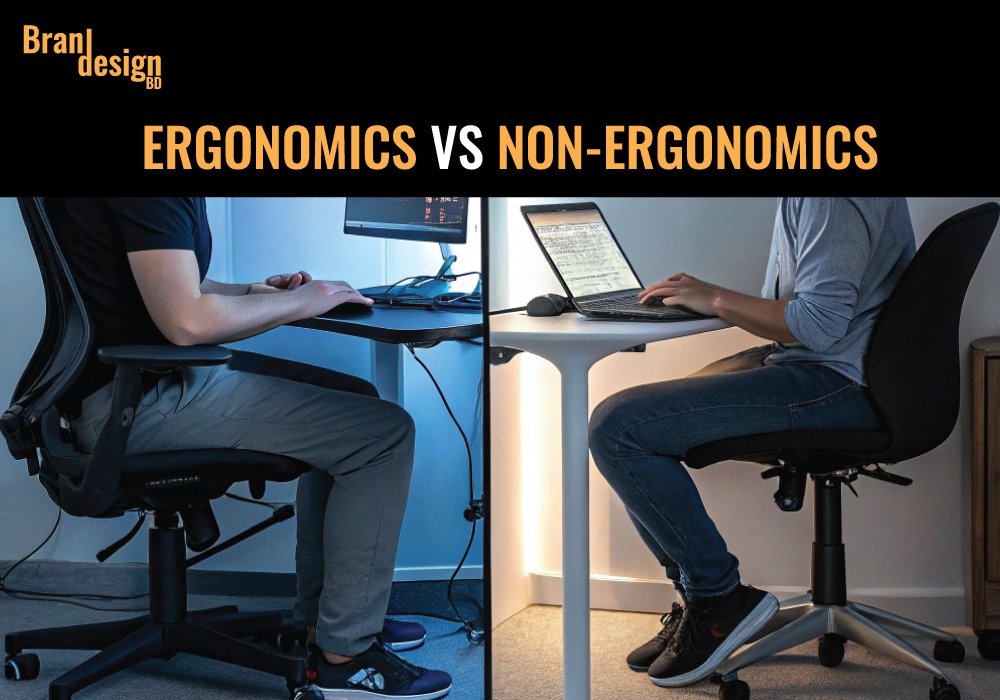
Your feet should rest flat on the floor, with knees at a 90-degree angle. Use a chair with built-in lumbar support or add a cushion to maintain the spine’s natural curve.

Place frequently used tools within reach
Keep your tablet, mouse, keyboard, and sketchpads close to avoid constant stretching. Use shelves or desk organizers to create an accessible layout.

Incorporate Movement into Your Graphic Design Workflow

Remaining still for hours isn’t sustainable, even in a well-designed space. Movement is essential to combat stiffness and fatigue.

Take scheduled microbreaks
Every 30–45 minutes, stand up and stretch for 1–2 minutes. This brief movement reduces muscle stiffness and refreshes your focus.

Use a sit-stand desk if possible
Alternating between sitting and standing helps you engage different muscle groups. A sit-stand desk adds flexibility to your daily routine without interrupting your creative flow.

Perform wrist and hand stretches
Graphic designers rely heavily on their hands. Simple wrist circles, finger stretches, and tendon glides can prevent repetitive strain injuries like carpal tunnel syndrome.
A collage of images related to a graphic design workflow, showing ergonomic tips, desk organization tools, and charts on AI's impact on efficiency and income.
Optimizing a graphic design workflow involves a mix of ergonomics, desk organization, and modern tools. Utilizing tools like monitor arms and wire clamps improves a workspace’s health and tidiness. AI can further enhance the workflow, leading to faster design processes and increased monthly income despite the value vs volume paradox.

Choose Ergonomic Tools to Support a Healthier Workflow

If you’re serious about improving your graphic design workflow, investing in ergonomic tools is a must. Below are the most impactful tools you should consider.

Ergonomic Chair with Lumbar Support

A quality ergonomic chair supports the spine’s natural curve, reducing lower back stress. Look for adjustable height, armrests, and lumbar support to customize your seating.

Top pick: ETasker Ergonomic Office Chair or GM Seating Ergobilt High-Back Ergonomic Office Chair

Adjustable Sit-Stand Desk

Standing desks allow you to switch between sitting and standing. This reduces fatigue and helps improve circulation throughout the day.

Recommended model: Monomi Electric Standing Desk

Vertical Mouse and Ergonomic Keyboard

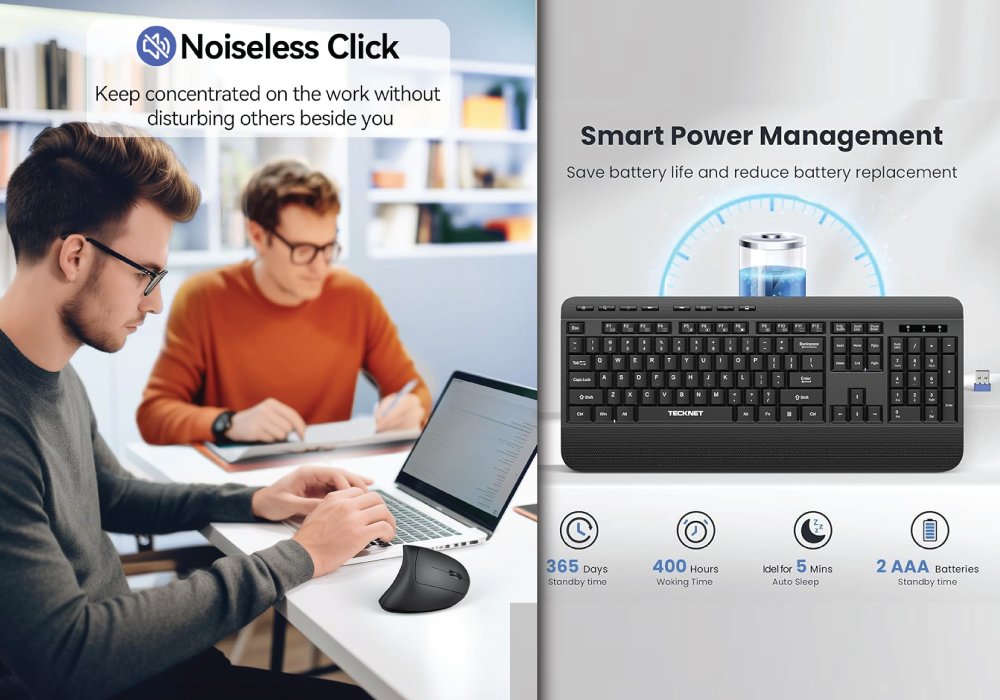
Traditional mice and keyboards can strain your wrists. A vertical mouse keeps your hand in a neutral position, while split ergonomic keyboards reduce ulnar deviation.
A collage of images related to a graphic design workflow, showing ergonomic tips, desk organization tools, and charts on AI's impact on efficiency and income.
Optimizing a graphic design workflow involves a mix of ergonomics, desk organization, and modern tools. Utilizing tools like monitor arms and wire clamps improves a workspace’s health and tidiness. AI can further enhance the workflow, leading to faster design processes and increased monthly income despite the value vs volume paradox.

Best ergonomic combo: TECKNET Ergonomic Mouse+ TECKNET Ergonomic Wireless Keyboard

Large Monitor or Dual Monitor Setup

Using one small screen for complex design work increases eye strain. Dual monitors or a single ultrawide display improve workflow efficiency and posture.

Top tools: LG UltraFine or BenQ MA320U 32

Monitor Arm Mounts

Monitor arms allow precise height and angle adjustments, aligning screens with your eye level to reduce neck and shoulder strain.

Ergonomic winner: HUANUO Dual Monitor Stand

Footrests and Anti-Fatigue Mats

Footrests help maintain a 90-degree knee angle, while standing desk users can benefit from anti-fatigue mats to reduce leg tension.

Popular choices: Cloud Ergonomic Foam Foot Rest

Blue Light Glasses and Screen Filters

Prolonged screen exposure leads to digital eye strain. Blue light glasses or screen filters reduce glare and block harmful light.

Effective options: GUNNAR – Premium Computer Eye Protection Glass

Lighting and Visual Ergonomics in Design Environments

Your eyes work hard during every design project. Proper lighting and screen setup are crucial for visual comfort.

Reduce glare and blue light exposure
Use anti-glare screens or position your monitor away from direct sunlight. Blue light filters or glasses can minimize eye fatigue caused by long hours of digital work.

Set the right screen brightness and contrast
Your monitor should not be significantly brighter or dimmer than your surroundings. Balanced settings reduce eye strain and make colors easier to perceive accurately.

Follow the 20-20-20 rule
Every 20 minutes, look at something 20 feet away for at least 20 seconds. This gives your eyes a break and helps prevent digital eye strain.

Organize Your Graphic Design Workflow for Physical and Mental Health

Ergonomics isn’t only about posture—it’s about working smarter and managing your energy.

Declutter your desk to improve focus
A clean workspace reduces visual noise and allows your brain to stay focused on the task. Less clutter also means fewer distractions and more comfort.

Establish a task routine
Work in structured time blocks with defined breaks. This keeps your workflow organized and helps prevent burnout from constant multitasking.

Use project management tools
Trello, Asana, and other tools reduce mental strain by organizing your tasks. This supports productivity while keeping you mentally relaxed.

20% OFF
Hostinger Business Hosting

Hostinger Business Hosting

Get high-speed, secure hosting for your website. Limited-time 20% discount available.

Claim 20% Discount

Posture Awareness During Creative Work

Even the best chair or setup won’t help if your posture remains poor. Posture plays a key role in preventing fatigue and discomfort.

Keep your back aligned
Sit back fully in your chair with your back supported. Avoid slouching or leaning forward toward the screen. This helps distribute body weight evenly.

Relax your shoulders and elbows
Your elbows should stay close to your body at a 90-degree angle. Keep your shoulders relaxed—not hunched—to reduce tension in your upper body.

Maintain a neutral wrist position
While typing or drawing, your wrists should stay flat—not bent up or down. A wrist rest can help maintain this neutral position.

Ergonomic Apps and Tools for Graphic Designers

Digital tools can help you track your posture, break times, and physical activity during work.

Posture reminder apps
Apps like “Upright” or “Posture Reminder” send alerts if you’re slouching or have been sitting too long. This keeps you mindful of your posture.

Break scheduling tools
Programs like “Stretchly” or “Time Out” remind you to step away from the screen at regular intervals. It’s easy to lose track of time while designing—these apps fix that.
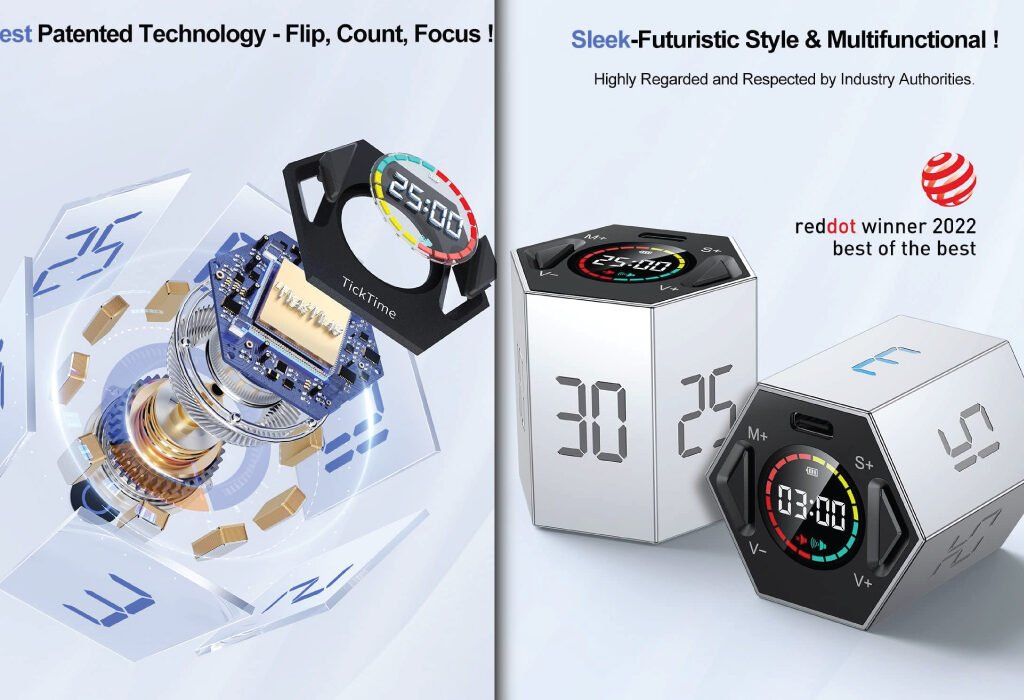
A collage of images related to graphic design, showing the debate on AI's impact, ergonomic tips for a healthier workflow, and tools for desk organization.
The graphic design profession is evolving, with AI presenting opportunities for faster workflows while also raising questions about the future of the industry. To succeed, a healthier workflow is essential, which can be achieved with ergonomic tools like adjustable armrests and monitor arms. An organized workspace with desk mats and wire clamps also contributes to productivity.

Effective options: Ticktime Pomodoro Timer Cube

Productivity timers with movement breaks
Pomodoro-style timers like “Focus Booster” allow you to build in microbreaks and full breaks throughout your day to optimize your graphic design workflow.

Signs Your Current Setup May Be Hurting Your Health

Recognizing early warning signs of poor ergonomics can help you take action before pain or fatigue becomes chronic.

Frequent wrist or finger pain
If your hands hurt after every session, it could be due to an uncomfortable mouse or tablet setup.

Back or neck tension after work
These symptoms often come from incorrect monitor height or lack of lumbar support in your chair.

Constant headaches or blurred vision
This may signal eye strain caused by improper lighting or excessive screen time without breaks.

Conclusion: Prioritize Ergonomics to Elevate Your Graphic Design Workflow

Improving your graphic design workflow isn’t just about software or speed—it’s also about how you treat your body. With the right ergonomic practices, tools, and routines, you can design more comfortably, reduce fatigue, and protect your health for the long haul. Small changes, like adjusting your screen or taking regular breaks, add up to big improvements in both creativity and well-being. Start today by evaluating your setup and making one ergonomic improvement at a time.

Also, check the recent article about the best laptop for graphic design here.


How can I tell if my posture is correct while designing?

Your feet should be flat on the floor, back fully supported, shoulders relaxed, and wrists in a straight line with your hands. If you feel strain after just 30 minutes, something in your setup likely needs adjustment.

What’s the best chair height for a graphic designer?

Adjust your chair so your knees are at a 90-degree angle, and your thighs are parallel to the floor. Your arms should rest comfortably on your desk without needing to hunch.

How often should I take breaks during design work?

Try taking a short break every 30–45 minutes, even just to stand or stretch. This helps prevent stiffness and improves circulation, keeping your energy steady.

Do ergonomic tools really make a difference in long-term health?

Yes. Over time, ergonomic chairs, keyboards, and desk setups help prevent repetitive stress injuries and posture-related pain, supporting a sustainable graphic design workflow.

Can standing desks improve productivity for designers?

Many designers find standing desks helpful. Alternating between sitting and standing keeps you more alert and reduces discomfort during long design sessions.
The image shows a desk with a keyboard and a black cord. Overlaying the image is the text BEST FINISHER WIRE CLAMP TO KEEP YOUR GRAPHIC DESIGN DESK CABLE MANAGEMENT. The Branjdesign bd logo is in the top-left corner.

Best Finisher Wire Clamp to Keep Your Graphic Design Desk Organized

The image shows a desk with a keyboard and a black cord. Overlaying the image is the text BEST FINISHER WIRE CLAMP TO KEEP YOUR GRAPHIC DESIGN DESK CABLE MANAGEMENT. The Branjdesign bd logo is in the top-left corner.
Keep your workspace clean and clutter-free with the Best Finisher Wire Clamp for effective graphic design desk cable management. A well-organized desk improves workflow and reduces visual noise, allowing you to focus on your creative work.

Explore the best finisher wire clamp options to manage cables on your graphic design desk. Learn about key features, benefits, and top-rated products that keep your workspace neat, organized, and distraction-free.

Why cable management matters for graphic designers

Graphic designers rely heavily on multiple devices, including monitors, tablets, external drives, keyboards, and more. Without proper cable management, wires can easily become tangled, cluttered, and even dangerous. This not only disrupts productivity but can also harm your equipment or pose a safety risk.

Reduced distractions and enhanced focus
A clean desk promotes a clear mind. When cables are neatly tucked away, there’s less visual noise, allowing you to focus better on your creative tasks.

Protection for equipment
Proper cable management reduces wear and tear on ports and cables, preventing disconnections or damage over time. Finisher wire clamps help maintain consistent tension and prevent accidental snags.

Optimized use of space
Tidy cables mean more usable workspace for drawing tablets, sketchbooks, or other creative tools. This allows for smoother workflows and improved comfort.

What is a finisher wire clamp?

A finisher wire clamp is a small but powerful accessory used to secure cables on or under your desk. It keeps wires in place, prevents tangling, and supports better organization.

Purpose-built for cable routing
These clamps are specifically designed to hold power cords, USB cables, Ethernet lines, and HDMI cords in place. They’re ideal for keeping essential tools connected without creating messes.

Compact and versatile
Most finisher wire clamps are small in size, making them discreet and easy to place in various locations. Some models are adhesive-backed for easy mounting, while others use screws for added stability.

Durable and flexible
Made of plastic, rubber, or silicone, they can accommodate different cable diameters and configurations, helping designers customize their desk layout to match their workflow.

How to properly install and use wire clamps

A great clamp won’t help much if not installed correctly. Here are some tips for getting the most from your wire clamps.

Clean the mounting surface
Ensure the area where the clamp will be placed is free from dust or oils. Adhesive won’t stick well to dirty surfaces, reducing clamp effectiveness.

Measure cable lengths before clamping
Allow enough slack so devices can move as needed without straining the cables. Plan the clamp placement to secure wires without pinching or bending them sharply.

Group similar cables together
It’s easier to troubleshoot or rearrange wires when they’re grouped by type (e.g., power cords, USB devices). Label them if necessary.

Check for interference
Avoid placing power and signal cables too close to each other. Finisher wire clamps help by allowing you to route each type separately, reducing interference and crosstalk.

Tired of Tangled Cables? These Cable Clips Are the Solution

Every graphic designer knows how frustrating cluttered cables can be. Whether you’re dealing with chargers, HDMI cords, monitor wires, or lighting setups, cable chaos is a common struggle. That’s where this 120 PCS Cable Clip Set from JinRui-T comes in—designed to eliminate mess and make your workspace sleek and functional.

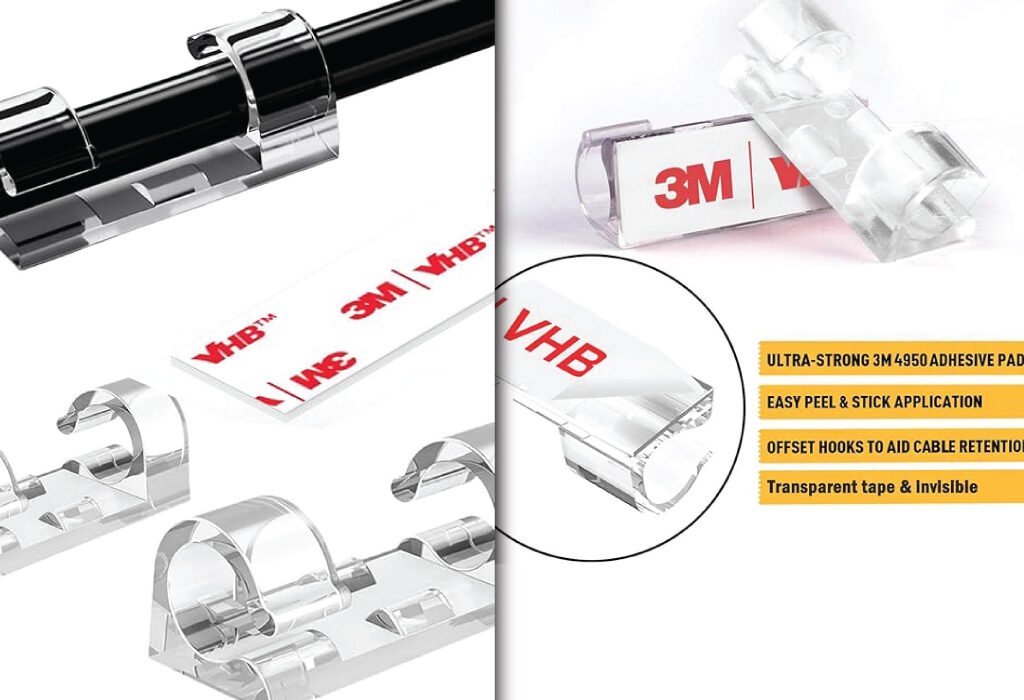
A close-up of a transparent finisher wire clamp holding a black cable. The image highlights its features, including ultra-strong 3M adhesive pads and offset hooks for cable retention, making it a key accessory for Finisher Wire Clamp for Graphic Design Agency Setup Accessories.
Achieve a clean and organized workspace with this Finisher Wire Clamp for Graphic Design Agency Setup Accessories. The transparent, easy-to-use clamps feature a strong 3M adhesive to securely manage cables and keep your desk clutter-free.

Why These Cable Clips Stand Out

Durable Build Quality

The clips are made from high-grade plastic that withstands daily use without breaking or losing grip. They work well for both small and large cables, making them incredibly versatile.

Two Sizes for Flexibility

This set includes both small and large clips, so you’re not stuck with one size that doesn’t suit all your needs. From tiny charging cables to thicker monitor and TV cords, everything can be properly secured.

Powerful Adhesive Backing

With their strong adhesive, these clips can stick to most surfaces—walls, desks, wood panels, plastic, and even glass. They’re especially useful for setting up cable management behind your monitor or TV without using screws.

Ideal for Indoor and Outdoor Use

These aren’t just for your office. You can use them outside as light clips for your garden lights or patio decorations. The adhesive holds up well in varied environments.

Perfect for a Range of Devices

These cable clips are great for managing cords from:

  • Desktop PCs and laptops
  • Monitors and drawing tablets
  • TVs and sound systems
  • Studio lighting and ring lights
  • Outdoor holiday lights or string lights
  • Wi-Fi cables and internet routers

How They Improve Your Creative Workspace

Enhance Productivity

Clean space equals clear mind. By reducing visual clutter, these clips allow designers to focus better on their creative tasks.

Prevent Cable Damage

Tangled or twisted wires are more prone to damage. Using these clips keeps cables in place and extends their lifespan.

Simple Installation

Peel, stick, and clip—there’s no drilling or extra hardware required. The setup takes minutes and delivers long-term results.

A collage of two images related to cable management. One image shows transparent 3M adhesive wire clips for holding cables, highlighting their ultra-strong 3M 4950 adhesive pads and easy peel and stick application. The other image demonstrates how to use the clips for cable management, recommending to place a clip every 8 inches/20 cm to secure cords along a wall and under a desk.
Organize your workspace with a finisher wire clamp, a simple yet effective solution for cable management. These clamps often feature ultra-strong 3M 4950 adhesive pads for a secure hold and an easy peel and stick application. To ensure your cables are neatly secured, a good practice is to place a clip every 8 inches/20 cm.
20% OFF
Hostinger Business Hosting

Hostinger Business Hosting

Get high-speed, secure hosting for your website. Limited-time 20% discount available.

Claim 20% Discount

Who Should Use These Clips?

These clips are perfect for:

  • Graphic designers
  • Gamers
  • Home office users
  • Content creators
  • Tech enthusiasts
  • Anyone looking for better Finisher Wire Clamp solutions

Real-World Use Case

Imagine you’re a digital illustrator with dual monitors, a tablet, and a DSLR webcam. You also use LED strip lights and have multiple chargers plugged in. Instead of dealing with tangled messes and misaligned cables every day, you can apply these clips to the back of your desk, walls, or even the underside of your workspace for clean routing.

Final Thoughts

The 120 PCS Cable Clip Set from JinRui-T is more than just a cable organizer—it’s an essential workspace upgrade. With flexible sizes, a firm adhesive grip, and compatibility for both indoor and outdoor use, this product delivers value, simplicity, and a cleaner workspace for anyone who takes cable management seriously.

How finisher wire clamps compare to other cable management tools

While there are many ways to manage cables—such as sleeves, boxes, and zip ties—finisher wire clamps offer a unique combination of flexibility and precision.

Vs. cable sleeves
Sleeves are great for bundling, but they lack placement control. Clamps let you route individual cables exactly where you want them.

Vs. cable boxes
Boxes hide messes but don’t offer much for active workstations where cables are in use. Clamps work better for desks that require frequent access.

Vs. zip ties or Velcro straps
While these bundle cables well, they aren’t easy to adjust. Wire clamps let you reconfigure quickly without cutting or unstrapping anything.

Conclusion

Finisher wire clamps may be small, but they play a significant role in building an efficient and inspiring workspace for graphic designers. From managing cords and protecting your gear to improving aesthetics and productivity, these simple tools make a noticeable difference. By selecting the right clamps, installing them properly, and maintaining good cable habits, you can create a desk setup that supports your creative process while staying clean and professional.

Take the next step toward a clutter-free, ergonomic, and beautiful workstation. Invest in finisher wire clamps tailored to your needs and experience the difference in both comfort and productivity.

Also, check the recent article about the best laptop for graphic design here.


What is a finisher wire clamp?

A finisher wire clamp is a compact, often adhesive-backed device used to secure and organize wires or cables. It helps prevent tangling and clutter around workstations, entertainment centers, and other setups.

Can these cable clips hold thicker cords like HDMI or power cables?

Yes, the set includes both small and large clips. The large ones are ideal for bulkier cables such as HDMI, power cords, and even thicker Wi-Fi router cables.

Are they reusable?

While these clips use strong adhesive for a long-lasting hold, they are generally designed for one-time placement. Removing them may reduce their ability to stick again.

Will the adhesive damage walls or furniture?

The adhesive is strong but safe for most smooth surfaces like plastic, wood, glass, and metal. However, it’s best to test on a small area first, especially for painted or delicate finishes.

Can I use these outdoors?

Absolutely. These cable clips are also great for outdoor setups like hanging string lights or organizing garden lighting wires.

How many clips are included?

The package includes 120 pieces in total—both small and large sizes—to suit different cable types and uses.

A collage of images showcasing monitor arms. One image shows a single monitor arm in a graphic designer's workstation, with text that labels it the best monitor arm for graphic designers. Another image highlights how a single arm creates more desk space, while a third illustrates a dual arm setup, compatible with both dual horizontal and dual vertical mounting.

Best Monitor Arm for Graphic Designers

A collage of images showcasing monitor arms. One image shows a single monitor arm in a graphic designer's workstation, with text that labels it the best monitor arm for graphic designers. Another image highlights how a single arm creates more desk space, while a third illustrates a dual arm setup, compatible with both dual horizontal and dual vertical mounting.
Enhance your creative workstation with the best monitor arm for graphic designers to create a more ergonomic and spacious environment. A monitor arm helps you save desk space and offers wide compatibility for various devices. Whether you prefer a single or a dual horizontal or dual vertical setup, these arms support monitors from 13 to 32 inches with a max load of 19.8 lbs per arm.

Introduction

A good monitor arm can dramatically improve a graphic designer’s workspace by enhancing ergonomics, freeing up desk space, and allowing precise adjustments for comfortable viewing. Whether you work on a single display or multiple screens, investing in the right monitor arm can boost your productivity and reduce physical strain. In this blog post, we will explore the essential features of monitor arms suitable for graphic designers, review popular models, and share tips for choosing the right one to meet your needs.

Why Graphic Designers Need a Monitor Arm

A monitor arm is not just a simple accessory; it is a crucial tool that can transform your entire workstation. Graphic design requires long hours of detailed work, and maintaining proper posture is essential to avoid neck, back, and eye strain.

Improved Ergonomics
Monitor arms allow you to position your screen at eye level and adjust the distance to reduce neck bending and eye fatigue. This ergonomic setup prevents discomfort that could affect your focus and creativity during extended work sessions.

Optimized Desk Space
Using a monitor arm lifts the display off the desk, giving you more room for drawing tablets, sketchbooks, keyboards, and other creative tools. A clutter-free workspace encourages a clear mind and better workflow.

Flexible Viewing Angles
Graphic designers often need to view their work from different angles to check colors, lines, and details accurately. A monitor arm offers tilt, swivel, and rotation options, making it easy to adjust your screen to the perfect position quickly.

Types of Monitor Arms for Designers

Single Monitor Arms

Single monitor arms like the HUANUO Single Mount are perfect for minimalist setups. They’re ideal if you use one large screen and want a clean, organized workspace.

HUANUO Single Monitor Mount: Flexible Ergonomic Support for Designers

The HUANUO Single Monitor Mount is designed for professionals who work primarily with one screen but want the benefits of adjustability and desk organization. Supporting monitors from 13 to 32 inches and weights between 4.4 and 19.8 pounds, this arm offers a smooth, gas-spring mechanism for effortless height and angle adjustments.

Why Choose a Single Monitor Mount?

For graphic designers who use one primary monitor or those working in smaller spaces, a single monitor arm helps maximize desk space and improve ergonomics without unnecessary bulk. This mount elevates your screen, reduces neck strain, and frees up surface area for tablets, drawing pads, or other creative tools.

Full Range of Motion for Comfortable Viewing

The arm provides versatile movements including:

  • Tilt: Adjust the screen angle from -30° to +85° to reduce glare and improve visibility
  • Swivel: Rotate the monitor up to 90° left or right for better alignment
  • Rotation: Flip between landscape and portrait mode with 360° rotation
  • Height Adjustment: Gas spring technology makes lifting or lowering the screen easy and smooth

These features allow you to position your monitor perfectly, promoting healthier posture and reducing eye and neck fatigue.

Durability and Stability

The mount supports monitors weighing between 4.4 and 19.8 lbs, suitable for most LED, LCD, and curved monitors within the 13–32 inch range. It’s made from sturdy steel and aluminum alloys, ensuring your screen remains secure and stable even during frequent adjustments.

Simple and Secure Mounting Options

You can choose between two mounting methods:

  • C-Clamp: Attaches firmly to the edge of your desk without drilling
  • Grommet Base: Mounts through a pre-existing desk hole for a more permanent setup

Both options are designed to save desk space and keep your workstation neat.

Integrated Cable Management

The arm features built-in clips that organize cables neatly along the arm, reducing clutter and preventing tangles for a clean, professional workspace.

VESA Compatibility

The mount fits monitors with 75x75mm and 100x100mm VESA mounting holes. This wide compatibility ensures it works with popular brands such as Dell, ASUS, HP, Acer, and more.

Ideal for Creative Professionals

Whether you’re focused on digital illustration, video editing, or coding, the HUANUO Single Monitor Mount enhances your workspace with ergonomic comfort and space efficiency. It’s especially useful in home offices or studios with limited desk space.

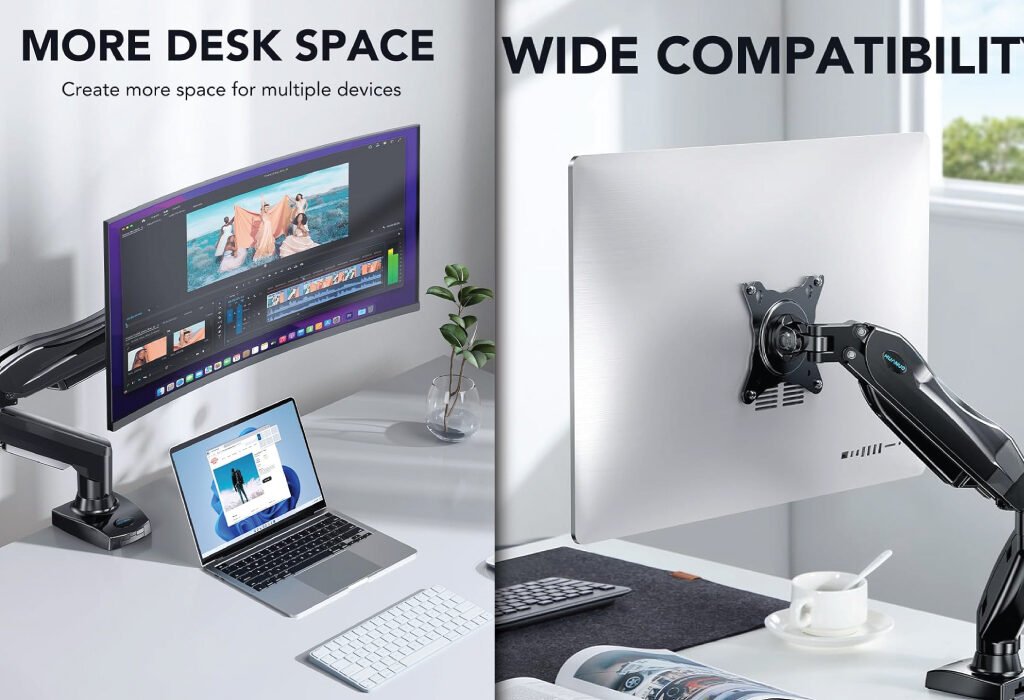
A split image showing a single monitor stand in use. The left side highlights how it creates MORE DESK SPACE for a monitor and laptop setup. The right side emphasizes its WIDE COMPATIBILITY with different monitors, showcasing it as a Single Monitor Stand for Graphic Design Agency Setup Accessories.
Maximize your workspace and improve your workflow with a Single Monitor Stand for Graphic Design Agency Setup Accessories. This stand helps you clear desk clutter and adjust your monitor for optimal ergonomic positioning.

Technical Specifications

FeatureDetails
Monitor Size Support13″ to 32″
Weight Capacity4.4 lbs to 19.8 lbs
Tilt Range-30° to +85°
Swivel Range±90°
Rotation360° (landscape or portrait)
Mounting OptionsC-Clamp or Grommet
VESA Compatibility75x75mm, 100x100mm
MaterialSteel, aluminum, plastic
Cable ManagementBuilt-in cable clips
ColorBlack

Final Thoughts

The HUANUO Single Monitor Mount is an excellent ergonomic upgrade for graphic designers who want precise control over their primary screen’s position. It helps reduce strain, frees up desk space, and complements any creative setup with its sleek design and reliable build. Whether you’re creating detailed artwork or managing complex design software, this monitor arm offers comfort and flexibility for long hours of productive work.

Dual Monitor Arms

Dual monitor arms provide even more flexibility. The HUANUO Dual Mount is designed for designers using two displays, such as a drawing tablet and a main monitor. These setups help multitask efficiently without switching tabs constantly

HUANUO Dual Monitor Stand: A Professional Setup for Creative Workspaces

The HUANUO Dual Monitor Stand is a must-have for designers, editors, and multitaskers who use two screens. With flexible adjustability and robust support, it helps improve your desk ergonomics and productivity.

Why Graphic Designers Need Dual Monitor Mounts

Creative professionals often juggle multiple programs, reference files, or live previews. A dual monitor mount lets you view more, reduce eye strain, and keep your desk clutter-free. The HUANUO Dual Monitor Stand is specifically built for users who require a smooth, flexible, and steady dual-screen setup.

Full Motion Flexibility for Maximum Comfort

The HUANUO mount allows each arm to move independently. You can:

  • Tilt each monitor from -30° to +85° to reduce glare
  • Swivel them 90° left or right to match your posture
  • Rotate screens 360° for horizontal or vertical use
  • Lift or lower each screen using a gas spring arm

These options give you freedom to align your displays at eye level, which promotes better posture and comfort during long hours of work.

Durability You Can Count On

Each arm can hold between 4.4 and 19.8 lbs, making it suitable for most 13″ to 32″ screens. Whether you’re using a lightweight LED or a heavier design monitor, this stand offers long-lasting support and excellent balance.

Easy Mounting Options

Two installation methods are included:

  • C-Clamp: Attaches to the edge of your desk
  • Grommet Mount: Installs through a desk hole for greater stability

Both mounting styles save space and ensure the stand remains secure during screen adjustments.

Clean Cable Management

Built-in cable clips along the arms help organize power cords and display cables. This reduces desk clutter and prevents tangled wires from interfering with your work.

VESA Compatibility

It supports VESA 75x75mm and 100x100mm patterns, making it compatible with nearly all standard monitors, including brands like:

  • Dell
  • HP
  • ASUS
  • Acer
  • LG
  • Samsung

Ideal for Creative Professionals

Whether you’re editing photos, creating illustrations, coding, or running simulations, the HUANUO Dual Monitor Stand gives you the ergonomic control and screen real estate you need. Its full adjustability and modern design make it ideal for design studios, home offices, and agency setups.

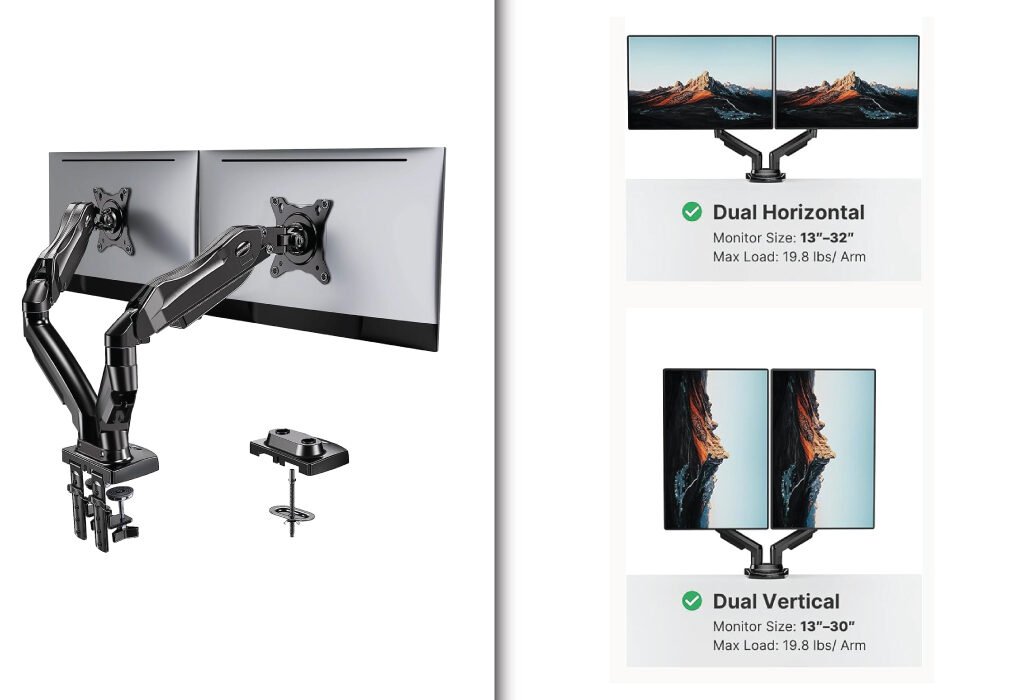
A dual monitor stand with articulated arms and a clamp mount. The image also shows diagrams of both a dual horizontal and a dual vertical monitor setup, highlighting its versatility as a Dual Monitor Stand for Graphic Design Agency Setup Accessories.
Enhance your creative workflow with this versatile Dual Monitor Stand for Graphic Design Agency Setup Accessories. It provides flexible positioning for your screens, allowing for both horizontal and vertical setups to maximize screen real estate and improve ergonomics.

Technical Specifications

FeatureDetails
Monitor Size Support13″ to 32″
Weight Capacity (Per Arm)4.4 lbs to 19.8 lbs
Tilt Range-30° to +85°
Swivel Range±90°
Rotation360° (landscape or portrait)
Mounting OptionsC-Clamp or Grommet
VESA Compatibility75x75mm, 100x100mm
MaterialSteel, aluminum, plastic
Cable ManagementBuilt-in cable clips
ColorBlack
20% OFF
Hostinger Business Hosting

Hostinger Business Hosting

Get high-speed, secure hosting for your website. Limited-time 20% discount available.

Claim 20% Discount

Final Thoughts

The HUANUO Dual Monitor Stand offers everything a graphic designer needs—adjustability, strength, compatibility, and an organized setup. It transforms a crowded desk into a clean, functional workstation while allowing seamless multitasking across two screens. Whether you’re building a new creative workspace or upgrading your current setup, this monitor arm is a solid, reliable choice.

Tips to Maximize Your Monitor Arm Setup

Once you have your monitor arm, here are ways to optimize your setup:

Position Your Monitor at Eye Level
Your eyes should naturally meet the top third of the screen. This helps maintain a neutral neck position and prevents strain.

Maintain Proper Distance
Keep the monitor about an arm’s length away to avoid eye fatigue while ensuring you can comfortably see details.

Use Portrait Mode for Vertical Projects
Switch your monitor to portrait orientation when working on vertical designs like posters or websites to maximize screen space.

Keep Your Desk Clear
Use the freed-up desk space for essential tools and maintain a clutter-free zone that fosters creativity.

Regularly Adjust as Needed
Don’t hesitate to reposition your monitor during the day. Movement helps reduce muscle stiffness and keeps you comfortable.

Conclusion

For graphic designers, a quality monitor arm is more than an accessory — it’s a vital part of a productive and ergonomic workstation. By selecting the right monitor arm that supports your monitor’s size and weight, offers flexible adjustment, and fits your desk setup, you can enhance your comfort, workflow, and creative output. Whether you choose a budget-friendly model or a premium option, the benefits of improved ergonomics and desk organization are undeniable. Invest in a monitor arm today to elevate your design experience and maintain your health during long hours of creative work.

Also, check the recent article about the best laptop for graphic design here.


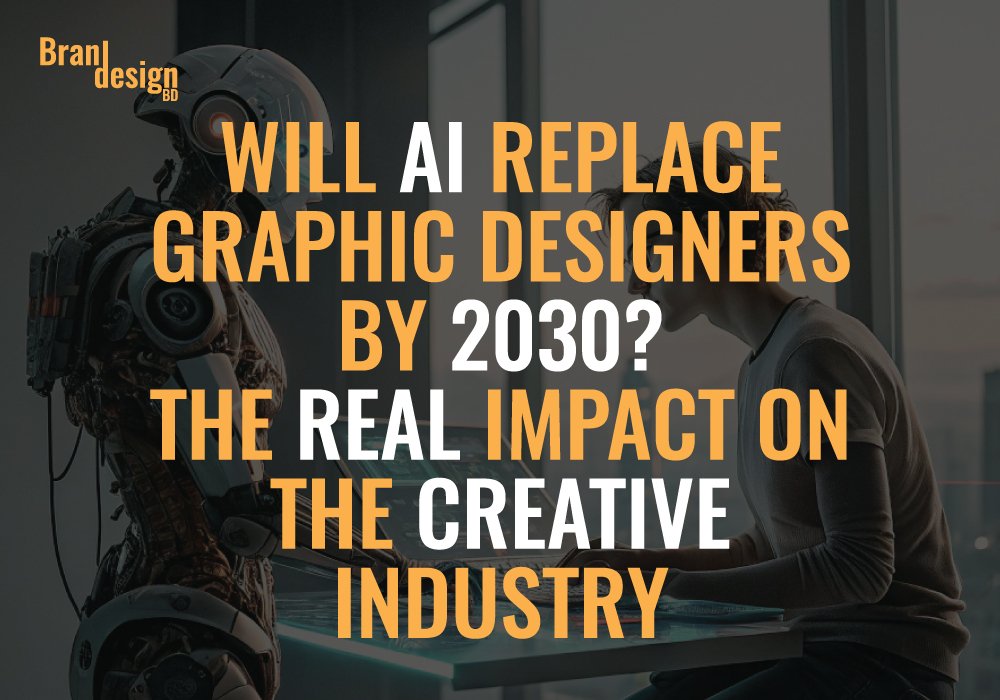
A person sits at a desk with a laptop, while a humanoid robot stands beside them. The image poses the question of whether AI will replace graphic designers by 2030 and discusses the real impact on the creative industry.

Will AI Replace Graphic Designers by 2030? The Real Impact on the Creative Industry

A person sits at a desk with a laptop, while a humanoid robot stands beside them. The image poses the question of whether AI will replace graphic designers by 2030 and discusses the real impact on the creative industry.
The future of graphic design is explored in this image, which asks if AI will replace graphic designers by 2030 and considers the real impact of artificial intelligence on the creative industry. This thought-provoking visual from Branjdesign bd prompts a discussion on this evolving topic.

Introduction

Artificial Intelligence is transforming industries across the globe, and the creative sector is no exception. As tools like Midjourney, recraft.ai, DALL·E, and Adobe Firefly rise in popularity, many are asking: Will AI replace graphic designers by 2030? While the automation of some design tasks is already happening, the future of human creativity remains a powerful force that AI can’t easily replicate. In this blog, we’ll examine how AI is impacting the graphic design field and whether designers should prepare for a seismic career shift or a creative collaboration with machines.

Understanding the Rise of AI in Graphic Design

As AI capabilities evolve, they’re entering the core workflows of designers worldwide. From automated layouts to generative image creation, these tools offer significant time savings—but also stir concern about job security.

AI tools are becoming more user-friendly and accessible

Platforms like Canva and Adobe Express now include AI-based features that generate templates, resize designs, and offer design suggestions, making it easier for non-designers to create content.

AI-generated artwork is entering the commercial space

With tools like , recraft.ai, DALL·E and Midjourney creating stunning visuals in seconds, businesses are beginning to use AI art in marketing campaigns, social media, and even branding.

Automation is accelerating repetitive design tasks

Designers often spend hours resizing assets, aligning objects, or creating variations. AI now handles these tasks efficiently, freeing up time for more strategic work.

How Graphic Designers Are Adapting to AI Tools

Rather than fearing replacement, many designers are embracing AI as a collaborative assistant—one that enhances their workflows rather than competes with them.

AI accelerates brainstorming and ideation

Tools like ChatGPT and Firefly can quickly generate mood boards, color palettes, or layout ideas, providing a springboard for creative projects.

Designers are learning prompt engineering

Crafting effective prompts for AI tools has become a new skill. Designers who understand how to guide AI get better results and faster turnaround times.

Integration into software is seamless

Adobe’s Creative Cloud now includes generative fill and AI-based object removal, empowering designers to do complex edits without needing separate apps or plugins.

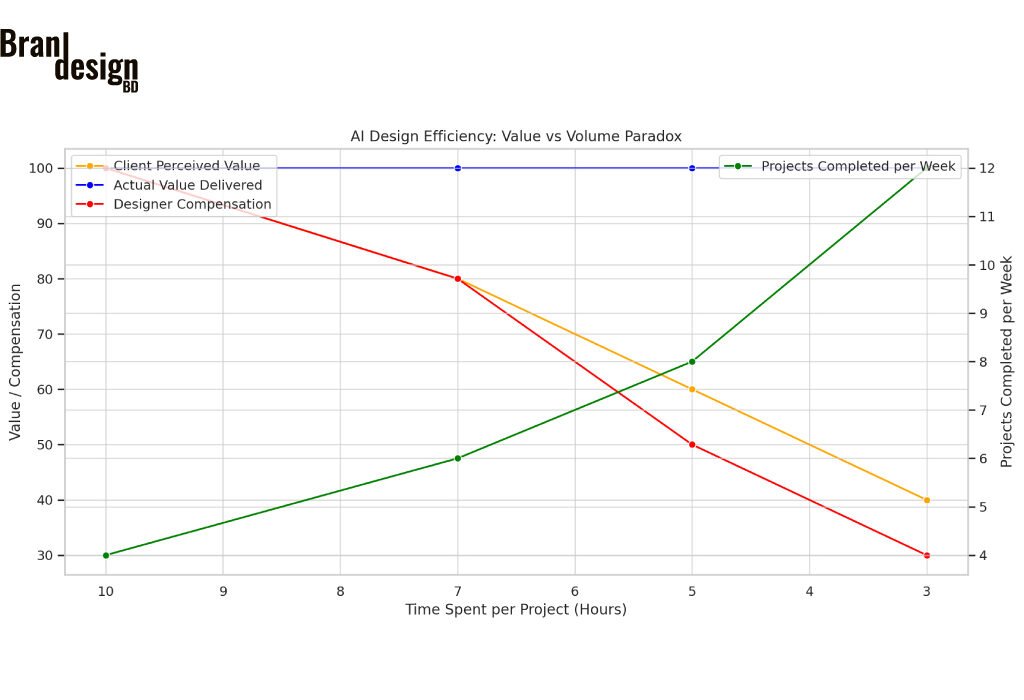
Designers complete projects much faster with AI assistance

What used to take several hours—like building complex mockups, creating visual variations, or rendering illustrations—can now be completed in minutes using AI. This allows designers to handle more projects in less time.

Faster results may lead to lower perceived value

However, because AI makes the process quicker, clients sometimes undervalue the final product. Despite delivering high-quality work, designers often face pressure to charge less simply because the project took less time. This creates a pricing paradox: greater efficiency leads to lower compensation unless the designer clearly communicates the strategic and creative thinking behind the work.

This combined chart illustrates the paradox of AI in design work:

As time spent per project decreases, the number of projects completed per week increases (green line).

Despite maintaining high actual value (blue line), both client-perceived value (orange) and designer compensation (red) decline.
The paradox of AI in design work is evident in how it impacts the creative industry. While AI can increase efficiency and the number of projects completed per week, it also leads to a decrease in client perceived value and designer compensation as the time spent per project decreases. This trend raises the question of whether AI will replace graphic designers by 2030, a topic explored by Brandesignbd.

This combined chart illustrates the paradox of AI in design work:

  • As time spent per project decreases, the number of projects completed per week increases (green line).
  • Despite maintaining high actual value (blue line), both client-perceived value (orange) and designer compensation (red) decline.

Will AI Replace Graphic Designers by 2030? A Forecast

Despite the dramatic changes AI is causing, the reality is nuanced. Jobs may shift, roles may evolve, but complete replacement is unlikely.

Entry-level tasks may be automated

Simple projects like resizing banners, creating social media graphics, or generating icons may increasingly be handled by AI, reducing the need for junior designers.

The role of a designer will become more strategic

By 2030, graphic designers will likely spend less time executing and more time directing—offering brand insights, creative leadership, and client strategy.

New roles will emerge in AI-driven design

Expect to see job titles like “AI Design Strategist,” “Prompt Engineer,” or “Generative Art Curator” emerge as hybrid roles combining creativity with technical fluency.

20% OFF
Hostinger Business Hosting

Hostinger Business Hosting

Get high-speed, secure hosting for your website. Limited-time 20% discount available.

Claim 20% Discount

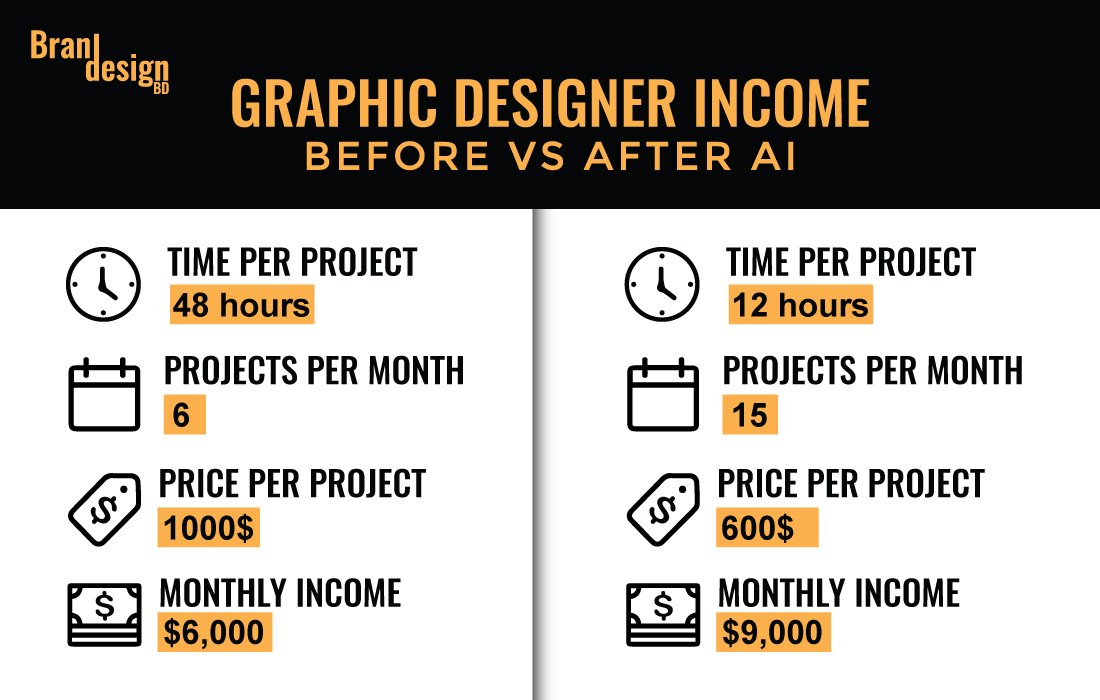
The rise of AI in design has not only changed workflows—it has also impacted how much designers earn. While some designers are increasing their output and reaching more clients, others are experiencing pricing pressure due to misconceptions about AI’s role in their work.

Designers can deliver work faster with AI

With AI handling repetitive or time-consuming tasks, designers can now complete projects that once took several hours in just minutes. Tasks like mockup creation, background removal, or visual variations can be streamlined significantly. This allows designers to take on more jobs or meet tighter deadlines without sacrificing quality.

Faster delivery doesn’t always mean higher pay

Clients often judge pricing based on time spent. If a designer delivers a high-quality logo in an hour with AI assistance, some clients may question why it should cost the same as a design that once took a full day. As a result, many designers face downward pressure on pricing—despite the creativity, skill, and decision-making that still goes into the work.

Freelancers and agencies are adapting their pricing strategies

To adjust, many designers are shifting to value-based pricing, where they charge based on the outcome and impact of the design—not the time it took to create. This approach helps communicate the true worth of their creative input, strategy, and brand expertise.

AI has created both opportunity and competition

AI has opened doors for more designers to work globally, but it has also lowered the barrier for non-designers to enter the market using AI tools. This can lead to oversupply, lower average prices on freelance platforms, and increased competition—especially for entry-level designers.

High-level creative thinkers still earn more

Designers who combine technical skill with strategy, branding, and communication continue to earn well—especially in roles where human creativity and collaboration matter most. Senior designers, creative directors, and brand consultants are less affected by automation and often earn above-average income.

A collage of three images: one shows a person with a robot and the question of whether AI will replace graphic designers. Another is a graph showing the paradox of AI design efficiency. The third image explicitly compares graphic designer income before and after the age of AI.
While some question if AI will replace graphic designers, data shows it can increase monthly income. By using AI, a designer can decrease project time from 48 to 12 hours and increase projects per month from 6 to 15. This shift, despite a lower price per project, can result in a higher monthly income.
What AI Can DoWhat AI Cannot Do
Generate quick design draftsUnderstand emotional context
Automate repetitive tasks (e.g., resizing, alignment)Interpret brand identity in depth
Create images, graphics, and layouts based on promptsMake subjective creative decisions
Offer design suggestions and templatesConnect visual elements to human experiences
Speed up design workflows significantlyReplace human intuition and cultural awareness
Produce massive variations instantlyDevelop long-term brand strategy
Assist with typography and layout selectionCommunicate with clients and receive feedback with empathy
Perform image editing with tools like Generative FillCreate original ideas without influence from training data

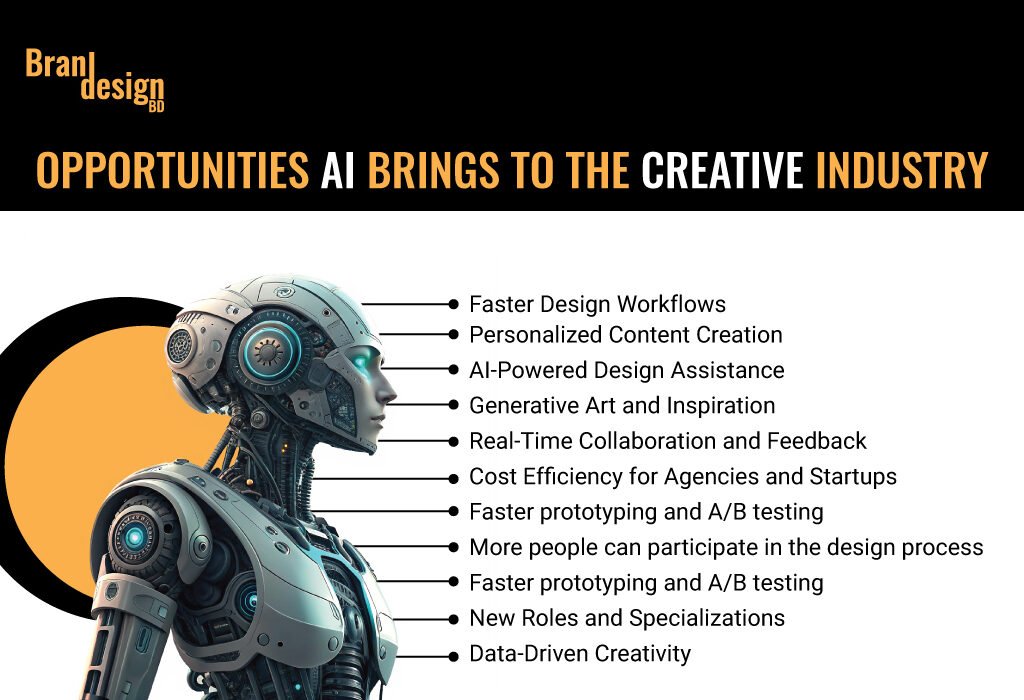
Opportunities AI Brings to the Creative Industry

AI doesn’t only take away—it also creates space for innovation, experimentation, and democratization of design tools.

More people can participate in the design process

Non-designers can use AI tools to express ideas and experiment with branding, creating a more inclusive creative environment.

Faster prototyping and A/B testing

Designers can now test multiple visual styles or layouts instantly, helping marketers choose the most effective option through real-time feedback and analytics.

Innovation in mixed-media and motion design

With AI evolving into video, 3D rendering, and animation, designers are no longer limited to static imagery and can expand into immersive digital experiences.

A collage shows a list of opportunities AI brings to the creative industry, a graph of design efficiency, and a chart comparing graphic designer income before and after AI.
AI brings numerous opportunities to the creative industry, including faster workflows, personalized content, and new roles. While some debate its full impact, AI can increase a graphic designer’s monthly income by improving efficiency, despite a potential paradox in the perceived value of individual projects.

Challenges Facing Designers in an AI-Driven Future

The transition into a partially automated creative industry comes with hurdles that both professionals and educators must address.

Ethical concerns around originality and ownership

AI often learns from existing work, raising questions about plagiarism and copyright. Who owns an AI-generated design? The user, the software, or the original artist?

The threat of oversaturation and design fatigue

As AI makes it easy to churn out visual content, the internet may become flooded with generic or repetitive designs, making it harder for brands to stand out.

Skill gaps and educational reform

Design education will need to shift focus from technical skills to conceptual thinking, storytelling, and adaptability to stay relevant in a tech-driven future.

Tips for Designers to Stay Ahead in an AI World

Staying relevant doesn’t mean becoming a coder—it means developing the right mindset and toolset to evolve with the industry.

Master AI tools as part of your skillset

Treat AI like you would Photoshop or Illustrator. Know what it can do, what it can’t, and how to use it efficiently in your workflow.

Focus on creative thinking and communication

Skills like problem-solving, concept development, and storytelling will remain invaluable—because AI still struggles with original thought.

Build a personal brand rooted in human creativity

Clients don’t just hire technical skills—they hire a designer’s voice, experience, and understanding. Your unique perspective is your competitive edge.

Common Misconceptions About AI and Design

Hype often clouds reality when it comes to AI’s capabilities. Let’s break down some myths.

“AI will take all design jobs”

While some tasks are being automated, most roles are evolving, not disappearing. Designers are becoming creative directors of AI workflows.

“AI-generated art is always original”

AI models are trained on millions of images, raising ethical and legal questions. Without human oversight, originality is not guaranteed.

“Using AI means you’re not a real designer”

Using technology to enhance creativity is a hallmark of every design era—from printing presses to Photoshop to AI. It’s how you use the tool that counts.

Conclusion

So, will AI replace graphic designers by 2030? The answer is not a simple yes or no. While AI is changing how we approach design—automating some tasks and streamlining others—it is not replacing the core value that human designers bring: creativity, empathy, cultural awareness, and storytelling. Instead of fearing the rise of AI, designers should embrace it as a partner in the creative process. By 2030, the most successful graphic designers will be those who understand how to wield both creativity and technology with confidence, flexibility, and vision.

Ai Driven Currency Found here: Signup now: Binance, Kucoin, Paxful.

Also, check the recent article about the best laptop for graphic design here.


Will AI replace graphic designers completely by 2030?

No. While AI is expected to automate certain tasks like resizing, generating layouts, or creating design drafts, it lacks human creativity, cultural understanding, and emotional intelligence. Designers will still be essential for strategic thinking, branding, and creative direction.

Will AI replace entry-level and mid-level designers by 2030?

AI is more likely to impact entry-level and mid-level positions than senior roles. Tasks such as basic layout creation, image editing, or template-based design can now be done quickly using AI tools. As a result, companies may hire fewer junior designers for production work. However, mid-level designers who develop strong creative thinking, communication, and AI tool integration skills will remain highly valuable. Rather than being replaced, their roles may shift toward more strategic and collaborative responsibilities.

Can AI improve the productivity of graphic designers?

Yes. AI tools help designers complete projects faster. What once took hours can now be done in minutes using AI for mockups, image editing, or ideation. This boosts productivity but may also lower the perceived value of the work.

Will AI replace graphic designers completely by 2030?

No. AI is unlikely to fully replace graphic designers by 2030. While it can automate repetitive or technical tasks, it cannot replace human creativity, cultural understanding, or emotional intelligence. Designers will still play a critical role in brand storytelling, concept development, and client communication.

Will designers earn less because of AI?

Some designers may face lower payments as clients assume fast work should cost less. However, those who shift to value-based pricing and emphasize their creative thinking can continue to earn well.

Should graphic designers learn AI tools?

Absolutely. Designers who understand AI tools like Firefly, Midjourney, or ChatGPT can work more efficiently and stay competitive. Learning prompt crafting and tool integration is a valuable skill in the modern design world.

Is AI a threat or an opportunity for designers?

It’s both. AI will change how work is done, but designers who adapt and use it creatively will thrive—not be replaced.

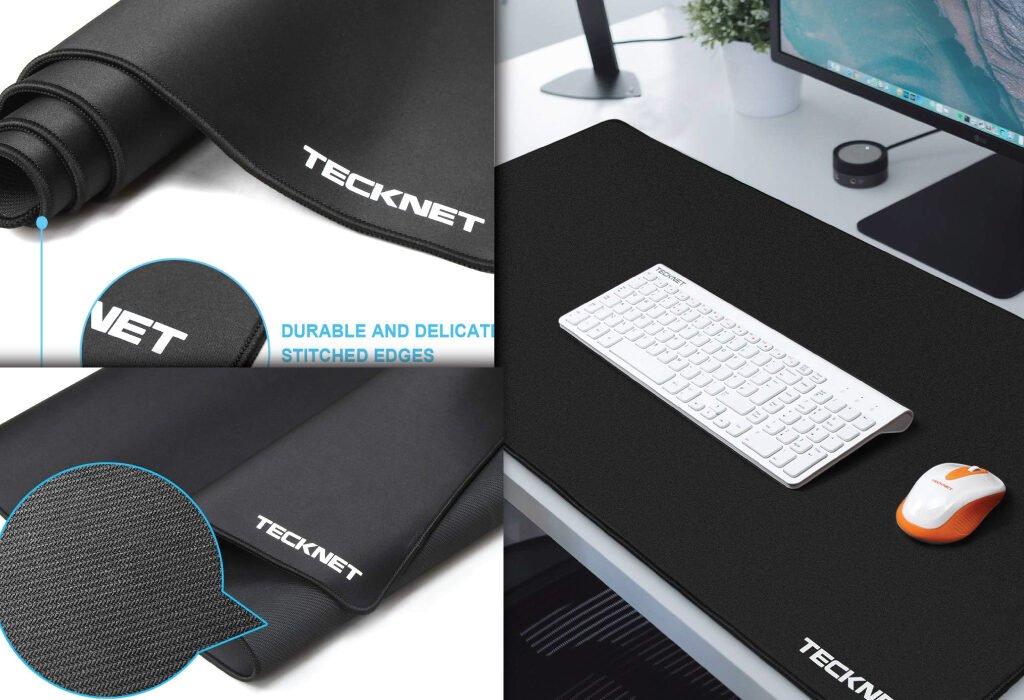
A collage of two images highlighting a black desk mat. One image shows a full desk setup with a title text Best Desk Mat for Graphic Designer. The other image focuses on the TECKNET brand mat, showcasing its durable, stitched edges and smooth surface texture, illustrating why it is the ideal choice for designers.

Best Desk Mat for Graphic Designers

A collage of two images highlighting a black desk mat. One image shows a full desk setup with a title text Best Desk Mat for Graphic Designer. The other image focuses on the TECKNET brand mat, showcasing its durable, stitched edges and smooth surface texture, illustrating why it is the ideal choice for designers.
Enhance your creative workspace with a best desk mat for graphic designer. A quality desk mat, such as the TECKNET brand shown, provides a durable surface with stitched edges for a clean look, protects your desk from scratches, and offers a smooth, consistent surface for your mouse, making it an essential accessory for any creative professional.

Explore the best desk mat for graphic designers with a detailed review of the TECKNET Large Gaming Mouse Pad. Learn how this extended mat enhances comfort, precision, and workflow in your creative space.

Introduction

Best Desk Mat for Graphic Designers- Finding the perfect desk mat for a graphic designer is more than just picking something that looks good on your workstation. Your workspace directly impacts your productivity, comfort, and creative flow. Whether you’re sketching, editing, or managing layers in Photoshop, you need a surface that supports precision and ease. That’s where the TECKNET Large Gaming Mouse Pad comes in—designed to meet the needs of gamers and creative professionals alike.

This extended mouse pad is not only sleek but also functional. It provides enough room for a keyboard, mouse, and drawing tablet, giving your hands the space they need to move freely. With a smooth micro-weave cloth surface, water resistance, and a non-slip base, it’s built to support long hours of creative work.

Why Every Graphic Designer Needs a Quality Desk Mat

Protecting Your Workspace

A premium desk mat does more than just look good—it acts as a protective layer against scratches, spills, and heat damage.

Enhancing Mouse Performance

Precision is essential in graphic design. A high-quality desk mat like the TECKNET model ensures smooth tracking and minimal resistance, which is vital when working with detailed designs.

Improving Ergonomics

Desk mats cushion your wrists and arms, reducing strain during long creative sessions.

Organizing the Workspace

An extended mat creates defined space for your keyboard, mouse, and accessories, helping maintain a clutter-free environment.

A collage of two images highlighting a black desk mat. One image shows a full desk setup with a title text Best Desk Mat for Graphic Designer. The other image focuses on the TECKNET brand mat, showcasing its durable, stitched edges and smooth surface texture, illustrating why it is the ideal choice for designers.
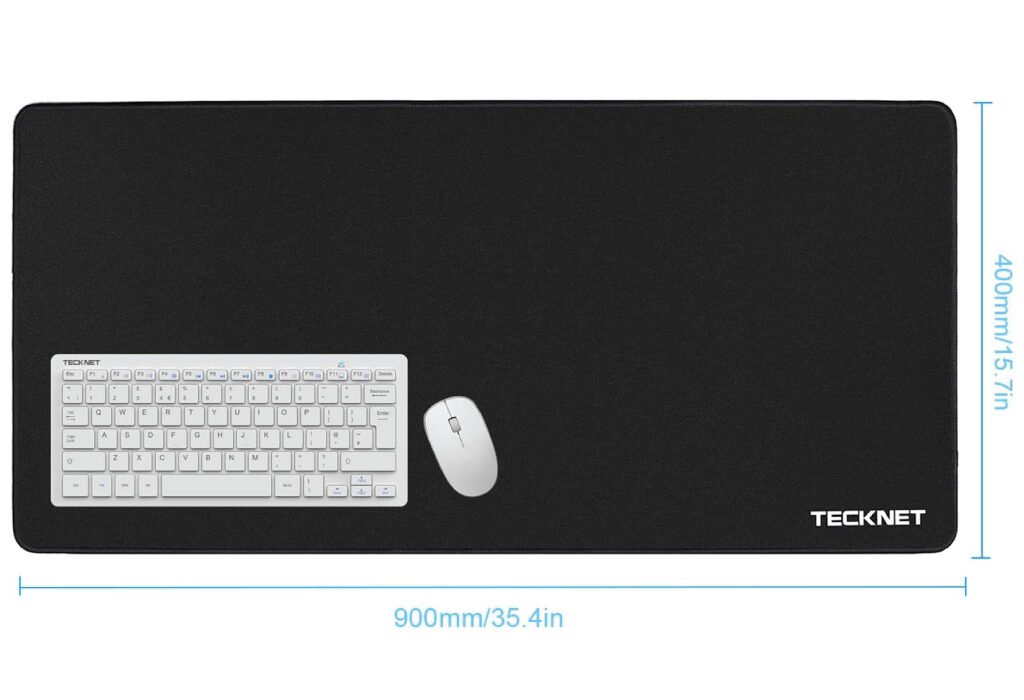
Enhance your creative workspace with a best desk mat for graphic designer. A quality mat like the TECKNET brand shown provides a durable surface with stitched edges for a clean look, protects your desk from scratches, and offers a smooth, consistent surface for your mouse, making it an essential accessory for any creative professional. The mat has a dimension of 900mm by 400mm, providing ample space for a keyboard and mouse.

Comparison with Other Desk Mats

Many desk mats on the market offer size or texture but fail in balance. Here’s how TECKNET compares:

FeatureTECKNET Large Gaming Mouse PadGeneric Mouse PadsLeather Desk Mats
Surface MaterialMicro-Weave ClothBasic clothPU Leather
Size35.4 x 15.8 in10 x 8 in31 x 14 in
Water ResistanceYesLimitedModerate
Non-Slip BaseYesOften missingYes
Edge StitchingReinforcedNoneSometimes
Designed for CreativesYesNoPartial
Price RangeAffordableCheapMid to High

TECKNET Large Gaming Mouse Pad: A Closer Look

Generous Surface Area

Measuring 35.4 x 15.8 inches, it offers ample space for a full-size keyboard, mouse, and even a sketchpad or tablet.

Superior Micro-Weave Cloth

The smooth cloth surface provides effortless mouse gliding and reduces hand fatigue during precision work.

Non-Slip Rubber Base

The anti-slip base ensures the mat stays in place no matter how intensely you work or game.

Water-Resistant Coating

Spills happen. Fortunately, this mat resists water and stains, making it easy to wipe clean without damaging your desk.

Durable Stitched Edges

Reinforced edges prevent fraying over time, maintaining the mat’s sleek look and long-lasting performance.

A large TECKNET desk mat is shown with its dimensions of 900mm by 400mm. It features a water-resistant surface and durable stitched edges, making it ideal for a graphic designer's workspace.
This large desk mat with durable stitched edges and a water-resistant surface is an essential accessory for any graphic designer. Its ample size of 900mm by 400mm provides a smooth workspace for a keyboard and mouse.

How the TECKNET Mouse Pad Benefits Graphic Designers

Seamless Workflow

With all essential tools placed on a single mat, designers can move quickly between devices.

Aesthetic Compatibility

The minimalist black design fits with modern desk setups, especially in studios or remote workspaces.

Portability and Flexibility

It’s lightweight and easy to roll, making it a great option for traveling designers.

Technical Specifications Table

FeatureSpecification
Dimensions35.4 x 15.8 inches
Surface MaterialMicro-weave cloth
Base MaterialNon-slip rubber
Edge StitchingReinforced, anti-fray
Water ResistanceYes
ColorBlack
CompatibilityPC, Mac, tablets

Tips for Maintaining Your Desk Mat

Clean Regularly

Use a damp cloth with mild soap to clean the surface monthly.

Avoid Direct Sunlight

Keep your mat away from direct UV exposure to prevent fading.

Flat Storage

When not in use, store it flat or gently rolled to avoid permanent creases.

A split image showing a black TECKNET brand Mouse and keyboard Pad. The left side highlights its durable stitched edges and textured surface, while the right shows the large pad laid out on a desk with a keyboard and mouse.
Upgrade your workspace with this spacious and durable Mouse and keyboard Pad. The TECKNET brand pad features a smooth surface for precise mouse control and stitched edges to prevent fraying, making it a long-lasting and essential accessory for any desk setup.

Common Mistakes to Avoid When Choosing a Desk Mat

Ignoring Surface Texture

Not all mats are created equal. Designers need a smooth, consistent surface for uninterrupted workflow.

Choosing Inadequate Size

A mat that’s too small can lead to a cramped, inefficient workspace.

Overlooking Edge Stitching

Lack of reinforced edges can lead to fraying, reducing lifespan.

Conclusion

The TECKNET Large Gaming Mouse Pad delivers on every front a graphic designer needs—precision, protection, and comfort. Its generous size allows for a clutter-free setup, while the high-quality cloth and stitched edges ensure lasting use. With its water-resistant surface and non-slip base, it’s a great fit for both beginners and professionals.

If you’re looking to enhance your creative workflow and take care of your wrists and equipment, this desk mat is a solid investment. Whether you’re illustrating, editing, or designing layouts, the TECKNET pad supports your creativity every step of the way.

20% OFF
Hostinger Business Hosting

Hostinger Business Hosting

Get high-speed, secure hosting for your website. Limited-time 20% discount available.

Claim 20% Discount

Also, check the recent article about the best laptop for graphic design here.


What makes a desk mat ideal for graphic designers?

A good desk mat for graphic designers should offer a smooth surface for precise mouse movement, be large enough to fit a keyboard and tablet, and include a non-slip base. It also helps if the mat is water-resistant and easy to clean.

Is the TECKNET mouse pad only for gaming?

No. While it’s designed with gamers in mind, the TECKNET Large Gaming Mouse Pad is perfect for designers too. Its smooth surface ensures accurate cursor movement, which is vital for design work.

Does the mat support all types of mice?

Yes. The micro-weave cloth surface supports both optical and laser mice, ensuring excellent tracking and responsiveness across various design applications.

Can I use this desk mat with my drawing tablet?

Absolutely. Many graphic designers use it alongside tablets. It provides a stable base that enhances drawing precision and reduces wrist fatigue.

Is this desk mat durable?

Yes. The stitched edges prevent fraying, and the thick material ensures long-lasting use, even with heavy daily tasks.

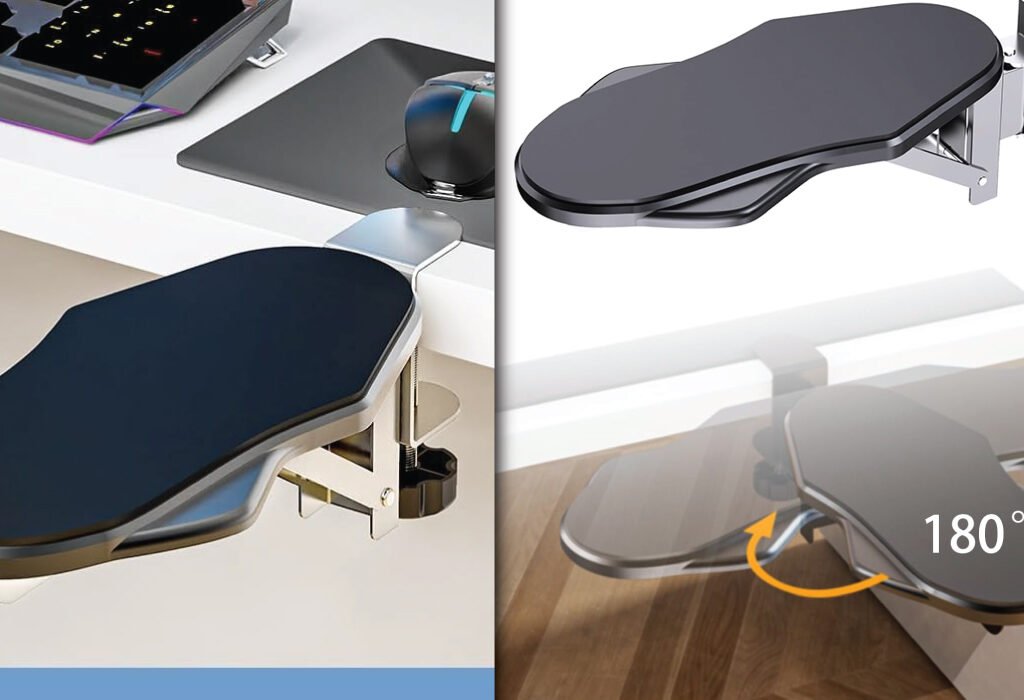
A collage of two images related to adjustable armrests. The first shows a close-up of a chair armrest, highlighting it as the best adjustable armrest for a graphic designer. The second image shows a clamp-on armrest that rotates 180°, demonstrating a specialized accessory for ergonomic support.

Best Adjustable Armrest for Graphic Designer

A collage of two images related to adjustable armrests. The first shows a close-up of a chair armrest, highlighting it as the best adjustable armrest for a graphic designer. The second image shows a clamp-on armrest that rotates 180°, demonstrating a specialized accessory for ergonomic support.
Create a more ergonomic and comfortable workspace with the Best Adjustable Armrests for Graphic Designer. Whether built into an office chair or a specialized clamp-on version that offers a full 180° rotation for flexible support, a good armrest is essential for reducing strain during long creative sessions.

Discover the best adjustable armrest for graphic designers that enhance comfort, prevent strain, and improve posture. Find ergonomic solutions tailored for long creative sessions.

Why Adjustable Armrests Matter for Graphic Designers

Graphic designers spend hours at their desks perfecting every pixel, line, and layout. Long sitting sessions and repetitive hand movements can cause discomfort if the workstation isn’t ergonomically optimized. Adjustable armrest are often overlooked, yet they play a crucial role in supporting the arms, reducing shoulder tension, and improving posture during prolonged work.

In this article, we’ll explore why adjustable armrest is essential, what features to look for, and which models stand out as the best choices for design professionals.

Key Benefits of Adjustable Armrest for Designers

Reduce Shoulder and Neck Strain
Designers who spend long periods using a mouse and keyboard often experience tightness in their shoulders and neck. Adjustable armrests support the arms in a relaxed position, helping to prevent muscle fatigue and tension.

Encourage Proper Posture
Without armrests, users may tend to slump forward or lift their shoulders, leading to poor posture. An adjustable armrest promote better alignment of the spine and arms.

Support Long Hours of Work
Comfort leads to productivity. When your arms are supported at the correct height and angle, it reduces pressure on the joints and muscles, making it easier to focus on design tasks for longer periods.

Reduce Risk of Repetitive Strain Injuries (RSIs)
Ergonomically adjusted armrests can lower the chances of carpal tunnel syndrome, tennis elbow, or other RSIs by ensuring natural arm movement.

What to Look for in Adjustable Armrests

Height Adjustability
One of the most critical features is the ability to raise or lower the armrest so your arms are parallel to the desk surface. It should match your seated elbow height.

Width and Depth Adjustment
Some armrests move inward or outward to suit your body frame and reach. Depth adjustability allows armrests to slide forward or backward depending on arm length and desk setup.

Rotation and Swivel Options
Swivel armrests offer flexibility to match your arm’s natural position. It’s helpful for those who switch between mouse and tablet or different drawing angles.

Padding and Material Comfort
High-density foam or memory foam padding provides a soft resting surface. Breathable, durable materials like mesh or PU leather add to long-term usability.

Locking Mechanisms
Good armrests stay in place once adjusted. Look for locking mechanisms that prevent shifting during work.

Miocololy Adjustable Armrest for Graphic Designer – A Smart Ergonomic Desk Companion

If you’re a graphic designer spending long hours working at a desk, finding the right ergonomic support is critical. The Miocololy Adjustable Armrest offers an excellent solution. This ergonomic arm support is designed to reduce tension in your shoulders, arms, and wrists—making it easier to focus on your creative work. Whether you’re sketching on a tablet, editing images, or typing long emails, this armrest keeps your arm in a natural position to avoid strain.

This armrest attaches easily to the edge of most desks and supports up to 24 pounds. With its 180° horizontal rotation and 90° vertical folding, you can adjust it to the exact position you need. It folds neatly away when not in use and doesn’t take up unnecessary space.

The padded surface is soft yet firm, providing reliable comfort for extended use. It’s built with durable ABS plastic and memory foam padding to ensure longevity and daily comfort. It’s suitable for both right- and left-handed users, making it versatile in any setup.

If you use a mouse, drawing tablet, or keyboard for long hours, the Miocololy Armrest can help prevent wrist fatigue and maintain healthy posture—essential for a graphic designer’s workflow.

A close-up of a clamp-on ergonomic armrest pad attached to a desk. The image highlights its key feature with an arrow showing its 180° swivel motion, making it a highly functional accessory among Adjustable Armrests.
Enhance your workspace ergonomics with these innovative Adjustable Armrest. Designed to clamp directly onto your desk, this accessory provides comfortable support for your arm and wrist, featuring a 180° swivel to accommodate various working positions and reduce strain.

Technical Details:

FeatureSpecification
BrandMiocololy
Product TypeDesk-mounted ergonomic armrest
MaterialABS plastic + high-density memory foam
Surface PaddingAnti-slip, breathable memory foam
Rotation180° horizontal swivel
Folding90° upward folding arm for space-saving
Installation MethodClamp-on, adjustable desk thickness compatibility
Desk CompatibilitySuitable for desks from 0.5 to 2 inches thick
Weight CapacityUp to 24 lbs (approx. 11 kg)
DimensionsArmrest length: 11.5 inches / Width: 5.5 inches
UsabilitySuitable for right- or left-handed users
Use CaseOffice, home desk, remote work, graphic design setups
Recommended ForDesigners, gamers, typists, office professionals

Why Designers Will Love It

This armrest is ideal for repetitive hand movement work like digital sketching, photo retouching, and layout design. It helps prevent shoulder shrugging, wrist compression, and upper arm fatigue. Instead of letting your arm dangle or press against a hard desk edge, the Miocololy provides a stable, cushioned support point.

You’ll also appreciate the quick-fold feature. When you’re done or need more room on your desk, just flip it up. The rotating function adds flexibility, especially if you switch between mouse and drawing tablet frequently.

How to Set Up Your Armrests Properly

Align With Your Elbows
When seated, your elbows should form a 90-degree angle with your forearms resting gently on the armrests. This helps minimize strain on the shoulders and wrists.

Adjust Based on Desk Height
If your armrests are too high or low relative to your desk, they can create pressure or awkward angles. Adjust them to create a smooth horizontal flow from arms to work surface.

Use as a Guide for Chair Height
Once the armrests are aligned with the desk, your chair height should ensure your feet are flat on the floor and your knees are at a 90-degree angle.

Watch for Overuse
While armrests offer support, they shouldn’t restrict movement. Avoid leaning too heavily or relying on them when moving your chair or shifting position.

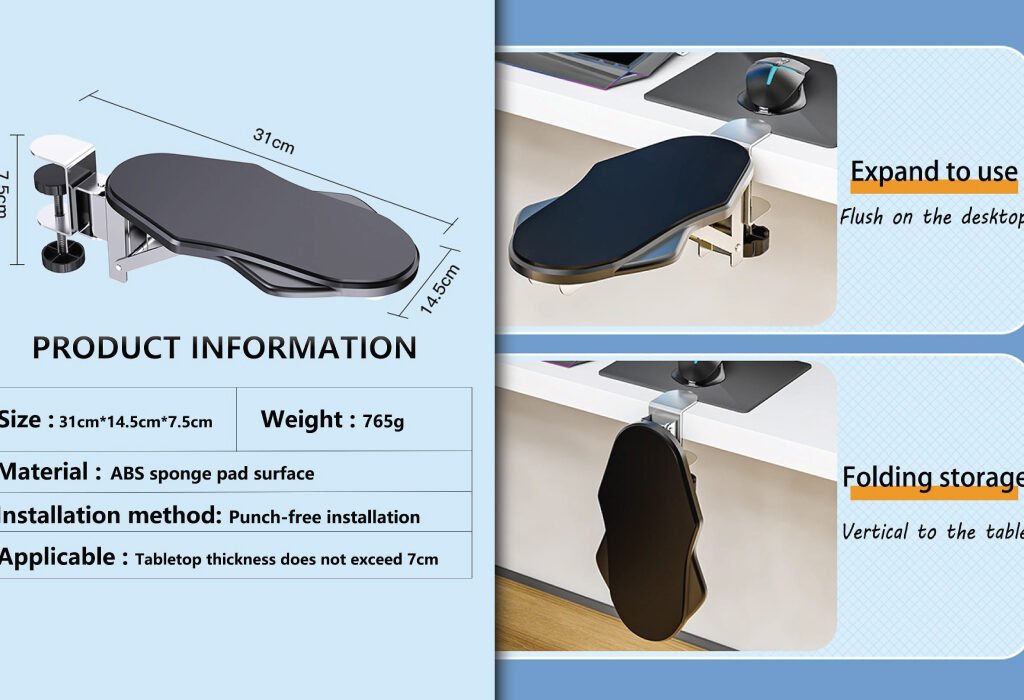
A collage of images showcasing the Best Adjustable Armrests for Graphic Designer. One image has the title text, while others show a clamp-on armrest that rotates 180° and provides product information, including a punch-free installation method. This highlights the Miocololy Adjustable Armrest as a solution for ergonomic workspace needs.
Enhance your workstation with the Best Adjustable Armrests for Graphic Designer, such as the Miocololy Adjustable Armrest. This ergonomic accessory features a 180° rotation for flexible positioning and a punch-free installation method, providing comfort and support for long creative sessions. Its dimensions are 31cm x 14.5cm x 7.5cm, with a tabletop thickness compatibility of up to 7cm.

Common Mistakes to Avoid

Ignoring Width Adjustment
Many people forget that armrest width plays a big role in comfort. Too wide and your elbows are flared; too narrow and your shoulders get cramped.

Leaving Them Too Low
Low armrests may cause you to slump forward or shrug your shoulders. Keep them aligned with your elbow height to prevent unnecessary tension.

Using Hard, Non-Padded Surfaces
Poor padding leads to pressure points on the forearms. Choose models with adequate cushioning for extended use.

Not Testing with Your Full Setup
Before finalizing your setup, test armrests with your full desk arrangement—keyboard, mouse, drawing pad—to ensure everything flows naturally.

Using Adjustable Armrests in Multi-Device Workflows

Graphic designers frequently switch between mouse, stylus, drawing tablet, and keyboard. Adjustable armrests that pivot and move easily help support the transition.

For Stylus and Tablet Work
When working on a Wacom tablet or iPad, you may benefit from lowering or angling the armrest to allow better wrist mobility without support loss.

For Keyboard and Mouse Use
Higher armrest positioning works well when using a keyboard or mouse. It helps minimize wrist extension and supports the arms at desk level.

For Standing Desk Setups
Some designers alternate between sitting and standing. In these cases, look for detachable or re-positionable armrests that adapt across desk configurations.

Why Designers Should Prioritize Ergonomics

Design isn’t just mental—it’s physical. Your creativity flows best when your body isn’t distracted by discomfort. Ergonomic equipment like adjustable armrests ensures your energy is spent on design, not on adjusting your body to the workspace.

Long-Term Health Gains
Designers who prioritize ergonomics experience fewer long-term health problems, including back pain, arm fatigue, and joint stiffness.

Improved Productivity
When you’re physically comfortable, you can work longer and more efficiently. Armrests contribute directly to your workflow by reducing small inefficiencies and pain-related interruptions.

Better Creative Focus
The less you have to worry about discomfort, the more brainpower you can devote to ideas, layout composition, and visual storytelling.

Affordable Alternatives to Full Chair Upgrades

Not every designer can afford a $1000 ergonomic chair. Fortunately, there are affordable and flexible alternatives.

Desk-Mounted Arm Supports
These attach to the edge of your desk and act as external armrests. Great for laptop users or standing desk setups.

DIY Armrest Cushions
Using memory foam pads or gel wrist supports, you can create a custom solution that aligns with your desk and posture.

Armrest Covers and Extenders
For chairs with basic or hard armrests, adding soft covers or extenders can make a significant comfort difference without breaking the bank.

Maintaining Your Armrests for Long-Term Use

Clean Regularly
Wipe down your armrests with a damp cloth to remove skin oils and dust buildup. This keeps the surface fresh and extends material life.

Tighten Screws and Joints
Over time, adjustable joints can loosen. Regularly check screws and locks to maintain stability and noise-free operation.

Replace Worn Padding
If the foam wears out or the surface peels, look into replacing the covers or upgrading to better cushions. A small investment goes a long way in comfort.

Conclusion: Invest in Comfort to Unlock Creativity

As a graphic designer, you pour your vision and detail into every project. But to consistently perform at your best, you must take care of your body—especially your arms and shoulders.

Adjustable armrests offer a relatively small yet highly impactful way to improve your ergonomic setup. Whether through a full-featured chair or a desk-mounted option, the right armrest keeps your arms aligned, your posture stable, and your creativity uninterrupted.

Choose the model that fits your workflow, test it with your full desk setup, and adjust it until it feels natural. Over time, you’ll notice less strain, more focus, and a much better design experience overall.

Also, check the recent article about the best laptop for graphic design here.

20% OFF
Hostinger Business Hosting

Hostinger Business Hosting

Get high-speed, secure hosting for your website. Limited-time 20% discount available.

Claim 20% Discount

Are adjustable armrests really necessary for graphic designers?

Yes, they help support your arms during long hours of work. This reduces shoulder, neck, and wrist strain while promoting better posture and comfort.

What features should I look for in adjustable armrests?

Look for height, width, and depth adjustability. Soft padding, swivel options, and locking mechanisms are also important for proper ergonomic support.

Can I add adjustable armrests to my existing chair?

Yes, some models clamp onto desks or come as add-ons that fit most standard chairs. They’re great if your chair doesn’t come with built-in adjustable armrests.

Do adjustable armrests work with standing desks?

Some do. Choose armrests that are easy to remove or reposition. There are also models that attach directly to desks and adjust as needed.

How high should my armrests be?

Your elbows should rest at a 90-degree angle with your forearms parallel to the desk. This helps keep your shoulders relaxed and prevents tension.

Can armrests help prevent wrist pain?

Yes, especially when combined with good posture and proper keyboard height. They keep your arms supported and reduce pressure on the wrists.