Portable Drawing Tablet with Screen for Graphic Designer

Best Compact Portable Drawing Tablet with Screen for Graphic Designers

Portable Drawing Tablet with Screen for Graphic Designer

Graphic designers need tools that can keep up with detailed creative work. Whether you are creating packaging artwork, illustrations, logos, digital paintings, photo edits, or social media graphics, having a responsive drawing display can make the creative process more natural.

The HUION Kamvas Pro 16 V2 is designed for artists and graphic designers who want a large drawing area without carrying a bulky workstation accessory. Its 15.6-inch display, battery-free pen, high pressure sensitivity, customizable shortcut keys, and slim body make it suitable for a wide range of digital design tasks.

For designers looking for a Portable Drawing Tablet with Screen for Graphic Designer work, this model combines a paper-like drawing surface with a color-focused display and computer connectivity. It is important to note that the Kamvas Pro 16 V2 is a pen display rather than a standalone tablet. It needs to be connected to a compatible computer or laptop.

Why a Portable Drawing Tablet with Screen Can Help Graphic Designers

A drawing tablet with a screen gives designers a direct way to interact with their artwork. Instead of looking at a computer monitor while drawing on a separate tablet, you can place the pen directly on the image displayed on the screen.

This can make certain creative tasks feel more intuitive, especially when working on illustrations, retouching, sketching, or detailed vector artwork.

Direct on-screen drawing

The Kamvas Pro 16 V2 allows you to draw directly on its 15.6-inch display.

This can be useful when creating detailed illustrations, editing paths, painting digital artwork, or working on other visual projects.

Better control over creative details

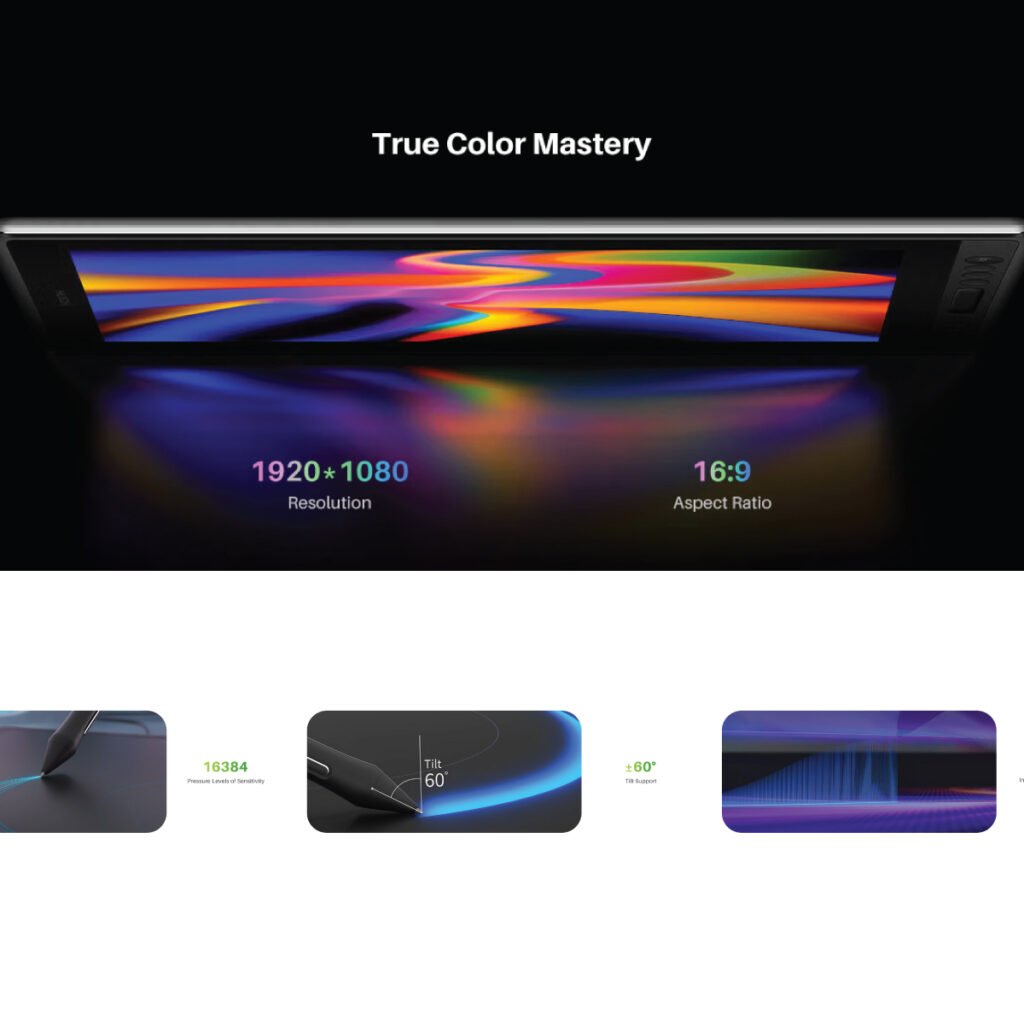
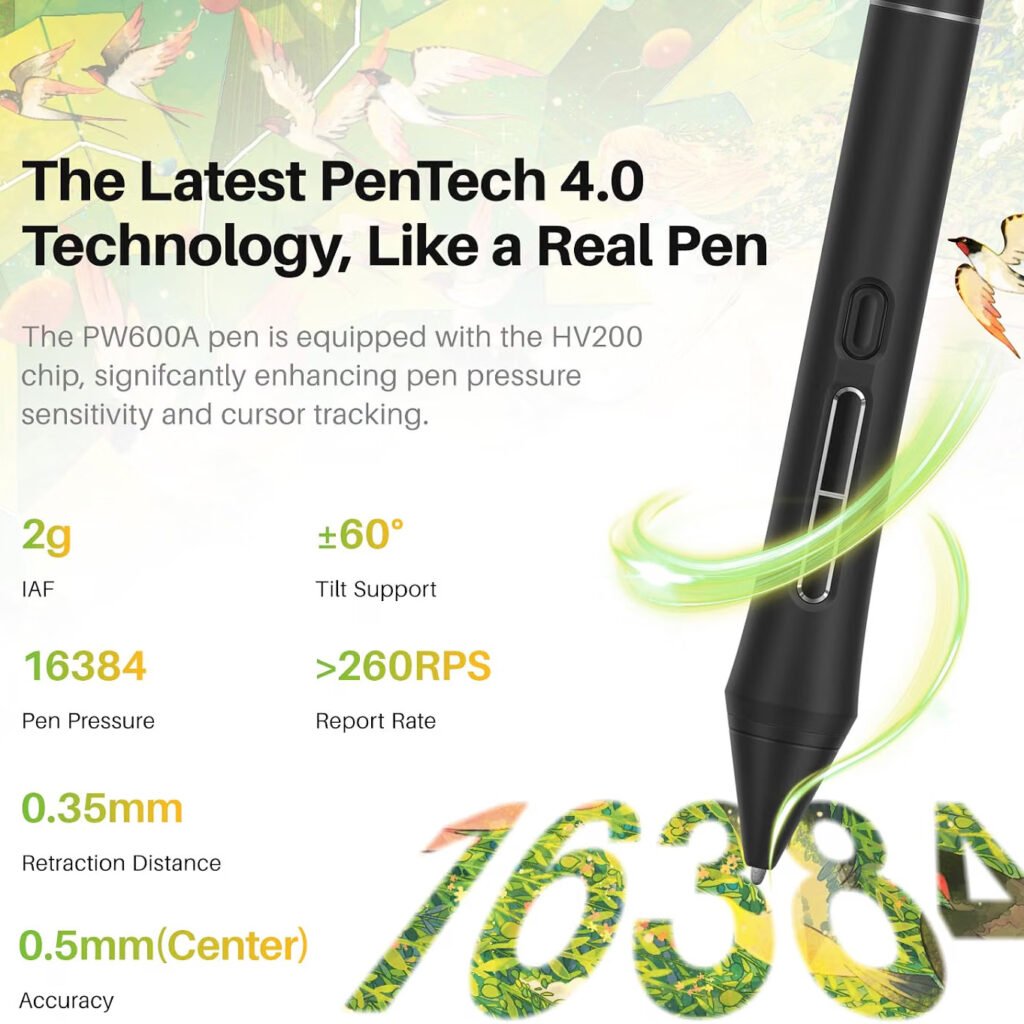
The PW600A battery-free pen supports 16,384 pressure levels.

This high pressure sensitivity can help capture differences in pen pressure, allowing designers and artists to create more nuanced strokes.

Useful for professional design software

The display works with popular creative applications including Adobe Photoshop, Clip Studio Paint, SAI, and Lightroom.

For graphic designers who already use professional creative software, this compatibility can make the tablet easier to integrate into an existing workflow.

Specification Table for Portable Drawing Tablet with Screen for Graphic Designer

SpecificationHUION Kamvas Pro 16 V2
BrandHUION
ModelKamvas Pro 16 V2
Product TypePen Display
Standalone OperationNo
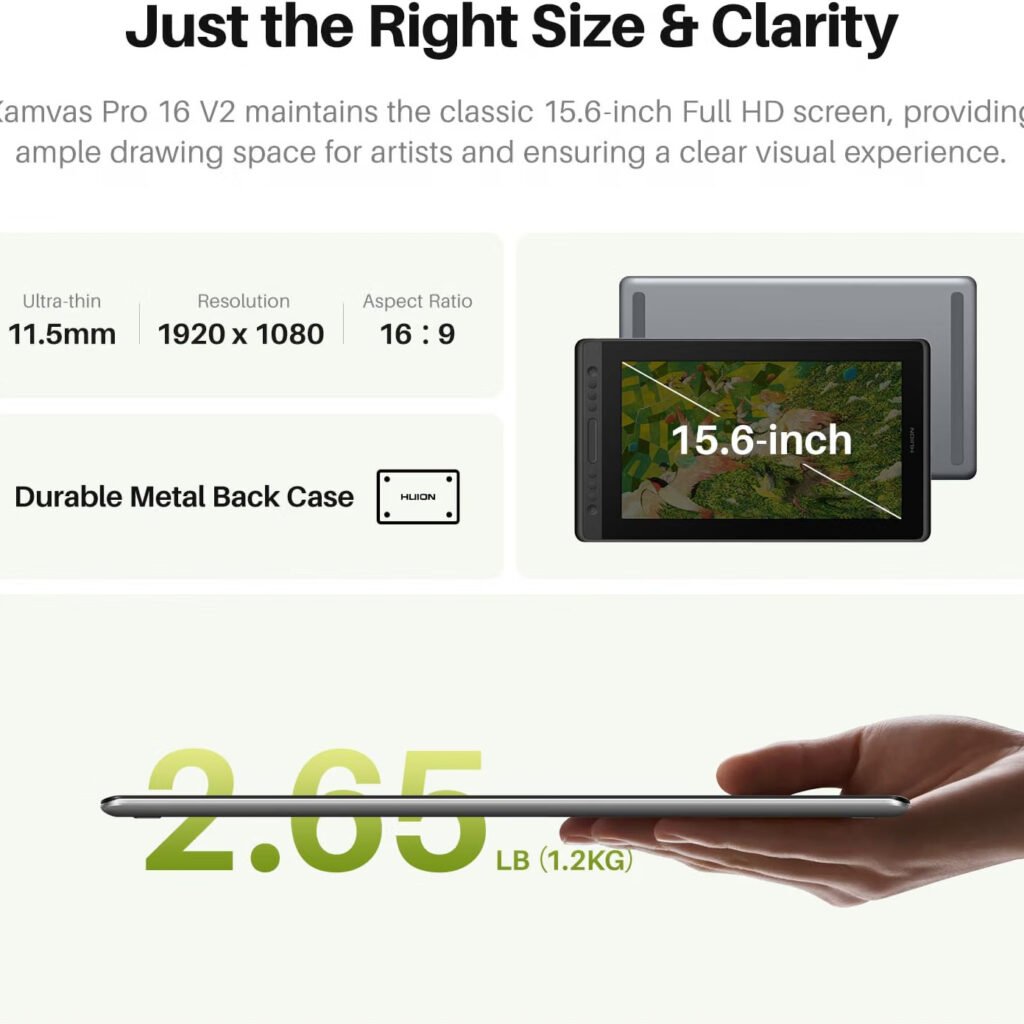
Screen Size15.6 inches
Display TypeFull-Laminated Digital Drawing Display
SurfaceAnti-Glare
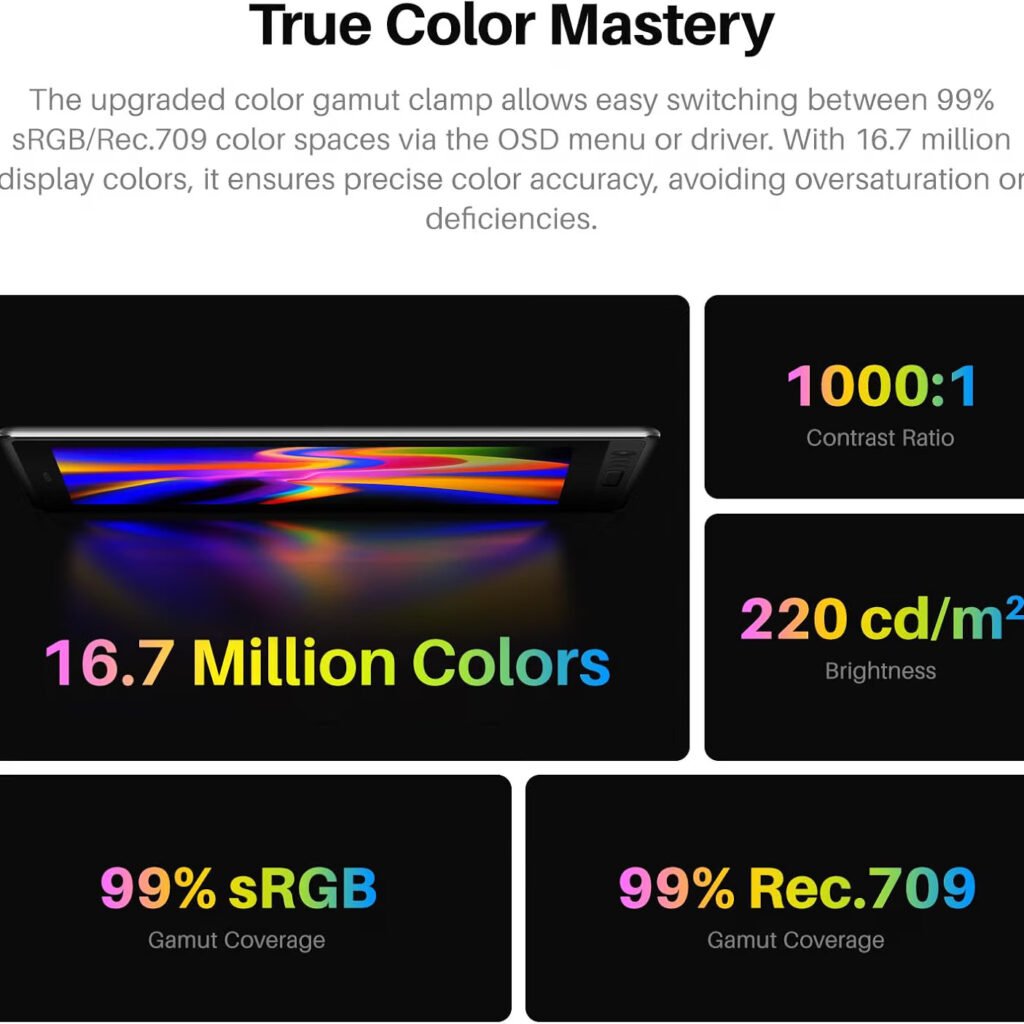
Color Coverage120% sRGB
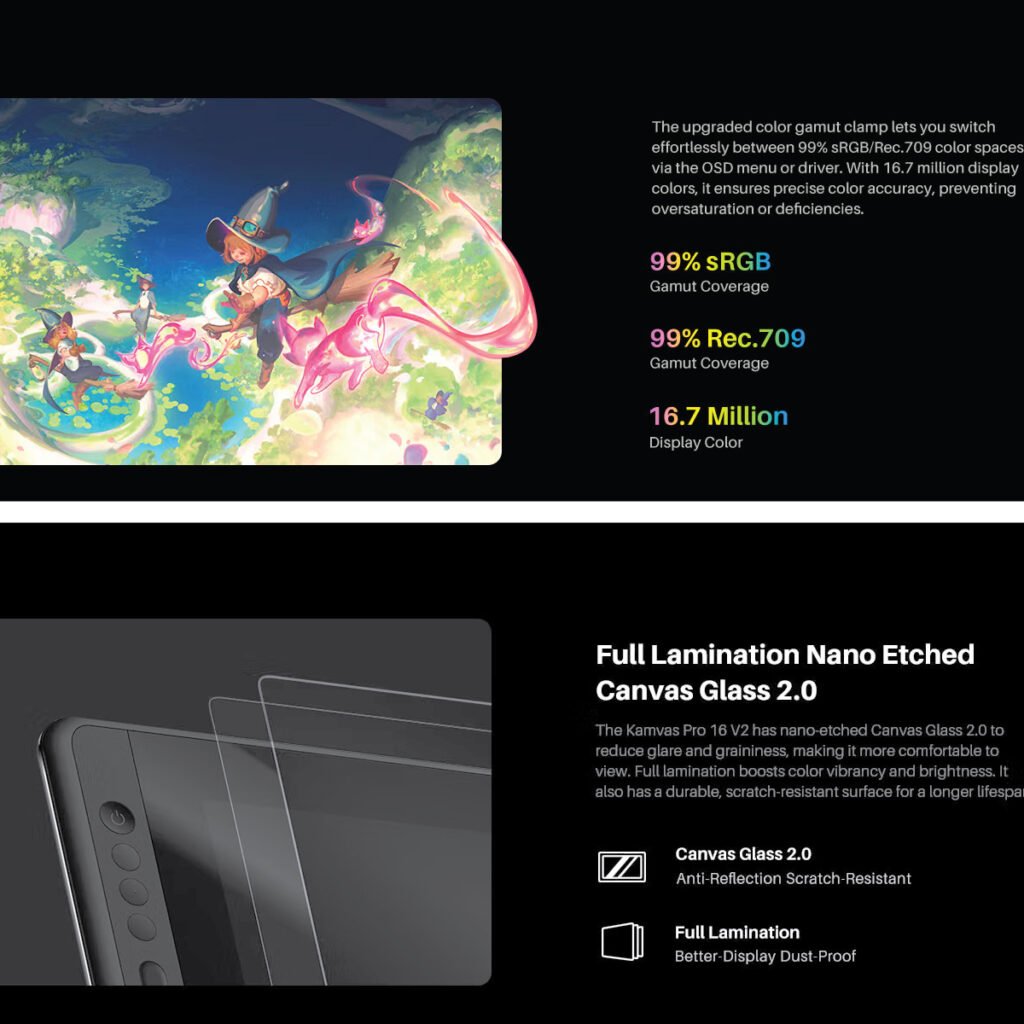
sRGB Coverage99%
Rec.709 Coverage99%
Colors16.7 Million
Viewing Angle178°
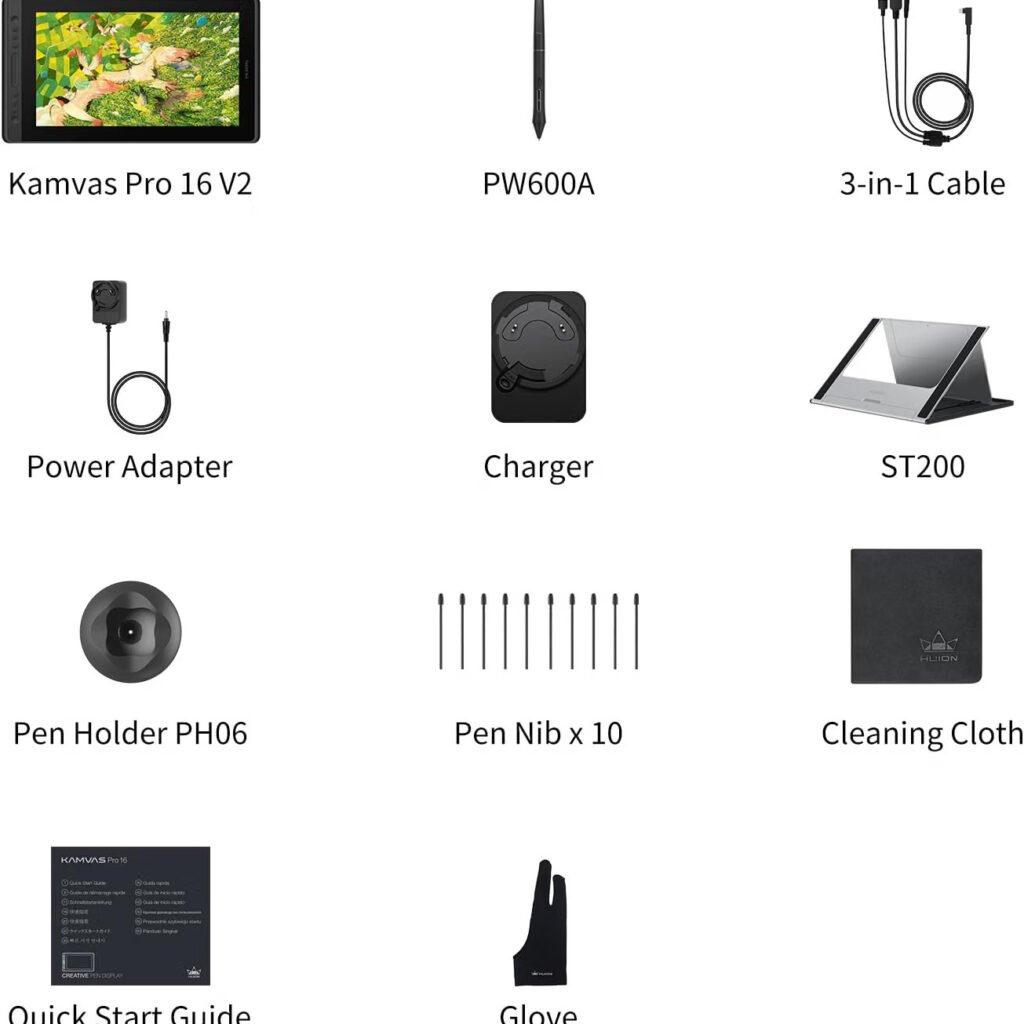
Pen ModelPW600A
Pen TechnologyPentech 4.0
Pressure Levels16,384
Pen Resolution5080 LPI
Pen BatteryBattery-Free
Pen Buttons3 Side Keys
Express Keys6 Customizable Keys
Touch ControlSmart Touch Bar
Thickness0.453 inches
Weight2.65 lb
Included StandST200 Aluminum Stand
Stand Angles14.5° to 45°
Stand Positions6
Cable3-in-1 Cable
Connection PortRecessed Type-C
Operating SystemWindows 7+, macOS 10.12+, Linux
Linux SupportUbuntu 20.04 LTS
Compatible SoftwareAdobe Photoshop, Clip Studio Paint, SAI, Lightroom
Display FunctionDrawing Monitor
Touch ScreenNo

The specifications highlight the balance between portability and professional creative features. The large 15.6-inch display provides a comfortable workspace, while the slim body and included stand make the device easier to fit into a flexible workstation.

Portable Drawing Tablet with Screen for Graphic Designer

(Earns commissions on qualifying Amazon purchases)

HUION Kamvas Pro 16 V2 Overview

The HUION Kamvas Pro 16 V2 is a 15.6-inch pen display designed for digital drawing and creative work.

It is not a standalone computer or independent drawing tablet. Instead, it connects to a compatible computer or laptop and acts as an external drawing display.

15.6-inch drawing display

The 15.6-inch screen provides a substantial working area while keeping the overall device relatively compact.

For graphic designers, this balance can be useful when you want more drawing space without moving to a much larger pen display.

Full-laminated display

The screen uses full lamination to reduce the gap between the display and the drawing surface.

This can help reduce visual parallax and make the pen position feel more closely aligned with the artwork on screen.

Anti-glare surface

The display features an anti-glare finish designed to reduce reflections.

This can be useful when working near windows, desk lamps, or other light sources.

16,384 Pressure Levels for Detailed Design

One of the key features of the Kamvas Pro 16 V2 is its PW600A battery-free pen.

The pen uses Pentech 4.0 technology and provides 16,384 pressure levels.

Natural pen control

Pressure sensitivity allows the pen to respond differently depending on how firmly you press.

For artists, this can be useful for controlling stroke thickness, opacity, and other brush behaviors when supported by the software.

Battery-free pen

The PW600A does not require a battery.

This means you do not need to charge the pen before starting a design session.

For freelancers and professional designers, a battery-free stylus can simplify the daily workflow.

5080 LPI resolution

The pen system provides 5080 LPI resolution.

This supports detailed input and can be useful for designers working on fine lines, illustrations, retouching, and other precision-focused tasks.

Paper-like Drawing Experience

The surface of a drawing display can affect how comfortable it feels to work for long periods.

The Kamvas Pro 16 V2 is designed with a paper-like texture intended to create a more natural drawing experience.

Reduced parallax

Full lamination helps reduce the distance between the pen tip and the displayed image.

This can make drawing feel more direct because the cursor appears closer to where the pen is touching the surface.

Reduced glare

The anti-glare display can help reduce distracting reflections during long design sessions.

This can be particularly helpful in bright home offices or professional studios.

Comfortable creative workflow

A paper-like surface can be useful for designers who prefer a little resistance instead of drawing on a completely smooth glass-like surface.

The experience can be especially relevant to illustrators, digital artists, and designers who spend many hours working with a stylus.

Color Performance for Graphic Design

Color accuracy is important for many graphic design projects.

The Kamvas Pro 16 V2 offers 120% sRGB color coverage, with the product information also listing 99% sRGB and 99% Rec.709 coverage.

Wide color coverage

A broad color range can help display a wider selection of colors on screen.

This can be useful for digital illustration, branding work, photo editing, and other projects where color appearance matters.

16.7 million colors

The display supports 16.7 million colors.

This allows the screen to show a broad range of tones and color variations for digital artwork.

Wide viewing angle

The display provides a 178-degree viewing angle.

This can help maintain consistent viewing across different positions around the screen.

For designers working at different desk angles, this can provide a more comfortable viewing experience.

Customizable Express Keys and Smart Touch Bar

A good drawing tablet is not only about the display and pen. Workflow controls can also save time.

The Kamvas Pro 16 V2 includes six customizable Express Keys and a Smart Touch Bar.

Six customizable Express Keys

The Express Keys can be assigned to frequently used commands.

For example, designers can customize shortcuts for functions they use often in their creative software.

This can reduce the need to move repeatedly between the pen, keyboard, and on-screen menus.

Smart Touch Bar

The Smart Touch Bar provides additional control options.

It can be used for functions such as zooming, changing brush size, and scrolling.

These controls can be useful when working on large illustrations or detailed design files.

OSD menu controls

The product information states that holding the function key for three seconds can turn the keys into OSD menu controls.

This provides another way to access display-related settings.

HUION Drawing Tablet with Screen

Slim and Portable Design

Portability is one of the main reasons a designer may choose a smaller pen display.

The Kamvas Pro 16 V2 is listed at 0.453 inches thick and weighs 2.65 pounds.

Lightweight construction

At 2.65 pounds, the display is designed to be easier to move than a larger professional drawing monitor.

For freelancers who work between a home office, studio, coworking space, or client location, a lighter setup can be convenient.

Slim profile

The 0.453-inch thickness gives the display a relatively slim profile.

This can make it easier to place in a workspace or carry with other equipment.

Portable design for freelancers

A Portable Drawing Tablet with Screen for Graphic Designer work can be especially useful when your work location changes.

Instead of having one large permanent drawing display, you can take a more compact pen display with you when needed.

Included Aluminum Stand

The Kamvas Pro 16 V2 includes an ST200 aluminum stand.

The stand offers six viewing angles from 14.5 degrees to 45 degrees.

Multiple working angles

Different design tasks may feel more comfortable at different screen angles.

The adjustable stand lets you choose a position that fits your desk and drawing style.

Anti-slip pads

The stand includes anti-slip pads designed to help keep it stable during use.

This is useful when applying pressure with the pen or working through detailed artwork.

Better desk ergonomics

A raised and angled display can help create a more comfortable workstation compared with keeping the screen completely flat.

Designers can adjust the angle to find a position that suits their posture and working style.

Clean 3-in-1 Cable Setup

Cable management can quickly become a problem on a creative desk.

The Kamvas Pro 16 V2 uses a 3-in-1 cable designed to help reduce cable clutter.

Fewer loose cables

Combining connections into a 3-in-1 cable can help keep the workspace cleaner.

This can be useful for freelancers who prefer a minimalist desk setup.

Secure Type-C connection

The device features a recessed Type-C port designed to hold the cable securely.

The deeper port helps reduce the chance of accidental cable disconnects.

Useful for mobile workflows

A secure cable connection is particularly useful when moving or adjusting the tablet during a design session.

It can help maintain a stable connection between the drawing display and the computer.

Compatibility With Creative Software

Software compatibility is an important consideration before buying any drawing display.

The Kamvas Pro 16 V2 supports several operating systems and popular creative applications.

Windows compatibility

The product supports Windows 7 and above.

This makes it suitable for many Windows-based desktop and laptop workstations.

macOS compatibility

The Kamvas Pro 16 V2 supports macOS 10.12 and above.

Mac-based graphic designers can therefore integrate the display into compatible Apple computer setups.

Linux compatibility

The product also supports Linux, including Ubuntu 20.04 LTS.

This gives Linux users another option when choosing a pen display.

Adobe Photoshop

Adobe Photoshop users can use a pressure-sensitive pen display for tasks such as digital painting, photo retouching, masking, and detailed image editing.

Clip Studio Paint

Illustrators and digital artists using Clip Studio Paint can take advantage of the pen display for drawing and painting workflows.

Lightroom

The listed compatibility with Lightroom can also make the display useful for photographers who want stylus-based control during image editing.

HUION Drawing Tablet with Screen

Portable Drawing Tablet for Different Graphic Design Tasks

A single drawing display can support many types of creative work.

The Kamvas Pro 16 V2 can be considered for different workflows depending on the designer’s needs.

Digital illustration

The pressure-sensitive pen and paper-like surface can be useful for creating illustrations, sketches, and digital paintings.

Photo editing

Photographers and designers can use a stylus for detailed selections, masking, retouching, and other image-editing tasks.

Packaging design

Graphic designers working on packaging can use a pen display for artwork development, image editing, illustration, and other visual tasks.

For designers working with Adobe Illustrator and Photoshop, a pressure-sensitive display can complement a traditional keyboard and mouse workflow.

Logo design

A screen-based pen display can be useful when sketching logo concepts or refining hand-drawn elements.

Typography and creative artwork

Designers working with custom lettering, decorative typography, and hand-drawn elements can also benefit from direct pen input.

Portable Drawing Tablet with Screen for Graphic Designer : Who Should Consider the Kamvas Pro 16 V2?

The tablet is designed for creative professionals and digital artists who want direct on-screen pen input.

Freelance graphic designers

Freelance designers can use the display for client projects, illustrations, photo editing, branding artwork, and other creative work.

Digital artists

Artists who spend most of their time drawing or painting digitally may benefit from the pressure-sensitive PW600A pen and paper-like surface.

Photographers

Photographers can use a stylus for detailed retouching and editing tasks in compatible software.

Packaging designers

Packaging professionals can use the pen display for illustration, photo editing, concept development, and other artwork tasks.

Students and creative learners

Students learning digital illustration or graphic design may also find the direct-on-screen workflow useful as they build their skills.

What to Know Before Buying

The Kamvas Pro 16 V2 has several features aimed at creative professionals, but it is important to understand what type of device it is.

It requires a computer

This is a pen display, not a standalone tablet.

You need to connect it to a compatible laptop or desktop computer to use it.

It is not a touch screen

The product information specifically states that the Kamvas Pro 16 V2 is not a touch-screen device.

Interaction is primarily handled through the battery-free pen and the device controls.

Consider your software requirements

Before purchasing, check that your computer and preferred creative applications are compatible with the tablet.

This is especially important if you use an operating system or software version outside the listed compatibility range.

Final Thoughts

The HUION Kamvas Pro 16 V2 offers a combination of a 15.6-inch Full HD-oriented creative display, 16,384 pressure levels, 5080 LPI pen resolution, a battery-free PW600A stylus, customizable Express Keys, a Smart Touch Bar, and a slim 2.65-pound design.

For graphic designers who want a Portable Drawing Tablet with Screen for Graphic Designer workflows, the Kamvas Pro 16 V2 provides a direct on-screen drawing experience while remaining relatively easy to move between workspaces.

Its full-laminated anti-glare surface, wide color coverage, paper-like texture, and adjustable aluminum stand are useful features for longer creative sessions. Compatibility with Windows, macOS, Linux, Adobe Photoshop, Clip Studio Paint, SAI, and Lightroom also gives it flexibility across different creative workflows.

The most important point to remember is that this is a pen display, not a standalone computer. It needs to be connected to a compatible laptop or desktop. For designers who already have a computer and want a dedicated screen for direct pen-based creative work, its combination of portability, pen precision, display features, and workflow controls makes it a device worth considering.

Also, check the recent article about the best laptop for graphic design here.


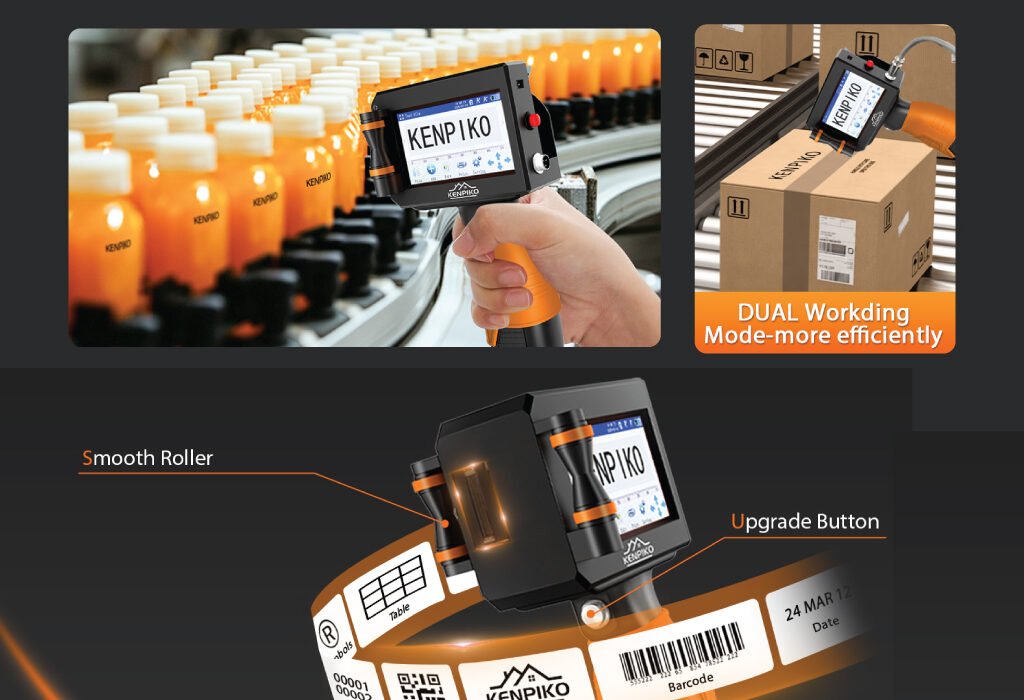
Portable Inkjet Printer

Best Portable Inkjet Printer for Graphic Designer

 Portable Inkjet Printer
Portable Inkjet Printer

Discover why the Kenpiko KP008 Handheld Inkjet Printer stands out as the Best Portable Inkjet Printer for Graphic Designers in 2025. Learn about its print quality, usability, features, and how it compares to other compact printers for creative professionals.

Introduction

For graphic designers, a portable printer is not just a convenience—it’s an essential creative tool. Whether it’s for on-the-spot packaging mockups, client presentations, or field labeling, the right printer should offer flexibility, sharp image reproduction, and efficient operation. In 2025, the Kenpiko KP008 1-inch Handheld Inkjet Printer has become a favorite among professionals who need mobility without sacrificing precision.

This guide explores why the Kenpiko KP008 deserves the title of the Best Portable Inkjet Printer, what makes it ideal for designers, and how it compares to other leading options in the portable printing market.

Why Graphic Designers Need a Portable Inkjet Printer

Design professionals often work across multiple settings—from studios and offices to client sites and workshops. A portable inkjet printer offers a powerful combination of flexibility and control, allowing designers to produce high-quality visuals anywhere.

On-the-Go Creativity

A portable inkjet printer allows designers to bring their ideas to life instantly. Whether you need to print a mockup, label, or sample, the convenience of handheld printing ensures no creative opportunity is missed.

Professional Presentation

Graphic designers often need to showcase their work in physical form. Being able to print directly onto packaging, materials, or labels demonstrates both skill and professionalism, leaving a lasting impression on clients.

Efficiency and Time Savings

Traditional printers require setup time and space, while a handheld inkjet printer like the Kenpiko KP008 eliminates that hassle. Its compact design supports quick deployment, making it ideal for time-sensitive design tasks or fieldwork.

Introducing the Kenpiko KP008 Handheld Inkjet Printer

The Kenpiko KP008 is not just another compact printer—it’s an advanced portable printing solution built for precision and adaptability. This 2025 upgraded model combines enhanced print quality, longer battery life, and multi-surface compatibility, making it an indispensable tool for professionals in design, packaging, and production.

Let’s explore its core attributes and why it’s ideal for designers seeking the Best Portable Inkjet Printer.

Portable Inkjet Printer for Graphic Designer

Key Features of the Kenpiko KP008 Handheld Inkjet Printer

Extended Print Height and High Resolution

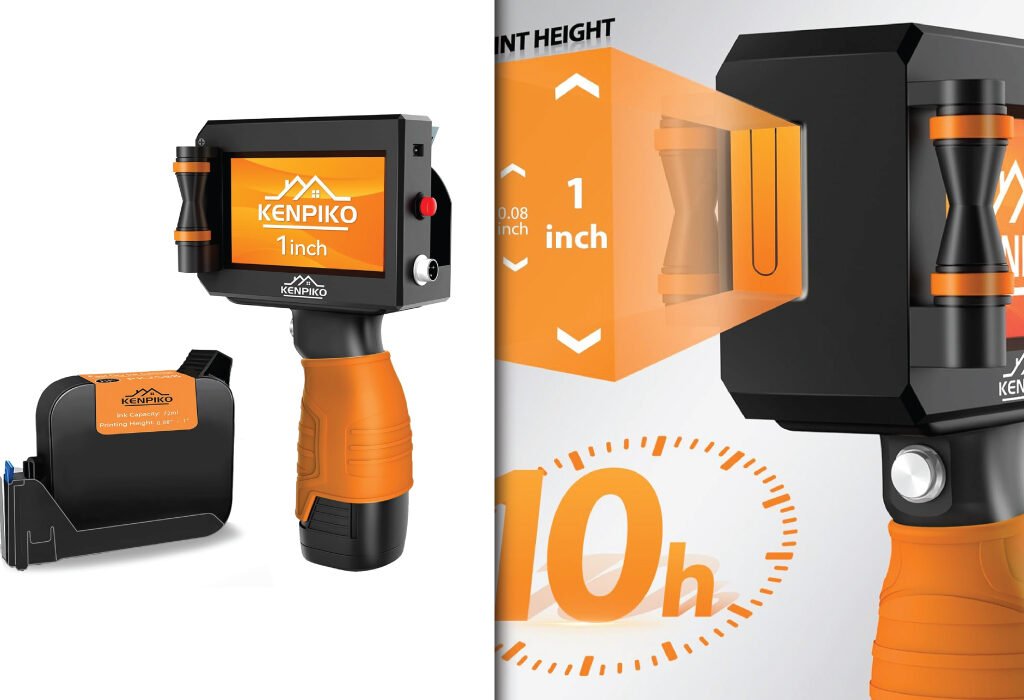
Unlike standard portable models that print only up to 0.5 inches, the Kenpiko KP008 offers an adjustable print height ranging from 0.08 inch (2mm) to 1 inch (25.4mm). With a high-resolution output of 600 dpi, it produces crisp text, sharp barcodes, and clean logo prints. This feature is particularly valuable for packaging designers who demand clarity and precision in every detail.

Long Battery Life and Memory Flexibility

The Kenpiko KP008 is equipped with a 10-hour battery, allowing uninterrupted operation throughout the day. It includes an upgraded memory card for storing designs and supports importing content via USB. With 28 language settings, it’s globally compatible, a big advantage for designers working with international clients or suppliers.

Ergonomic Design and 360° Printing

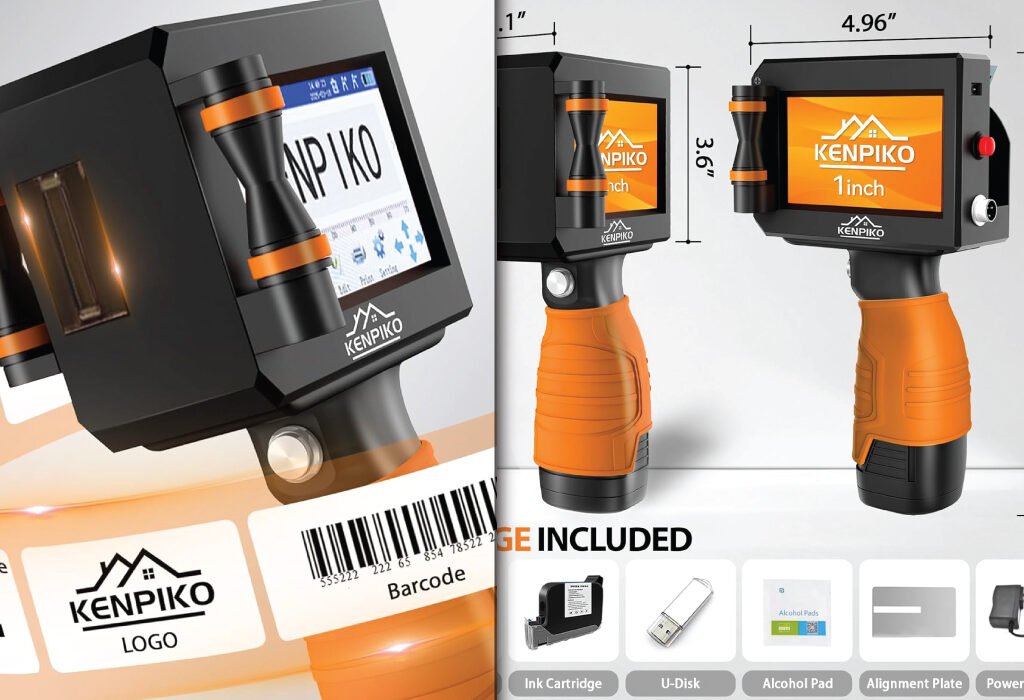
This printer’s design reflects attention to both comfort and performance. A 4.3-inch touchscreen ensures intuitive control, while smooth-rolling wheels and a non-slip silicone grip enhance handling accuracy. The 360° printing capability allows consistent output on both flat and curved surfaces—perfect for printing on bottles, boxes, and textured materials.

Multi-Surface Printing Capability

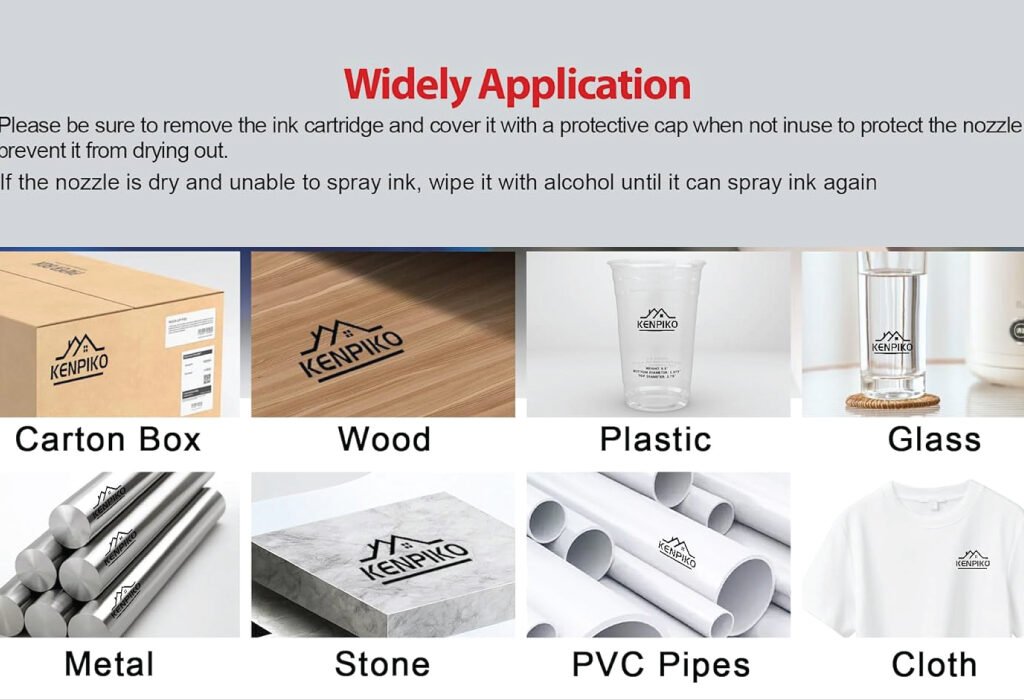
One of the standout advantages of the Kenpiko KP008 is its versatility across materials. It can print on wood, metal, glass, plastic, leather, ceramics, fabric, aluminum foil, and fiberboard, maintaining crisp results on every surface. For designers creating labels or prototypes, this means true creative freedom without material limitations.

High-Capacity Quick-Dry Ink Cartridge

The Kenpiko KP008 uses a 72ml fast-drying black ink cartridge designed for smudge-proof printing. Its ink dries in seconds and resists fading, making it suitable for industrial, retail, and creative environments. Whether you’re printing product labels or decorative text, this cartridge ensures vibrant and lasting impressions.

Product Specification

SpecificationDetails
BrandKenpiko
Model NameKP008 1-inch Handheld Printer
Model NumberKP008
Model SeriesKENPIKO KP008 Handheld Inkjet Printer
Printer TypeInkjet (Portable Handheld Inkjet Printer Gun)
Printer Output TypeMonochrome
Printing TechnologyHandheld Inkjet with Quick-Dry Ink
Maximum Print Height1 inch (25.4 mm)
Adjustable Print Range0.08 inch (2 mm) – 1 inch (25.4 mm)
Maximum Print Resolution (B/W)600 × 600 dpi
Maximum Print Resolution (Color)600 dpi
Ink Cartridge Capacity72 mL (Black Quick-Dry Ink)
Ink TypeFast-Dry Solvent Ink – Smudge-Proof
Supported File FormatsBMP, JPG, PNG
Print Media TypeLabels, Text, Logos, Barcodes, Symbols, Numbers
Supported SurfacesWood, Metal, Glass, Plastic, Leather, Ceramic, Fabric, Fiberboard, Aluminum Foil
Printing Direction360° Printing (Flat & Curved Surfaces)
Display Type4.3″ Touch Screen
Controller TypeHandheld Inkjet Printer Gun
Memory & StorageUpgraded Memory Card + U-Disk Support
ConnectivityUSB
Languages Supported28 Languages
Battery LifeUp to 10 Hours Continuous Use
Power SupplyAC Power Adapter (Included)
Item Dimensions (D × W × H)2.1″ × 4.92″ × 9.1″
Item Weight≈ 2.4 lb (1.09 kg)
Color1-Inch Handheld Printer (Black)
Package ContentsPrinter, Touch Pen, Power Adapter, U-Disk, 72 mL Ink Cartridge, Positioning Plate, Manual
Warranty TypeLimited Warranty + Unconditional Technical Support
Return Policy30-Day Amazon Voluntary Return Guarantee
ASINB0F12MNMNV
Customer Rating⭐ 5.0 out of 5 (28 Reviews)
Best Sellers Rank#96 in Portable Photo Printers / #64,334 in Electronics

Design and Build Quality

The printer’s compact body (2.1″ D x 4.92″ W x 9.1″ H) balances portability with durability. The smooth, lightweight construction supports long working sessions, while the positioning plate assists in maintaining consistent alignment. Its robust materials and ergonomic structure make it reliable for field use and studio environments alike.

Transitioning from design studios to workshops is effortless thanks to the printer’s comfortable grip and handheld controller type. It feels professional yet simple, perfect for designers accustomed to precision tools.

Portable Printer for Graphic Designer

Ease of Use and Interface

One of the biggest strengths of the Kenpiko KP008 is its 4.3-inch touchscreen display. The user interface is straightforward, allowing quick editing, logo uploads, and layout adjustments directly from the device. For graphic designers, this intuitive workflow reduces the need for external editing software during quick print jobs.

The touchscreen also allows users to adjust print height, preview graphics, and switch between text and image printing modes. In fast-paced environments, this level of control makes it an efficient creative companion.

Printing Performance and Quality

The Kenpiko KP008 Handheld Inkjet Printer delivers 600×600 dpi resolution, ensuring clean and detailed prints. Its advanced ink technology minimizes smudging and ensures rich, dark lines even on textured surfaces. For graphic designers, this translates to professional-grade visual consistency, especially for packaging prototypes and product labels.

The printer also excels in maintaining edge sharpness on both porous and non-porous materials. Designers who often work with mockup materials such as coated boxes, kraft paper, or aluminum packaging will find this feature especially beneficial.

Battery and Portability

With up to 10 hours of continuous printing, the Kenpiko KP008 supports long creative sessions without frequent recharging. Its rechargeable battery is built for reliability, offering consistent voltage for stable print output.

The printer’s compact, handheld design makes it easy to carry to client sites or trade shows, and the included accessories—such as a power adapter, touch pen, and USB drive—enhance convenience for traveling designers.

Connectivity and Compatibility

The Kenpiko KP008 connects through a USB interface, making it compatible with most computers and devices used in design environments. This ensures quick content transfers and file loading for printing text, logos, or barcodes.

It supports standard image formats such as BMP, JPG, and PNG, providing flexibility for designers using Adobe Illustrator, Photoshop, or other creative software. Its plug-and-play design also minimizes setup time, letting you start printing immediately.

Portable Printer
Portable Printer

Package and Accessories Included

Each Kenpiko KP008 printer comes as a complete kit, ready for professional use. The box includes:

  • 1× Handheld Inkjet Printer
  • 1× Touch Pen
  • 1× Power Adapter
  • 1× U Disk
  • 1× 72ml Black Ink Cartridge
  • 1× Positioning Plate
  • 1× Instruction Manual

Kenpiko also provides detailed operation videos and technical support, ensuring users can master the device quickly and maximize its performance.

Best Use Cases for Graphic Designers

The Kenpiko KP008 shines across multiple design applications.

It’s perfect for custom packaging, branding prototypes, and creative labeling projects. Designers can print brand logos, expiration dates, QR codes, or visual elements directly onto physical materials—making it an excellent choice for small studios and product-based businesses.

Beyond packaging, it’s also effective for signage, retail displays, event branding, and craft design, providing unmatched adaptability in different creative workflows.

Tips for Getting the Best Results

To achieve the best possible prints with the Kenpiko KP008, consider these professional recommendations:

  • Use compatible surfaces such as smooth metal, glass, or treated wood for sharper results.
  • Store the ink cartridge properly to prevent drying.
  • Clean the print head regularly to maintain resolution quality.
  • Use the positioning plate for consistent alignment during large print runs.
  • Test print small samples before starting full-scale production.

These steps ensure optimal performance, color accuracy, and long-lasting print clarity for all design projects.

Printer portable
Printer portable

Why the Kenpiko KP008 Is the Best Portable Inkjet Printer for Designers

In a competitive market of compact printers, the Kenpiko KP008 stands out for its professional-grade precision, ergonomic handling, and cross-material compatibility. Its extended print height, high-resolution output, and quick-drying ink make it the ultimate choice for designers needing flexibility and quality on the go.

For creative professionals who value efficiency, portability, and design accuracy, this model represents the perfect blend of technology and craftsmanship.

Conclusion

Finding the Best Portable Inkjet Printer for graphic design work requires balancing portability, performance, and precision. The Kenpiko KP008 Handheld Inkjet Printer excels in all these areas, offering superior print quality, broad material support, and user-friendly operation.

Whether you’re developing packaging concepts, branding prototypes, or industrial labels, the Kenpiko KP008 delivers reliable results that match professional expectations. For designers seeking a versatile, durable, and portable printing solution in 2025, this handheld inkjet printer stands out as the smart investment for creativity on the move.

Also, check the recent article about the best laptop for graphic design here.


Why should a graphic designer use a portable inkjet printer?

A portable inkjet printer gives designers the flexibility to print samples, packaging prototypes, or artwork anywhere. It’s ideal for on-site work, client demonstrations, or small production runs where creativity and speed matter.

Can a portable inkjet printer handle professional-quality designs?

Yes. Modern portable printers support resolutions up to 600 DPI or higher, ensuring clean lines, vibrant colors, and sharp text—suitable for visual presentations, branding mockups, and quick concept prints.

What types of surfaces can a portable inkjet printer print on?

Depending on the model, these printers can print on a variety of materials, including paper, cardboard, plastic, metal, wood, and fabric. Always check the product’s surface compatibility before printing.

What makes the Kenpiko KP008 a good choice for designers?

The Kenpiko KP008 (2025 version) stands out because of its high print quality, compact body, and wireless connectivity. It’s easy to carry, supports color printing, and can handle different materials—making it versatile for packaging and prototype work.

How long does the battery last on most portable inkjet printers?

Battery life typically ranges from 4 to 8 hours depending on the workload. For designers who print regularly, it’s best to choose a model with a rechargeable lithium battery and fast charging support.

Can I print directly from my smartphone or tablet?

Yes. Many modern portable inkjet printers, including the Kenpiko KP008, support Wi-Fi and mobile app connectivity. This allows designers to send designs directly from mobile devices without needing a computer.

How do I maintain a portable inkjet printer for long-lasting performance?

Clean the print head regularly, store ink cartridges properly, and keep the printer covered when not in use. Avoid printing on dusty or wet surfaces to prevent ink smudging or nozzle clogs.

Are portable inkjet printers expensive to maintain?

Not necessarily. While replacement ink cartridges add to the cost, portable printers generally use less ink than large studio printers. Choosing refillable cartridges or bulk ink options can help reduce long-term expenses.

Can portable inkjet printers print full-page designs or large graphics?

Portable printers are best for small to medium prints, such as labels, logos, and packaging artwork. For full-page or poster-size prints, a studio-grade printer is more suitable.

What should I check before buying the best portable inkjet printer?

Look for high resolution, long battery life, surface compatibility, easy connectivity (USB, Wi-Fi, app), and portability. Also, read user reviews about ink quality and durability to make a confident choice.

20% OFF
Hostinger Business Hosting

Hostinger Business Hosting

Get high-speed, secure hosting for your website. Limited-time 20% discount available.

Claim 20% Discount
Pantone Color Bridge Set

Essential Pantone Color Bridge Set for Creative Professionals

Pantone Color Bridge Set

Discover the Pantone Color Bridge Set (GP1601B), the ultimate color-matching tool for designers. Learn how it ensures accurate color reproduction across print and digital media with over 2,359 spot colors and 224 new shades.

Introduction

Color is at the heart of all visual design, influencing branding, packaging, marketing materials, and digital graphics. Maintaining color consistency across screens and printed materials can be challenging for creative professionals. The Pantone Color Bridge Set bridges this gap, providing a reliable reference for accurate color matching in both coated and uncoated paper applications.

With its comprehensive library, portable design, and technical precision, the Pantone Color Bridge Set has become a staple for designers, printers, and brand managers. In this guide, we’ll explore everything you need to know about this essential tool, including its features, usage, technical details, and creative applications.

What is the Pantone Color Bridge Set?

Purpose of the Color Bridge Set

The set helps designers maintain color accuracy from digital design to print output, ensuring that brand colors remain consistent across all media.

Who Uses It?

Graphic designers, brand managers, packaging professionals, and printing specialists all rely on the Pantone Color Bridge Set for accurate color representation.

Coated vs. Uncoated Paper

Coated (C) paper provides a glossy, vibrant finish, ideal for magazines and high-quality printed materials. Uncoated (U) paper absorbs ink, producing softer, matte results commonly used for stationery.

Transitioning from understanding the set’s purpose to its benefits highlights why it is indispensable for creative professionals.

Benefits of Using the Pantone Color Bridge Set

Accurate Color Reproduction

By providing both Pantone spot colors and CMYK equivalents, designers can confidently predict printed color results.

Streamlined Collaboration

The universal reference simplifies communication with clients, printers, and team members, reducing errors and revisions.

Expanded Creative Options

With 2,359 market-driven spot colors plus 224 new, on-trend colors, designers can explore a wide range of shades and achieve more creative freedom.

Portability and Convenience

Handheld fan deck design allows easy access to colors during client presentations, design reviews, and on-location work.

Best Product Overview

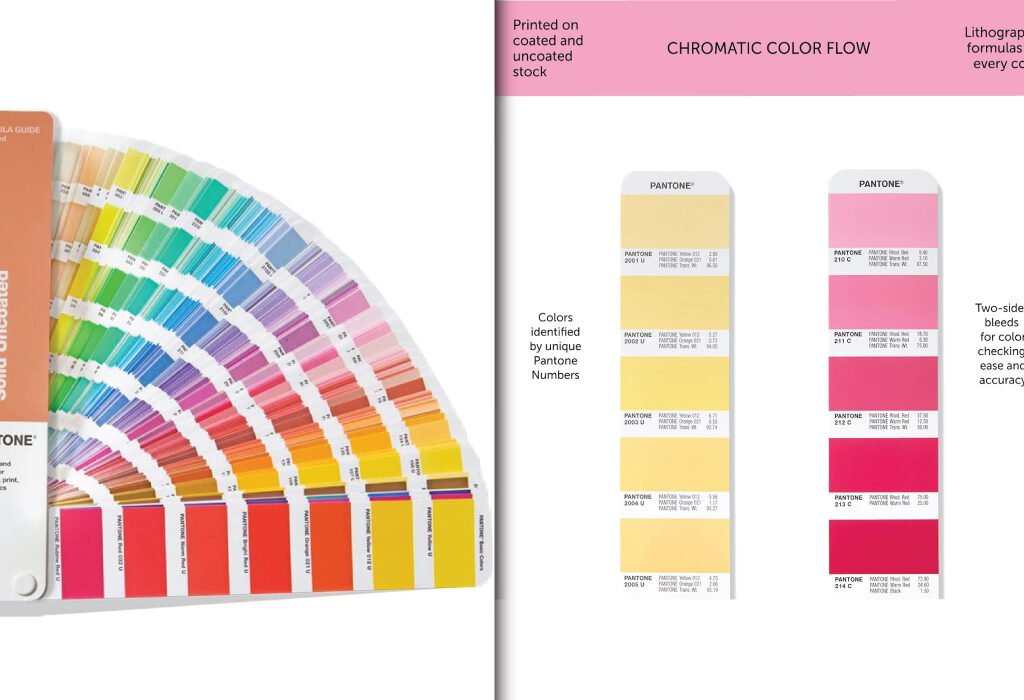
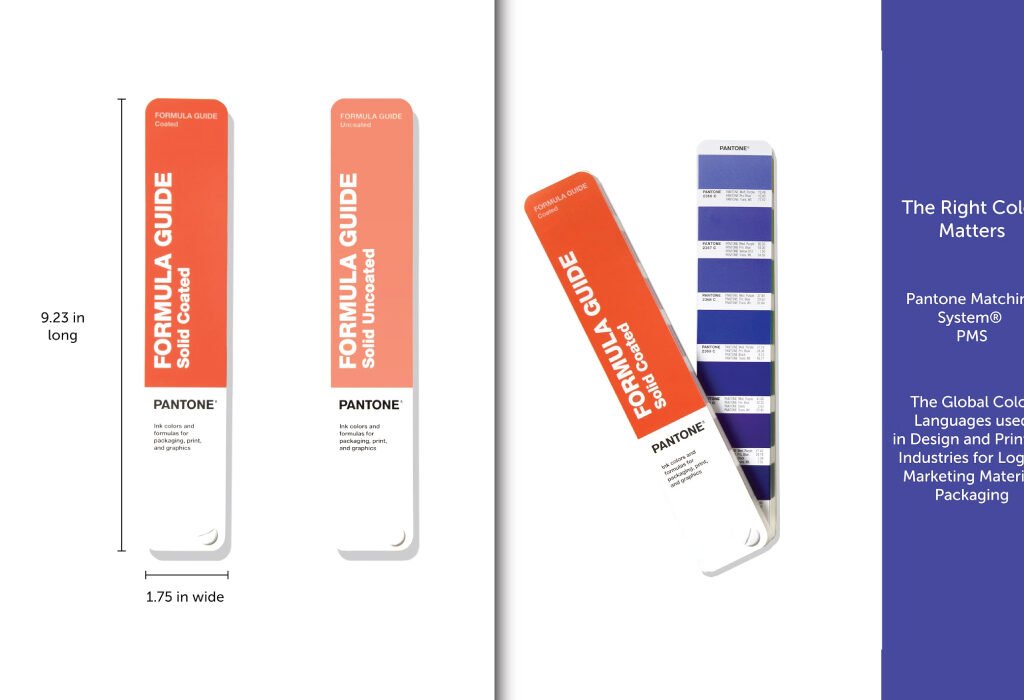
The Pantone Formula Guide | Coated & Uncoated (GP1601B) is a professional color-matching tool designed to help creatives maintain consistent color in their work.

Pantone Color Bridge Set

Product Specifications: Pantone Formula Guide GP1601B

SpecificationDetails
Product NamePantone Formula Guide
ModelGP1601B
BrandPantone
ColorNew Version – Formula Guide
Finish TypeGloss
Size1 Count (Pack of 1)
Item Volume480 Cubic Centimeters
Special FeatureFormula Guide
Unit Count1.0 Count
Paint TypePAINT
Specific Uses for ProductInterior/Exterior Design
Surface RecommendationPaper
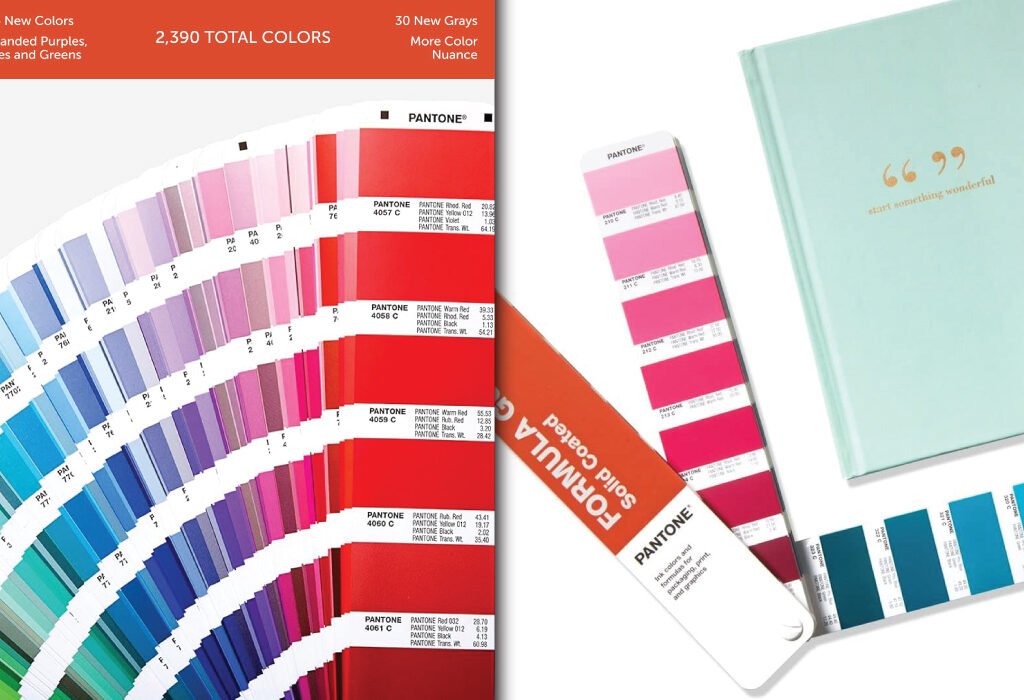
Spot Colors Included2,359 Pantone Spot Colors + 224 new market-relevant colors
Paper Stock Weights100 lb (168 gsm) coated, 80 lb (118 gsm) uncoated
Portable Fan DeckYes, handheld for on-the-go reference
Lighting Indicator PageYes, for proper color evaluation
Replacement RecommendationEvery 12–18 months due to fading, smudging, or yellowing
Delta E Tolerance< 2.0 ∆E00 to Pantone master standard reference data
20% OFF
Hostinger Business Hosting

Hostinger Business Hosting

Get high-speed, secure hosting for your website. Limited-time 20% discount available.

Claim 20% Discount

This tool ensures accurate color reproduction across branding, logos, marketing, packaging, and other design applications. Its fan deck format makes it portable, while printed samples on both coated and uncoated paper ensure reliable reference in any professional environment.

Key Features of the Pantone Color Bridge Set

Comprehensive Color Library

Includes 2,359 Pantone spot colors, 224 new market-relevant shades, and 5 new base inks for enhanced creative possibilities. The back index provides numeric locations for easy reference.

Coated and Uncoated References

Displays color on both coated and uncoated papers, allowing accurate visualization for different print applications.

Lighting Indicator Page

Ensures proper lighting for accurate color evaluation, essential for professional color matching.

Delta E (∆E00) Standard

Quantifies color differences between the selected color and the Pantone master reference. Lower Delta E indicates greater accuracy.

Durable and Portable Fan Deck

Compact design allows for portability, while durable pages maintain color integrity even with regular handling.

Transitioning from features, we now explore practical usage tips to maximize accuracy.

How to Use the Pantone Color Bridge Set

Selecting Colors

Use the numeric index to locate the desired Pantone color and compare it with the closest CMYK equivalent.

Matching Print Output

Ensure that the selected color will appear consistent in print, particularly for branding and packaging projects.

Communicating with Printers

Provide the exact Pantone reference number to your printer to ensure spot printing or CMYK approximations match your design intent.

Checking Lighting Conditions

Always verify your environment using the lighting indicator page for accurate color perception.

Replacing Guides

Pantone guides should be replaced every 12–18 months, as handling, light exposure, and ambient moisture can alter color accuracy over time.

Technical Insights

Spot Printing vs. Process Printing

Spot printing uses pre-mixed inks for exact color reproduction, ideal for bold, vibrant designs. Process printing uses CMYK to approximate the color, often necessary for mass production.

Delta E (∆E00) Measurement

Standardized measurement of color difference; lower values indicate a closer match to the Pantone master.

Coated vs. Uncoated Effects

Paper finish significantly affects color appearance; designers must select the right paper type for desired results.

Aging and Environmental Impact

Light, moisture, and handling can alter swatch colors over time, which is why periodic replacement is necessary.

Creative Applications

Branding and Logos

Ensures brand colors remain consistent across all platforms and print materials.

Packaging Design

Predicts color appearance on different materials, preventing surprises during production.

Marketing Materials

Maintains uniform color for brochures, flyers, and business cards, enhancing brand recognition.

Interior and Product Design

Supports color harmony in product finishes and interior design elements.

Trend-Driven Design

Incorporates the latest 224 market-relevant colors for modern, on-trend creative projects.

Conclusion

The Pantone Color Bridge Set (GP1601B) is a must-have tool for creative professionals. By providing accurate spot-to-CMYK color translation, it ensures brand consistency, reduces production errors, and expands creative possibilities. With portable fan decks, a comprehensive color library, and a Delta E accuracy standard, this set is indispensable for designers, printers, and brand managers who require reliable, professional-grade color matching.

Proper usage, care, and regular replacement keep your color selections precise, allowing your designs to consistently look exactly as intended across all media.

Also, check the recent article about the best laptop for graphic design here.


What is the Pantone Color Bridge Set?

The Pantone Color Bridge Set is a professional color-matching system that provides Pantone spot colors alongside their closest CMYK equivalents. It helps designers maintain consistent color from digital design to print.

Who should use the Pantone Formula Guide GP1601B?

Graphic designers, brand managers, packaging designers, and printers who require accurate color reproduction in their work will benefit from this tool.

What is the difference between coated and uncoated paper?

Coated paper (C) provides a glossy, vibrant finish, ideal for magazines and high-quality printed materials. Uncoated paper (U) absorbs ink, resulting in a softer, matte finish commonly used for stationery.

How often should I replace my Pantone guides?

Pantone guides should be replaced every 12–18 months. Handling, exposure to light, and ambient moisture can alter colors over time, reducing accuracy.

How many colors are included in the GP1601B Formula Guide?

The guide includes 2,359 Pantone spot colors plus 224 new market-relevant colors, giving designers a total of 2,390 solid colors for creative projects.

What is Delta E (∆E00) and why is it important?

Delta E (∆E00) measures the difference between two colors. A lower Delta E indicates a closer match to the Pantone master, ensuring color accuracy in print and design.

Can I use the Pantone Color Bridge Set for digital design?

Yes. The set helps designers approximate Pantone spot colors to CMYK equivalents, which is useful for both print and digital projects.

Is the Pantone fan deck portable?

Yes. The fan deck is handheld and portable, making it convenient for on-site client presentations and color evaluations.

Does the Pantone Formula Guide include lighting guidelines?

Yes. The guide includes a lighting indicator page to ensure accurate color evaluation under proper lighting conditions.

A flat lay image of a keyboard, mouse, and other design tools with the text BEST KEYBOARD AND MOUSE COMBINATION FOR GRAPHIC DESIGNER overlayed.

Best Keyboard and Mouse Combination for Graphic Designer

A flat lay image of a keyboard, mouse, and other design tools with the text BEST KEYBOARD AND MOUSE COMBINATION FOR GRAPHIC DESIGNER overlayed.
Discover the ideal keyboard and mouse for your design work.

Introduction

As a graphic designer, having the right tools is essential for efficiency, comfort, and precision. While high-end software and monitors often get the spotlight, the keyboard and mouse combo you use daily plays an equally critical role. A poorly designed keyboard can strain your wrists, while an unresponsive mouse can slow down your workflow and affect accuracy in detailed design work. Choosing a reliable keyboard and mouse combination ensures seamless navigation, enhanced productivity, and long hours of comfortable work. In this guide, we explore some of the best wireless options that combine ergonomics, performance, and style—perfect for designers at every level.

Why the Right Keyboard and Mouse Matter for Graphic Designers

Before exploring specific recommendations, it’s important to understand why choosing the right Keyboard and Mouse can transform a graphic designer’s workflow.

Enhances comfort during long design sessions
Spending hours working on intricate design projects means your hands, wrists, and shoulders are constantly in use. The right ergonomic tools can minimize strain and prevent repetitive stress injuries.

Boosts precision and control
Graphic design often involves pixel-perfect adjustments. A responsive mouse and a stable, well-designed keyboard can improve accuracy when editing images or manipulating shapes.

Improves workflow efficiency
Shortcut keys, customizable buttons, and adjustable sensitivity settings help you work faster, allowing you to focus more on creativity than navigation.

Key Features to Look for in a Keyboard for Graphic Design

A keyboard is more than just a typing tool—it’s a creative instrument for designers who rely on shortcuts and smooth key response.

Ergonomic layout
A split or curved keyboard can reduce strain, especially during extended work periods.

Mechanical or scissor switches
Mechanical keyboards offer tactile feedback, while scissor switches provide quiet and smooth keystrokes—both beneficial depending on preference.

Programmable keys
Dedicated keys for custom shortcuts can save significant time in applications like Photoshop, Illustrator, or Figma.

Backlighting
Backlit keys improve visibility in low-light work environments and add a professional aesthetic to your workspace.

Build quality
Durable materials, such as aluminum frames and high-quality keycaps, ensure longevity for heavy daily use.

Key Features to Look for in a Mouse for Graphic Design

Transitional: If a keyboard is your main input tool, a mouse is your precision instrument—especially in graphic editing.

Adjustable DPI
Being able to switch sensitivity helps when moving between detailed editing and broader navigation.

Ergonomic shape
A well-contoured mouse supports your hand’s natural position, reducing fatigue.

Programmable buttons
Extra buttons allow quick access to commands like zoom, undo, or switching tools.

High polling rate
A high polling rate ensures faster response times and smoother cursor movement.

Wireless or wired options
Wireless mice reduce desk clutter, while wired models avoid latency and battery concerns.

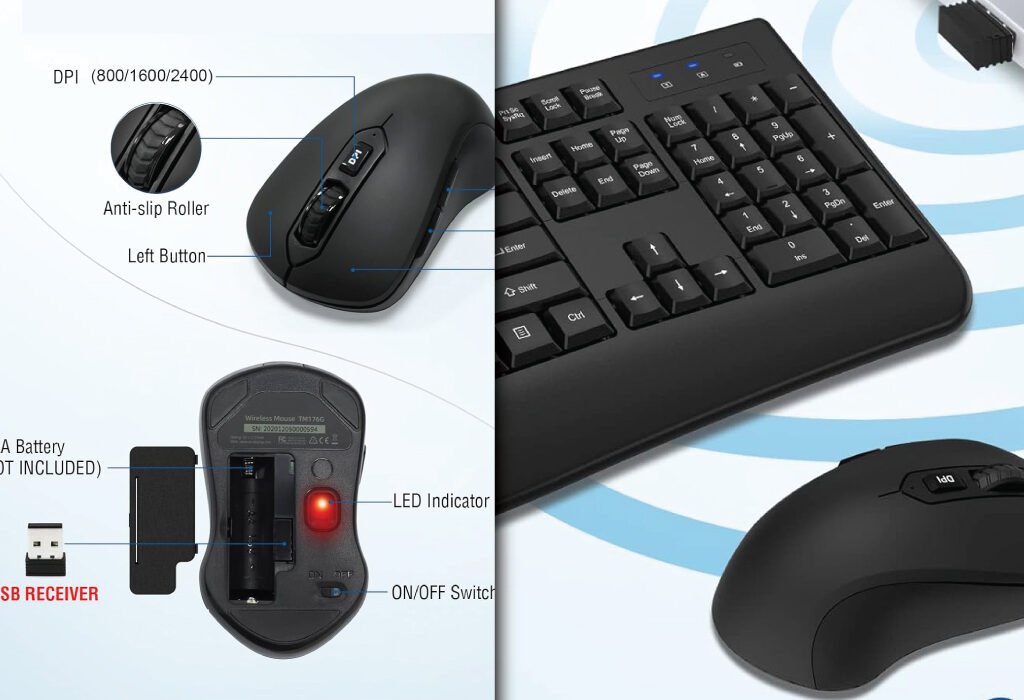
BEST OPTION :Wireless Keyboard and Mouse Combo – Full-Sized 2.4GHz Wireless Keyboard with Comfortable Palm Rest and Optical Wireless Mouse – Compatible with Windows, Mac OS, PC, Desktops, Computers, and Laptops

1. Black

Upgrade your workspace with this Black Wireless Keyboard and Mouse Combo. Designed for comfort and productivity, the full-sized keyboard features an ergonomic palm rest and folding holder to reduce wrist strain. The optical mouse provides smooth, accurate tracking with a symmetrical design for both right- and left-handed users. With a 2.4GHz stable wireless connection and plug-and-play USB receiver, you can work seamlessly up to 33 feet away. Perfect for home or office use

A detailed image of a black wireless keyboard and mouse combination, highlighting features like adjustable DPI, anti-slip roller, USB receiver, and battery compartment.
A sleek and functional wireless keyboard and mouse set.
20% OFF
Hostinger Business Hosting

Hostinger Business Hosting

Get high-speed, secure hosting for your website. Limited-time 20% discount available.

Claim 20% Discount
FeatureDetails
ColorBlack
Price$17.50
Keyboard FeaturesFull-sized, ergonomic with palm rest and folding holder
Mouse FeaturesOptical wireless, symmetrical design, smooth movement
Connectivity2.4GHz wireless, shared USB receiver, plug & play
CompatibilityWindows XP/Vista/7/8/10/X, Mac, desktops, laptops, Chromebooks
Special FeaturesAuto power-saving, ergonomic, wrist protection
Battery RequirementsKeyboard: 2 × AAA, Mouse: 1 × AA (not included)
DPI Levels800 / 1600 / 2400
Warranty12 months
ProsAffordable, lightweight, ergonomic wrist support, stable wireless connection
RecommendationIdeal for entry-level designers or home use who need a reliable, budget-friendly combo.

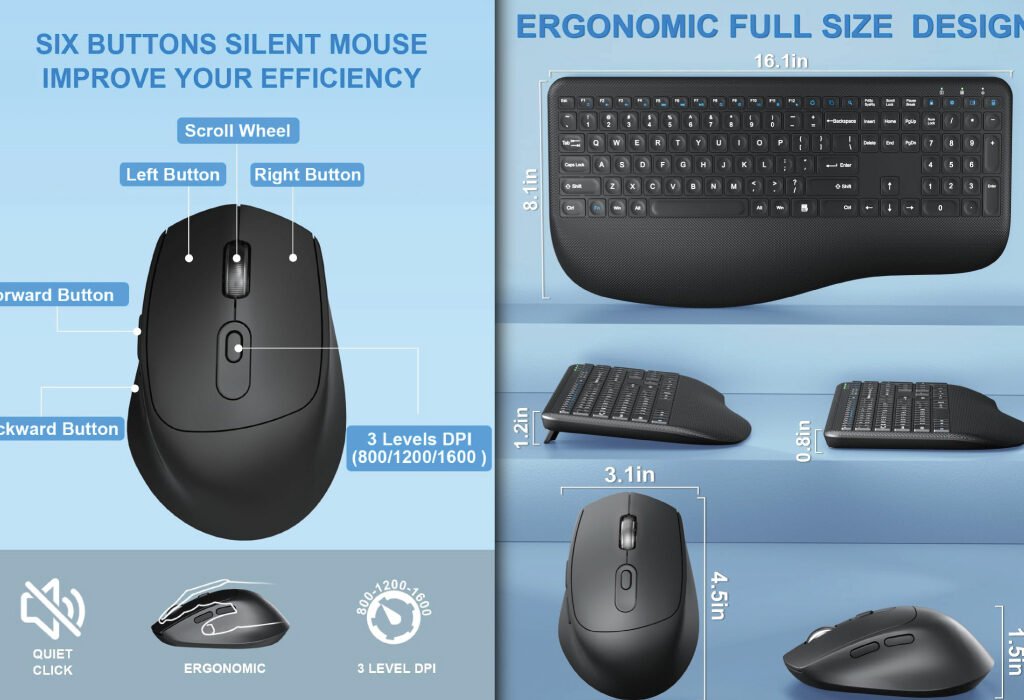
2. Carbon Black

The Carbon Black Wireless Keyboard and Mouse Combo is built for productivity. Full-size keyboard with ergonomic wrist rest and 12 shortcut keys enhances efficiency, while the low-profile mouse offers quiet, precise clicks. A single 2.4GHz USB receiver supports both devices, providing a reliable wireless connection up to 33 feet. Ideal for designers needing shortcut keys and long typing comfort.

A detailed infographic of a black ergonomic keyboard and a six-button silent mouse, highlighting features, dimensions, and ergonomic design.
A quiet and comfortable keyboard and mouse combination for enhanced productivity.
FeatureDetails
ColorCarbon Black
Price$21.59
Keyboard FeaturesFull-size, ergonomic wrist rest, adjustable tilt feet, 12 shortcut keys, 7 multimedia keys
Mouse FeaturesContoured design, clicky but 95% quieter, forward/backward buttons
Connectivity2.4GHz wireless, single USB receiver
CompatibilityWindows XP/Vista/7/8/10/X, Mac, desktops, laptops, Chromebooks
Special FeaturesAuto power-saving (15 min keyboard, 10 min mouse), low-profile scissor keys
Battery RequirementsKeyboard: 2 × AAA, Mouse: 1 × AA (not included)
DPI Levels800 / 1600 / 2400
Warranty24 months
ProsMultimedia keys for productivity, ergonomic wrist rest, quiet typing, adjustable tilt
RecommendationPerfect for designers who need extra shortcuts and quiet typing for long work sessions.

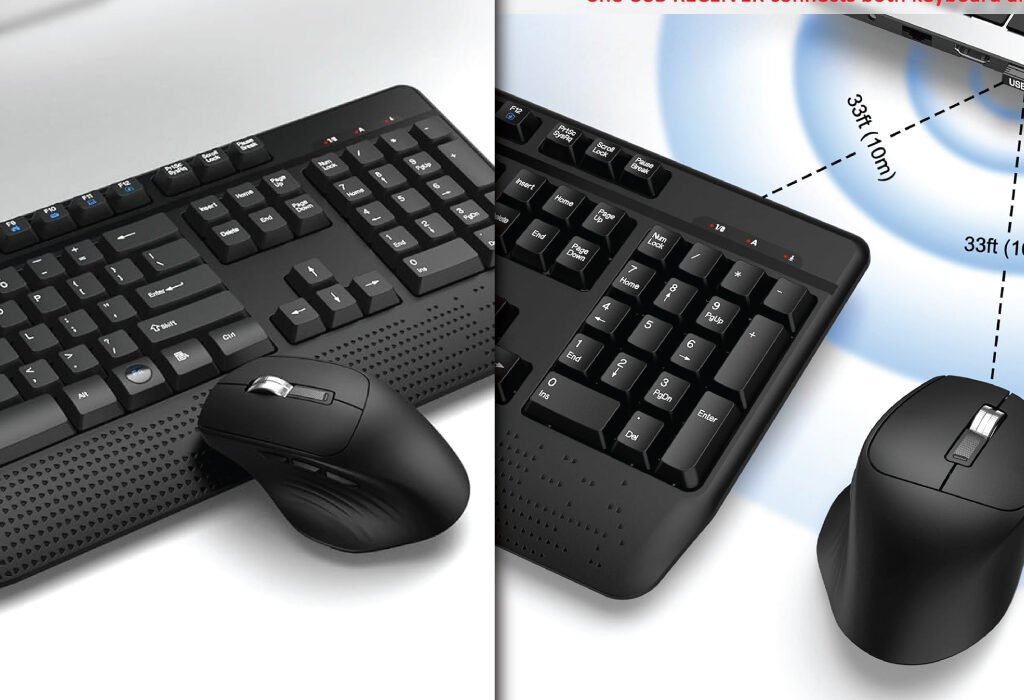
3. Dark Gray

Experience precision and comfort with the Dark Gray Wireless Keyboard and Mouse Combo. This full-size keyboard comes with 12 multimedia hotkeys and an ergonomic wrist rest, while the optical mouse offers adjustable DPI (1000/1200/1600) for smooth and accurate cursor control. The 2.4GHz wireless connection ensures reliable performance up to 33 feet. Ideal for professional designers seeking both efficiency and comfort.

A split-screen image showing a dark grey wireless keyboard and mouse combination from two different angles, highlighting its ergonomic design and long-range connectivity with a single USB receiver.
A sleek and efficient dark grey wireless setup for your workspace.
FeatureDetails
ColorDark Gray
Price$33.99
Keyboard FeaturesFull-size, wrist rest, adjustable tilt legs, 12 multimedia hotkeys
Mouse FeaturesOptical mouse with adjustable DPI (1000/1200/1600), forward/backward buttons
Connectivity2.4GHz wireless, single USB receiver
CompatibilityWindows XP/Vista/7/8/10/11, Mac, desktops, laptops, Chromebooks
Special FeaturesAuto power-saving (30 min keyboard, 10 min mouse)
Battery RequirementsKeyboard: 2 × AAA, Mouse: 1 × AA (not included)
DPI Levels1000 / 1200 / 1600
Warranty12 months
ProsAdjustable DPI for precise control, multimedia hotkeys, ergonomic design
RecommendationRecommended for professional designers who need precise mouse control and shortcut keys.

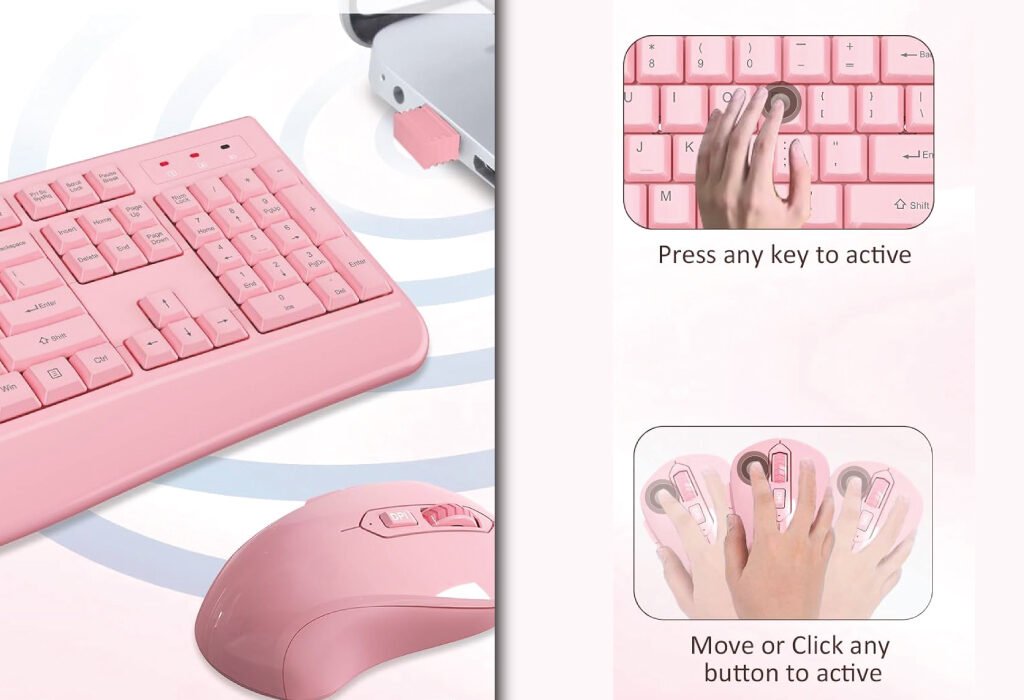
4.Full Pink (Women’s Best Choice)

Add style and comfort to your workspace with the Full Pink Wireless Keyboard and Mouse Combo. Ergonomic keyboard with palm rest protects wrists, while the optical mouse provides smooth movement for both hands. The shared 2.4GHz USB receiver offers stable wireless performance up to 33 feet. Perfect for designers who want both functionality and a visually appealing setup

A pink wireless keyboard and mouse combination with a small USB receiver plugged into a laptop, with two additional panels showing how to activate the devices by pressing a key or clicking a button.
A stylish and functional pink wireless keyboard and mouse set.
FeatureDetails
ColorFull Pink
Price$24.00
Keyboard FeaturesFull-size, palm rest, folding holder
Mouse FeaturesOptical wireless, symmetrical design, smooth movement
Connectivity2.4GHz wireless, shared USB receiver
CompatibilityWindows XP/Vista/7/8/10/X, Mac, desktops, laptops, Chromebooks
Special FeaturesAuto power-saving, ergonomic, wrist protection
Battery RequirementsKeyboard: 2 × AAA, Mouse: 1 × AA (not included)
DPI Levels800 / 1600 / 2400
Warranty12 months
ProsStylish color, ergonomic wrist support, reliable wireless connection
RecommendationGreat for designers who want a visually appealing setup without sacrificing comfort.

5.Starry Blue

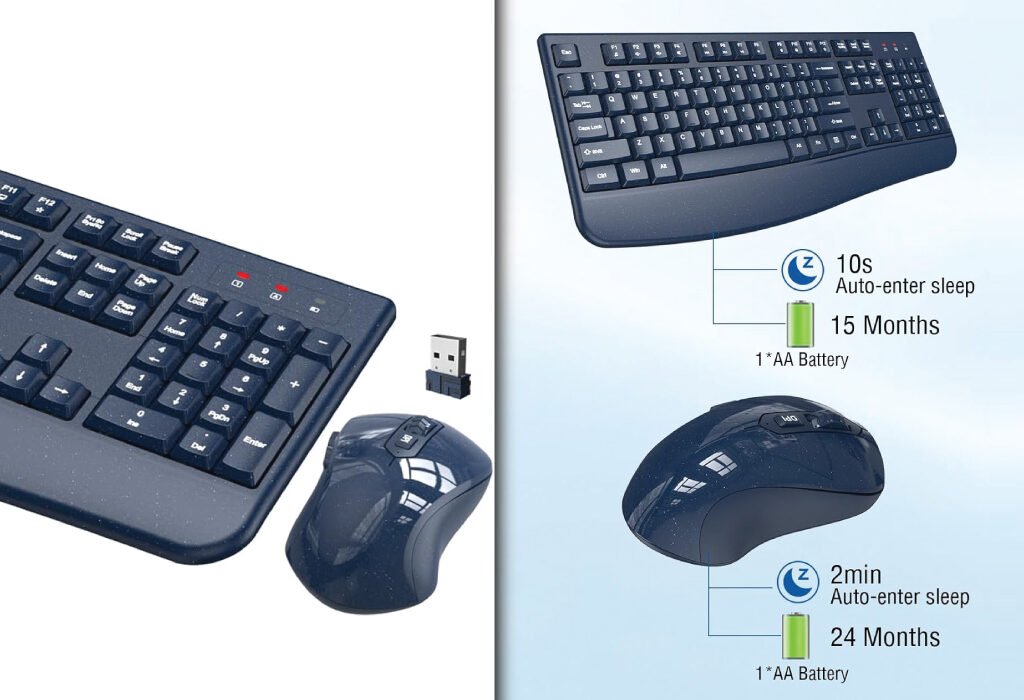
The Starry Blue Wireless Keyboard and Mouse Combo combines comfort, style, and reliability. The full-size keyboard with palm rest reduces wrist fatigue, while the optical mouse ensures smooth, accurate tracking. The 2.4GHz wireless connection with shared USB receiver delivers seamless performance up to 33 feet. Ideal for designers who want a standout color along with ergonomic support.

A dark grey wireless keyboard and mouse set shown in a split-screen image, with an infographic highlighting a long battery life, a USB receiver, and auto-sleep features.
A reliable and long-lasting wireless keyboard and mouse combo.
FeatureDetails
ColorStarry Blue
Price$35.99
Keyboard FeaturesFull-size, palm rest, folding holder
Mouse FeaturesOptical wireless, symmetrical design, smooth movement
Connectivity2.4GHz wireless, shared USB receiver
CompatibilityWindows XP/Vista/7/8/10/X, Mac, desktops, laptops, Chromebooks
Special FeaturesAuto power-saving, ergonomic, wrist protection
Battery RequirementsKeyboard: 2 × AAA, Mouse: 1 × AA (not included)
DPI Levels800 / 1600 / 2400
Warranty12 months
ProsUnique color, ergonomic wrist support, reliable 2.4GHz connection
RecommendationIdeal for designers who want a premium, eye-catching setup with comfortable use.

Conclusion

Selecting the right keyboard and mouse combo can make a noticeable difference in your design workflow. From ergonomic palm rests and low-profile keys to adjustable DPI settings and stable wireless connections, the options outlined here cater to both comfort and performance. Whether you prefer a budget-friendly solution like the Black combo or a stylish, feature-rich choice like Starry Blue, investing in a quality keyboard and mouse setup ensures smoother, more productive design sessions. Prioritizing ergonomics, precision, and reliable connectivity will help you work efficiently while protecting your wrists during long creative hours.

Also, check the recent article about the best laptop for graphic design here.


Why do I need a special keyboard and mouse for graphic design?

Graphic design involves long hours of work and precise movements. A good keyboard and mouse combo reduces wrist strain, improves accuracy, and helps you work faster. Ergonomic features and adjustable mouse DPI make your workflow smoother.

What is DPI, and why does it matter for designers?

DPI stands for dots per inch. It measures mouse sensitivity. A higher DPI means the cursor moves faster. Designers often use adjustable DPI to control precision when editing images or drawing fine details.

Can a wireless keyboard and mouse be as reliable as a wired one?

Yes. Modern wireless devices use 2.4GHz connections that are fast and stable. You get freedom of movement without lag, which is perfect for both laptops and desktops.

How does an ergonomic keyboard help?

Ergonomic keyboards are designed to reduce wrist strain. Features like palm rests, low-profile keys, and adjustable tilt help you type comfortably for long sessions without pain.

Are these keyboards and mice compatible with all computers?

Most combos work with Windows, Mac, Chromebooks, and PCs. Check the product description for any specific system requirements. The included USB receiver makes setup easy—just plug and play.

How long do the batteries last?

Many models include an auto power-saving feature. The keyboard and mouse go to sleep after inactivity to save battery. Depending on usage, batteries can last several months.

Is setup difficult for beginners?

Not at all. These combos are plug-and-play. Insert the USB receiver into your computer, and you’re ready to go—no extra software is needed.

A monitor displaying a color calibration chart, with the text Why Every Graphic Designer Needs a Calibrated Display overlaid on the image.

Why Every Graphic Designer Needs a Calibrated Display

A monitor displaying a color calibration chart, with the text Why Every Graphic Designer Needs a Calibrated Display overlaid on the image.
Learn why a Calibrated Display is critical for accurate color representation in design work.

Discover why a calibrated display is essential for every graphic designer. Learn how color accuracy improves design quality, client satisfaction, and workflow efficiency.

Understanding What a Calibrated Display Is

What Does Calibration Mean?

Calibration is the process of adjusting your monitor’s settings to display colors as accurately and consistently as possible. It aligns the output of your screen with established color standards. Without calibration, colors can look different on various devices, causing confusion and errors in design.

Why Is Calibration Necessary for Graphic Designers?

Graphic designers rely heavily on color to communicate messages, evoke emotions, and create visually compelling work. If the colors on your screen are off, your designs may look different when printed or viewed on other devices. This can cause rework, client dissatisfaction, and even loss of credibility.

Benefits of Using a Calibrated Display in Graphic Design

Improved Color Accuracy

A calibrated display ensures the colors you see are true to life. This means what you design on your screen will closely match the final product, whether it’s a printed brochure, website, or app interface. Accurate colors reduce the guesswork and revisions during project delivery.

Consistency Across Devices

With calibration, your monitor matches industry color profiles like sRGB or Adobe RGB. This consistency means your designs will look similar across different screens, from client monitors to smartphones. It creates a professional workflow that minimizes surprises.

Enhanced Detail and Clarity

Calibration helps bring out subtle differences in shades and gradients. This makes it easier to spot errors, fix color banding, and refine your work to a higher standard. Better detail means your designs will have depth and polish.

Saves Time and Reduces Costs

When colors are accurate, you avoid multiple rounds of corrections. This speeds up your workflow, reduces frustration, and lowers the costs related to printing errors or digital mishaps. In the long run, a calibrated display is a smart investment.

How to Calibrate Your Display Effectively

Using Hardware Calibration Tools

Hardware calibrators, like the X-Rite i1Display or Datacolor Spyder, measure your screen’s output and automatically adjust settings. These devices provide the most precise calibration, tailored to your specific monitor.

Software Calibration Methods

Some monitors and operating systems include built-in calibration tools. While less precise than hardware calibrators, software options can still improve color accuracy. Tools like DisplayCAL or the calibration wizards in Windows and macOS are good starting points.

Setting the Right Brightness and Contrast

Calibration isn’t only about color but also brightness and contrast. Correctly setting these parameters ensures your screen isn’t too dark or washed out, providing an accurate viewing environment. This step is vital for precise color work.

Calibrate Regularly for Best Results

Monitors change over time, affecting color accuracy. Regular calibration, ideally every month or two, helps maintain consistent output. Keeping a calibration schedule ensures your display remains reliable throughout your design projects.

2024 Datacolor Spyder Photo/Video Kit: The Best Hardware Calibrator for True Color Accuracy

If you’re a photographer, videographer, or graphic designer, precise color accuracy is crucial for your work. The 2024 Datacolor Spyder Photo/Video Kit is a leading hardware calibrator designed to deliver professional-grade monitor calibration and color management from capture to editing. This all-in-one solution ensures your colors are vibrant, consistent, and true-to-life across devices and media.

Why Choose the Spyder Photo/Video Kit?

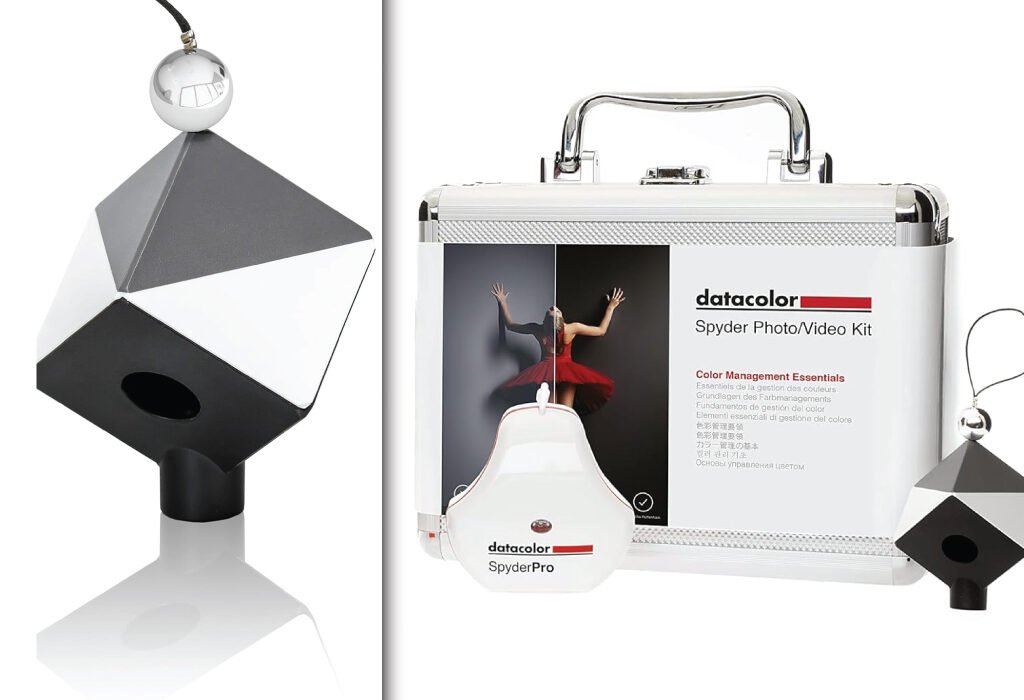
Color accuracy is non-negotiable for creative professionals. The Spyder Kit combines multiple tools — including the SpyderPro colorimeter, SpyderCUBE, and Spyder Checkr color charts — to provide comprehensive calibration for your monitors and cameras. This means fewer revisions, confident client approvals, and a streamlined workflow.

Key Features of the 2024 Spyder Photo/Video Kit

  • Precise Monitor Calibration: The SpyderPro device measures your display’s color output up to 2000 nits brightness, supporting OLED, LED, and mini-LED screens.
  • White Balance and Exposure Reference: The SpyderCUBE helps you set perfect white balance and exposure in RAW images, saving editing time.
  • Accurate Color Correction Tools: Spyder Checkr Photo and Video charts aid in consistent color matching across cameras and lighting setups.
  • User-Friendly Software: Guided calibration with ambient light measurement ensures your screen adapts to your workspace conditions.
  • Portable and Durable: All tools come in a protective metal case for studio or on-location use.
A dual-panel image showing a Datacolor SpyderCube for white balance and a Datacolor Spyder Photo/Video Kit, emphasizing tools for a calibrated display.
Essential tools for a professional calibrated display and accurate color management.

Who Should Use This Hardware Calibrator?

This monitor calibration tool is ideal for photographers, video editors, graphic designers, and digital artists who want to maintain color fidelity throughout their creative process. Whether you work in a professional studio or on the go, the Spyder Photo/Video Kit guarantees that your colors stay accurate from capture to final output.

How Does Calibration Improve Your Work?

By calibrating your monitor with this hardware calibrator, you ensure that the colors you see on screen match the printed or published version. This eliminates guesswork, reduces costly mistakes, and improves your client’s trust in your work. Accurate colors also enhance your portfolio by showing your true creative vision.

System Compatibility and Setup

Compatible with Windows 10, 11 and macOS Mojave through Sonoma, the Spyder Photo/Video Kit integrates seamlessly into your existing workflow. The intuitive Datacolor software walks you through calibration in minutes, making it accessible even for beginners.

Get the Best Hardware Calibrator for Color Accuracy

For the best color calibration results in 2024, the Datacolor Spyder Photo/Video Kit stands out as a complete and reliable solution. Elevate your creative work with precise color control and consistency, ensuring every project looks exactly as you envision it.

Technical Details: 2024 Datacolor Spyder Photo/Video Kit

FeatureSpecification / Description
Included DevicesSpyderPro Colorimeter, SpyderCUBE, Spyder Checkr Video, Spyder Checkr Photo
Calibration TargetSupports monitor calibration and color correction for photography and video workflows
Colorimeter BrightnessMeasures brightness up to 2000 nits
Supported DisplaysLCD, LED, OLED, Mini-LED monitors
Color Gamut SupportCalibrates to standard color spaces such as sRGB, Adobe RGB, DCI-P3
Color DepthSupports 8-bit and 10-bit color displays
Calibration SoftwareDatacolor Spyder software with ambient light monitoring, custom profiles, and calibration reminders
White Balance ToolSpyderCUBE for setting white balance and exposure reference in RAW image editing
Color Reference ChartsSpyder Checkr Video (for video color correction), Spyder Checkr Photo (62 color patches for photography)
PortabilityAll tools stored in a durable metal case, easy for field and studio use
ConnectivityUSB interface for all devices
Supported Operating SystemsWindows 10 and 11 (32/64-bit), macOS 10.14 (Mojave) through macOS 14 (Sonoma)
Calibration FrequencyRecommended monthly or as needed
Software FeaturesAmbient light sensing, multiple calibration targets, intuitive step-by-step process
Physical DimensionsColorimeter approx. 2.5 x 2.5 x 1.5 inches (varies slightly)
WeightApprox. 150 grams per device
20% OFF
Hostinger Business Hosting

Hostinger Business Hosting

Get high-speed, secure hosting for your website. Limited-time 20% discount available.

Claim 20% Discount
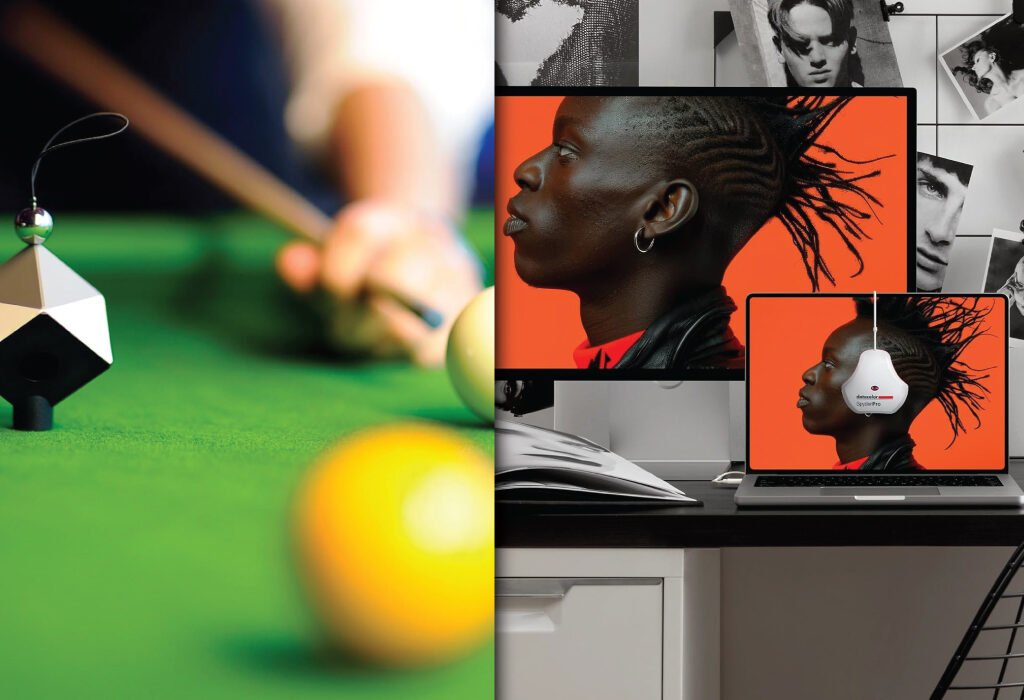
A dual-panel image showing a Datacolor SpyderCube on a pool table and a Datacolor SpyderX calibration tool on a laptop, demonstrating the use of a Datacolor Spyder Photo/Video Kit for a calibrated display.
Ensure color accuracy across all your screens with the powerful Datacolor Spyder Photo/Video Kit.

Choosing the Right Monitor for Calibration

Look for Professional-Grade Monitors

Not all monitors are made equal. For graphic design, invest in displays that support wide color gamuts like Adobe RGB and have 10-bit color depth. Brands like Eizo, BenQ, and Dell offer models designed for color-critical work.

Consider Panel Technology

IPS panels provide better color accuracy and viewing angles compared to TN or VA panels. This is crucial for design, where even small color shifts can impact your work.

Resolution and Screen Size Matter

Higher resolution screens (like 4K) allow for finer detail and more workspace. Screen size should match your work habits and desk space but aim for at least 24 inches for comfort and clarity.

The Impact of a Calibrated Display on Client Relationships

Builds Trust Through Accurate Presentation

When your designs match client expectations, it builds confidence in your professionalism. Accurate color representation reassures clients that you deliver high-quality work.

Reduces Miscommunication and Disputes

Color inconsistencies often cause disagreements between designers and clients. A calibrated display minimizes these issues by showing the correct colors from the start.

Enhances Portfolio and Brand Image

Consistent and vibrant designs improve your portfolio’s appeal. It reflects your attention to detail and dedication to quality, making you stand out in a competitive market.

Common Challenges and How to Overcome Them

Dealing with Multiple Devices and Color Profiles

Working with clients using different devices can be tricky. Understanding color profiles and managing them during the design process helps maintain accuracy across platforms.

Environmental Factors Affecting Calibration

Ambient light, screen reflections, and room color temperature affect how colors appear. Creating a controlled workspace with neutral lighting supports your calibrated display’s performance.

Budget Constraints for Calibration Tools

Hardware calibrators can be costly. For beginners or freelancers, starting with software calibration and upgrading later is a practical approach.

Tips for Maintaining Your Calibrated Display

Avoid Changing Monitor Settings Frequently

Once calibrated, avoid altering brightness, contrast, or color settings unless necessary. Frequent changes can throw off calibration accuracy.

Keep Your Workspace Consistent

Maintain consistent lighting and avoid glare to preserve color perception. Using curtains or blinds and positioning your monitor away from direct light sources helps.

Use Color Management in Your Design Software

Programs like Adobe Photoshop and Illustrator allow you to embed color profiles and preview colors accurately. Pairing a calibrated display with proper software settings maximizes results.

Final Thoughts on the Importance of a Calibrated Display for Graphic Designers

A calibrated display is not just a nice-to-have; it is an essential tool for every graphic designer committed to excellence. It elevates your design quality, streamlines your workflow, and strengthens client relationships. Investing time and resources into calibration pays off through more accurate colors, fewer revisions, and a more professional output.

By understanding how to calibrate your display, choosing the right monitor, and maintaining your setup, you ensure that your creative vision translates perfectly from screen to final product. In today’s competitive design world, a calibrated display sets you apart and supports your success.

lso, check the recent article about the best laptop for graphic design here.


What is a calibrated display?

A calibrated display is a monitor adjusted to show colors as accurately and consistently as possible, matching industry color standards. This ensures the colors you see while designing are true to life.

Why do graphic designers need a calibrated display?

Graphic designers need calibrated displays to ensure their designs have accurate colors that will look consistent across devices and in print. It reduces errors, revisions, and client dissatisfaction.

How often should I calibrate my monitor?

It’s recommended to calibrate your monitor every month or two to maintain accurate color display, as monitors tend to drift in color accuracy over time.

Can I calibrate my display without special tools?

While some basic software calibration tools exist, hardware calibrators like the Datacolor Spyder offer far superior accuracy and reliability for professional design work.

Does ambient light affect monitor calibration?

Yes, ambient lighting impacts how colors appear on your screen. Proper calibration tools measure room light and adjust your display accordingly for the most accurate color representation.